
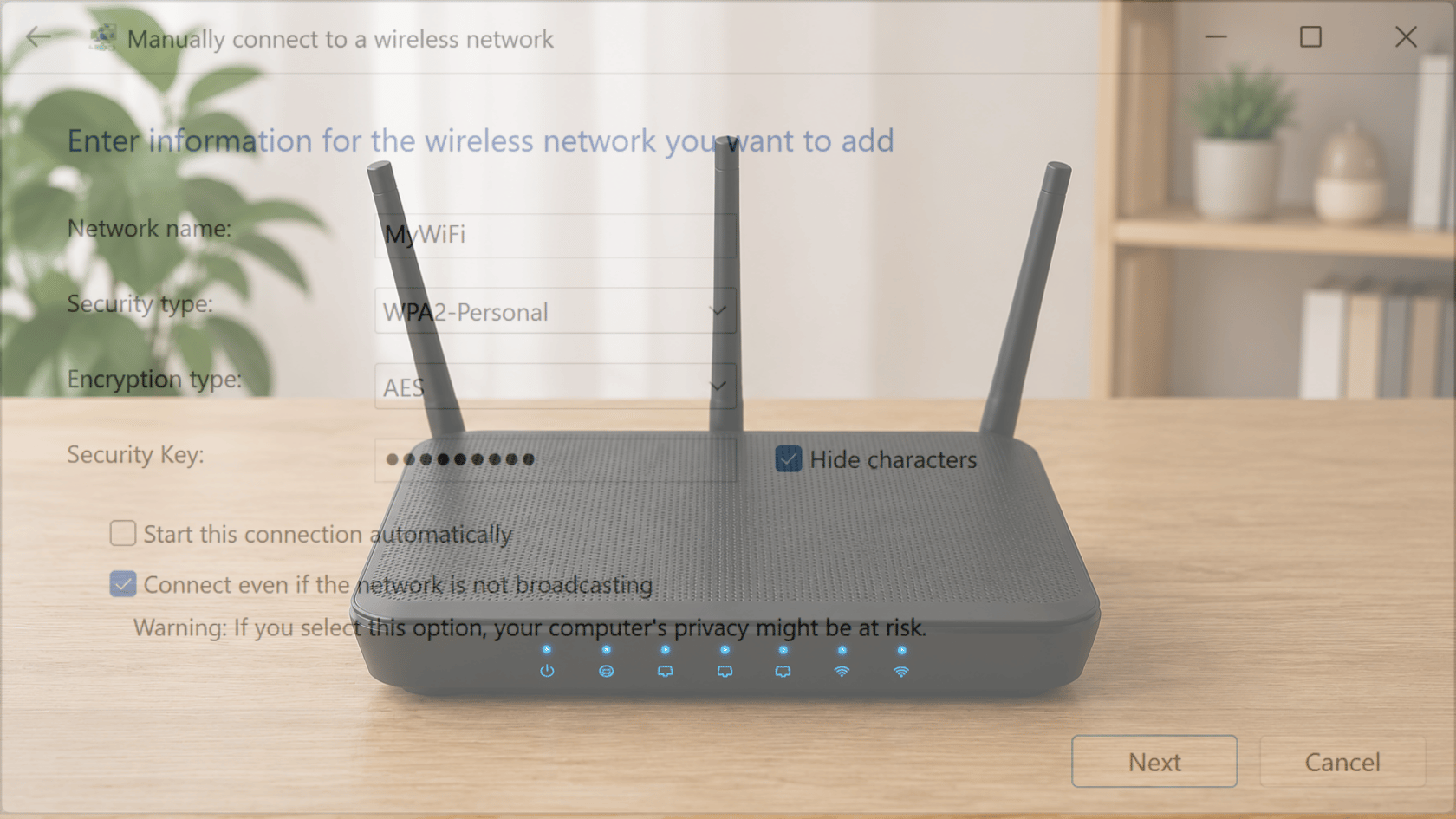
Many users get stuck when a Wi-Fi network asks for a security key, and the password is not clear. This creates confusion during connection on phones, laptops, and home routers.
The network security key controls who can access a wireless network and protects data. Here you will learn what the network security key is, how it works, and where to find it on different devices.
Simple steps and clear methods help find, change, and fix common issues, so connection problems can be handled without technical difficulty.
What Is a Network Security Key?
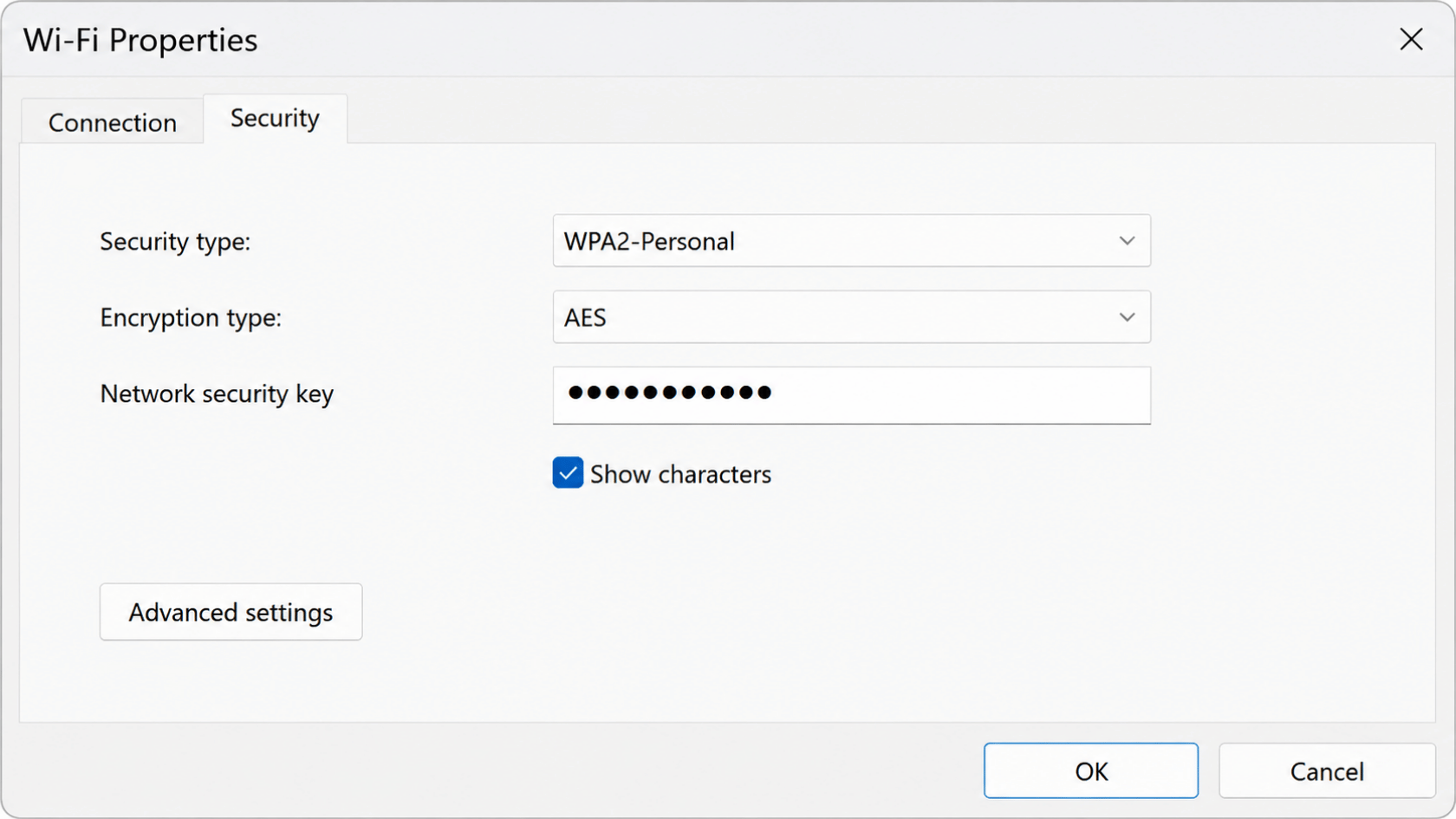
A network security key is a password or code that controls access to a wireless network. It allows only approved devices to connect to the internet safely.
It is not just a Wi-Fi password label. It serves as an authentication system that verifies access before allowing a device to join the network.
It can be a text password, a biometric check, or a digital signature in some systems. Routers use it by default to block unknown users and protect network access.
Why Does the Network Security Key Matter?
A network security key matters for two main reasons. First, it blocks unauthorized access by neighbors, hackers, and freeloaders who try to use your Wi-Fi without permission.
Second, it protects your data by encrypting information sent over the wireless network. This makes the data unreadable to outsiders in transit.
Without a network security key, your network is fully open. Anyone nearby can connect to your internet and potentially view unprotected data traffic.
Types of Network Security Keys
Below is a simple breakdown of the main security protocols used in wireless networks. These define how safe your Wi-Fi connection is:
| Protocol | Security Level | Status | Notes |
|---|---|---|---|
| WPA3 | Highest (256-bit) | Current best | Strongest protection, newer routers support it |
| WPA2 | High | Industry standard | Most home routers use this by default |
| WPA | Medium | Outdated | Still works, but not recommended |
| WEP | Very low | Obsolete | Easy to break, should be avoided |
WPA2 is the minimum recommended option for most networks because it balances safety and compatibility. WPA3 is better if your router supports it.
Most home Wi-Fi setups still run on WPA2, as it works well across devices and provides reliable protection.
How to Find the Network Security Key on Your Phone?
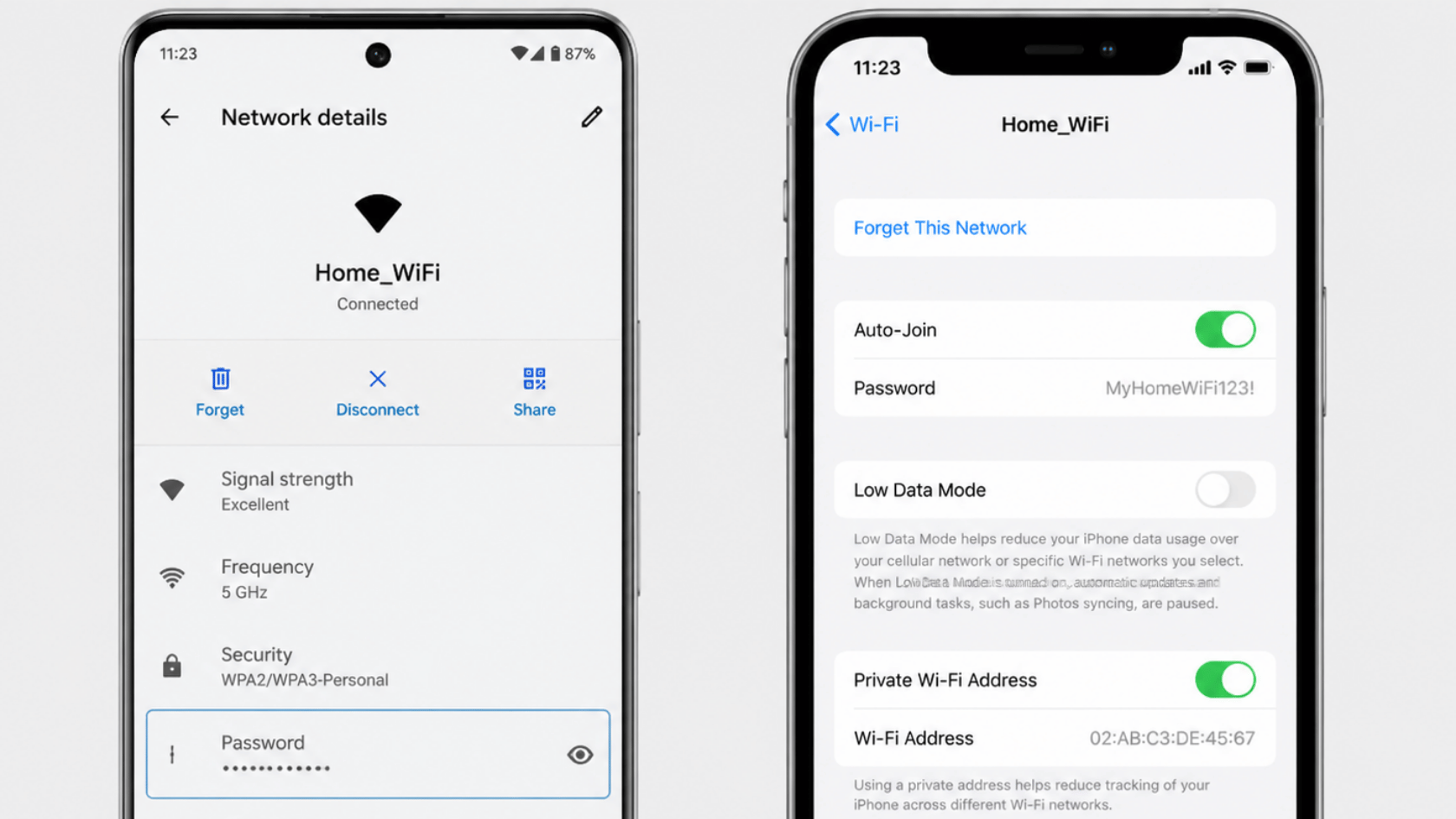
Finding a network security key on a phone depends on the device type. Follow the steps below for Android or iPhone:
Android Steps
- Open Settings on your phone.
- Go to Network & Internet.
- Tap Wi-Fi and select your connected network.
- Tap the Share or QR code option to view the key.
- For hotspot, open Hotspot & Tethering, then tap Wi-Fi Hotspot to see the password.
iPhone (iOS 16+) Steps
- Open Settings on your iPhone.
- Tap Wi-Fi.
- Select the (i) icon next to your connected network.
- Tap the password field to reveal the network security key.
- For hotspot, go to Personal Hotspot, then open Wi-Fi Password.
Steps may differ slightly depending on the phone model or software version, but the general process remains similar.
What Is a Network Security Key on a Laptop?
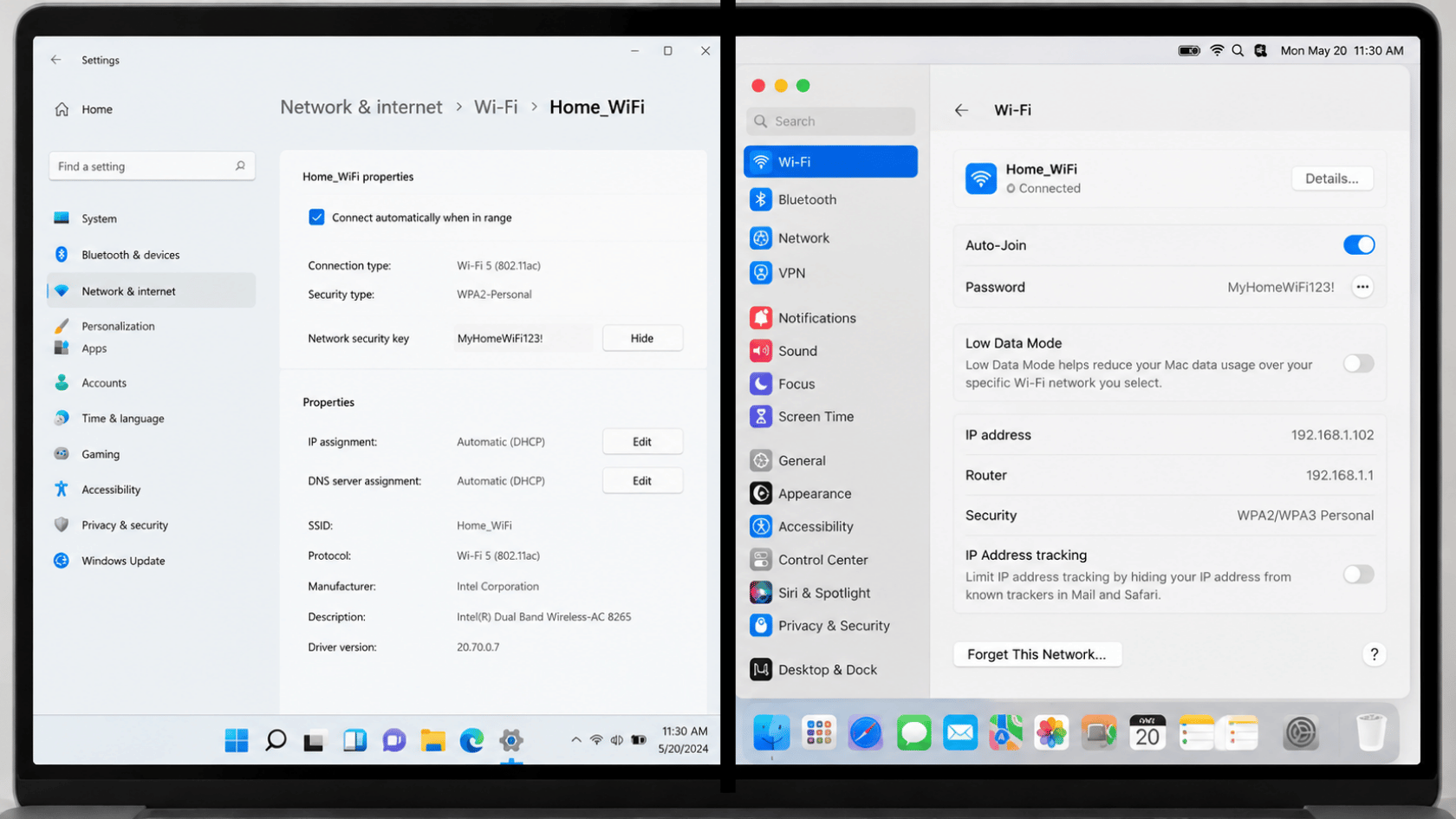
A network security key on a laptop is the Wi-Fi password used to connect to a secured wireless network. On Windows, it appears when connecting to a new network or after forgetting a saved one.
Windows Steps
- Open Control Panel.
- Go to the Network and Sharing Center.
- Select the Wi-Fi name and open Wireless Properties.
- Go to the Security tab and tick Show characters to view the password.
On Mac, the saved key can be found in system settings or Keychain Access.
Mac Steps
- Open System Settings and go to Wi-Fi.
- Click Details next to the connected network.
- Or open Keychain Access, search the network name, then select Show Password.
The same network security key works across all devices since it is stored on the router.
Changing Your Network Security Key
Changing a network security key is done through the router settings. Follow these simple steps to update it safely.
- Open a browser and log in to your router admin panel using 192.168.1.1 or 192.168.0.1.
- Enter your username and password.
- Go to Wireless or Wi-Fi Settings.
- Find the password field and enter a new network security key.
- Click Save to apply changes.
For better security, use a key with at least 12 characters. Mix letters, numbers, and symbols. Avoid simple or common words.
After updating the key, all connected devices will disconnect. Each device must reconnect using the new password to regain internet access.
Common Network Security Key Errors & Quick Fixes
Before checking the table below, understand that most network security key issues are simple password, device, or router-related problems. The fixes below help solve them quickly.
| Error | Meaning | Quick Fix |
|---|---|---|
| Network security key mismatch | Wrong password or the caps lock is ON | Re-enter the password carefully and check the Caps Lock |
| The device won’t connect despite the correct key | Saved network issue or glitch | Forget the network and reconnect again |
| Key not working after router reset | Default password restored | Check the router sticker for new key |
| Keeps prompting for the key | Driver or Wi-Fi profile issue (Windows) | Update Wi-Fi driver or reset network settings |
These quick fixes solve the most common connection issues in seconds. Always verify the password, then restart the device if the problem persists.
Conclusion
A clear understanding of what the network security key is helps you manage Wi-Fi access and solve common connection problems with ease. It plays an important role in keeping your internet connection safe and under control.
Use this knowledge to find, change, or fix your network key whenever needed. Simple checks like verifying the password or router settings can quickly solve most issues.
One key reminder is to always keep your network security key strong and up to date for better protection.
If you still have questions or face issues, feel free to drop a comment below.
Frequently Asked Questions
Can I View the Network Security Key without Changing it?
Yes. You can view it from the saved Wi-Fi settings on your phone or laptop if the device is already connected. Some systems may require admin access to reveal it.
Does Every Wi-Fi Network Have a Network Security Key?
Yes. Most Wi-Fi networks use a network security key by default to control access and keep the connection protected from unauthorized users.
What Happens if I Enter the Wrong Network Security Key Too Many Times?
Most routers will temporarily block new attempts after repeated wrong entries. This is a safety feature to prevent unauthorized access attempts.