Every time you hit send on an email carrying sensitive information, you are taking a risk. Anyone who intercepts it along the way can read every word.
The good news is that learning how to send an encrypted email is easier than most people think. Your existing tools, like Gmail, Outlook, and Apple Mail, already have built-in options.
You do not need to be a tech expert to protect your messages. A few simple steps are all it takes.
What Is Email Encryption?
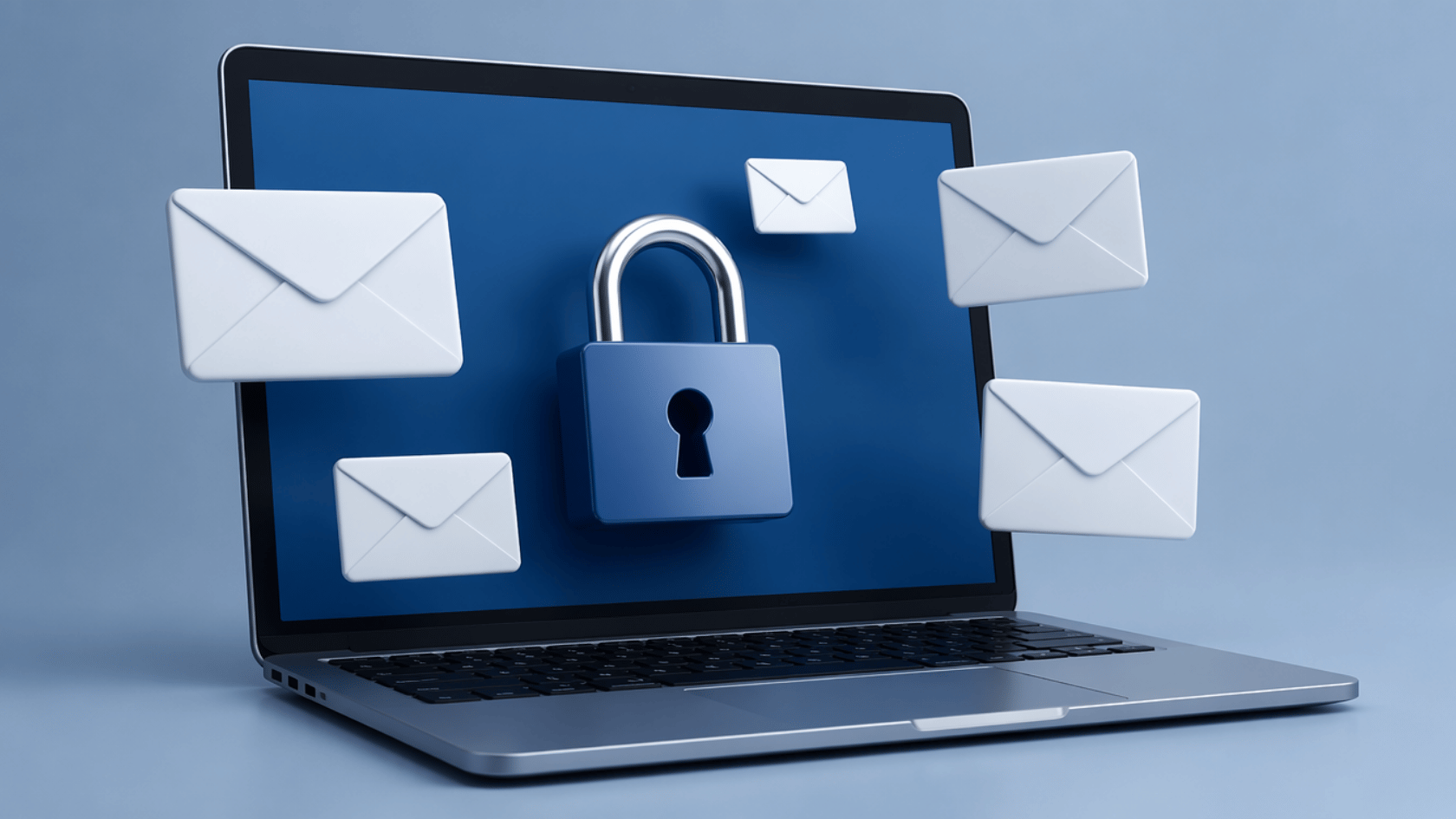
Email encryption scrambles your message so only the intended recipient can read it. Without it, anyone who intercepts your email can read every word.
There are two types to know:
- TLS (In-Transit): Protects your email while it travels between servers. Most providers use this by default, but your email can still be read once it arrives.
- E2E (End-to-End): Keeps your email locked from your device all the way to the recipient’s device. Only they can read it.
If you are sending legal documents, tax records, or financial information, end-to-end encryption is the safer choice.
How to Send Encrypted Email in Outlook?
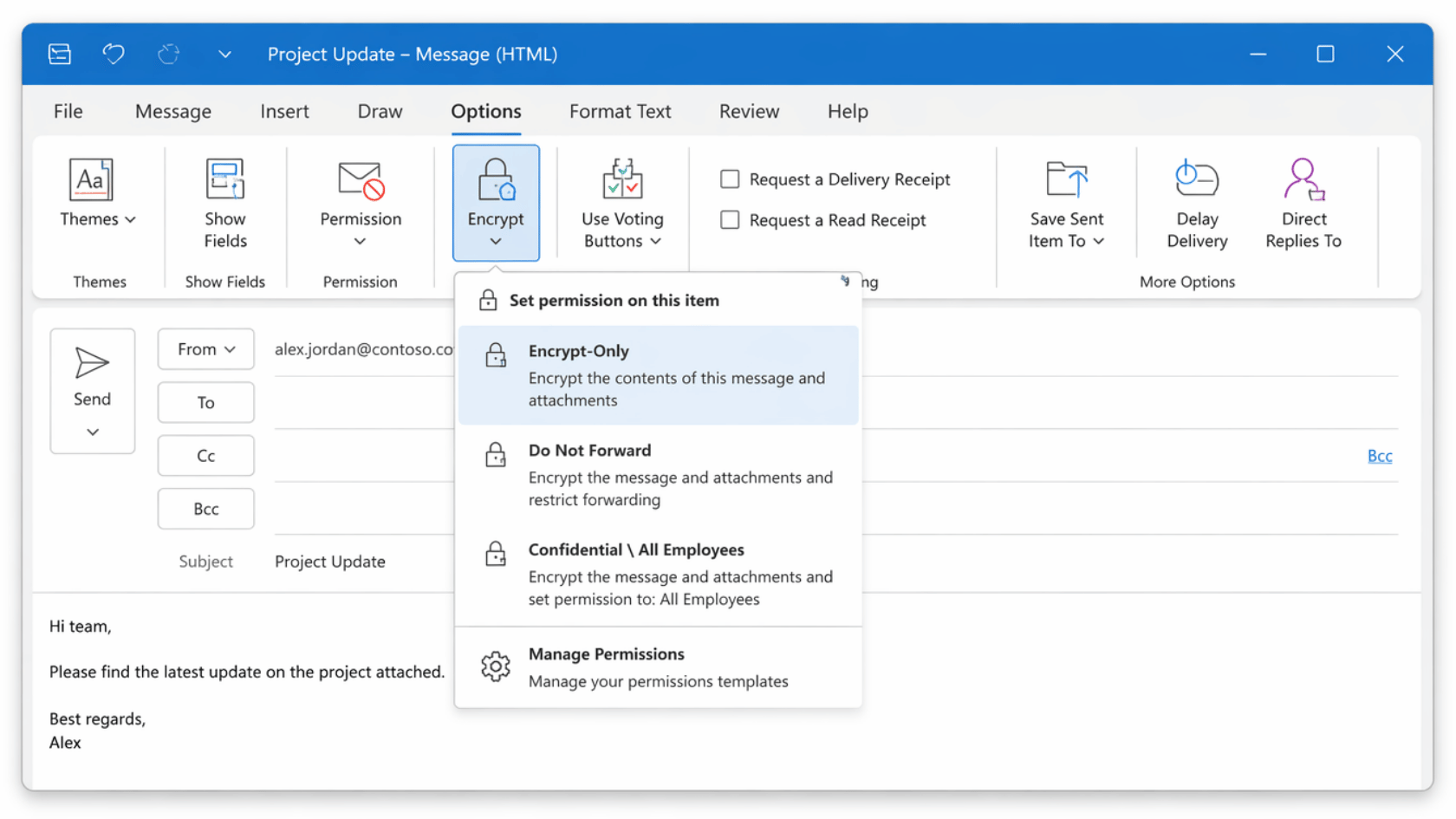
Sending an encrypted email in Outlook on desktop takes less than a minute. Follow these steps to get it done:
- Open Outlook and click New Email to start a new message.
- Click the Options tab at the top of the compose window.
- Click the Encrypt button and pick one of the two options from the table.
| Option | What It Does |
|---|---|
| Encrypt-Only | Recipient can read, forward, and download the email freely |
| Do Not Forward | Recipient can read it, but cannot forward, copy, or print it |
- Add your recipient, write your message, and hit Send.
Your email is now encrypted and ready to go. Outlook users on Microsoft 365 will open it normally. Everyone else gets a secure link to read the message.
The steps for Outlook on Web are nearly the same as the web version. Start a new message, click Options, and look for the padlock icon to turn on encryption. Both Encrypt-Only and Do Not Forward are available here, too.
How to Send Encrypted Email in Gmail?
Gmail gives you two ways to send encrypted email, depending on the type of account you have.
1. Gmail Confidential Mode
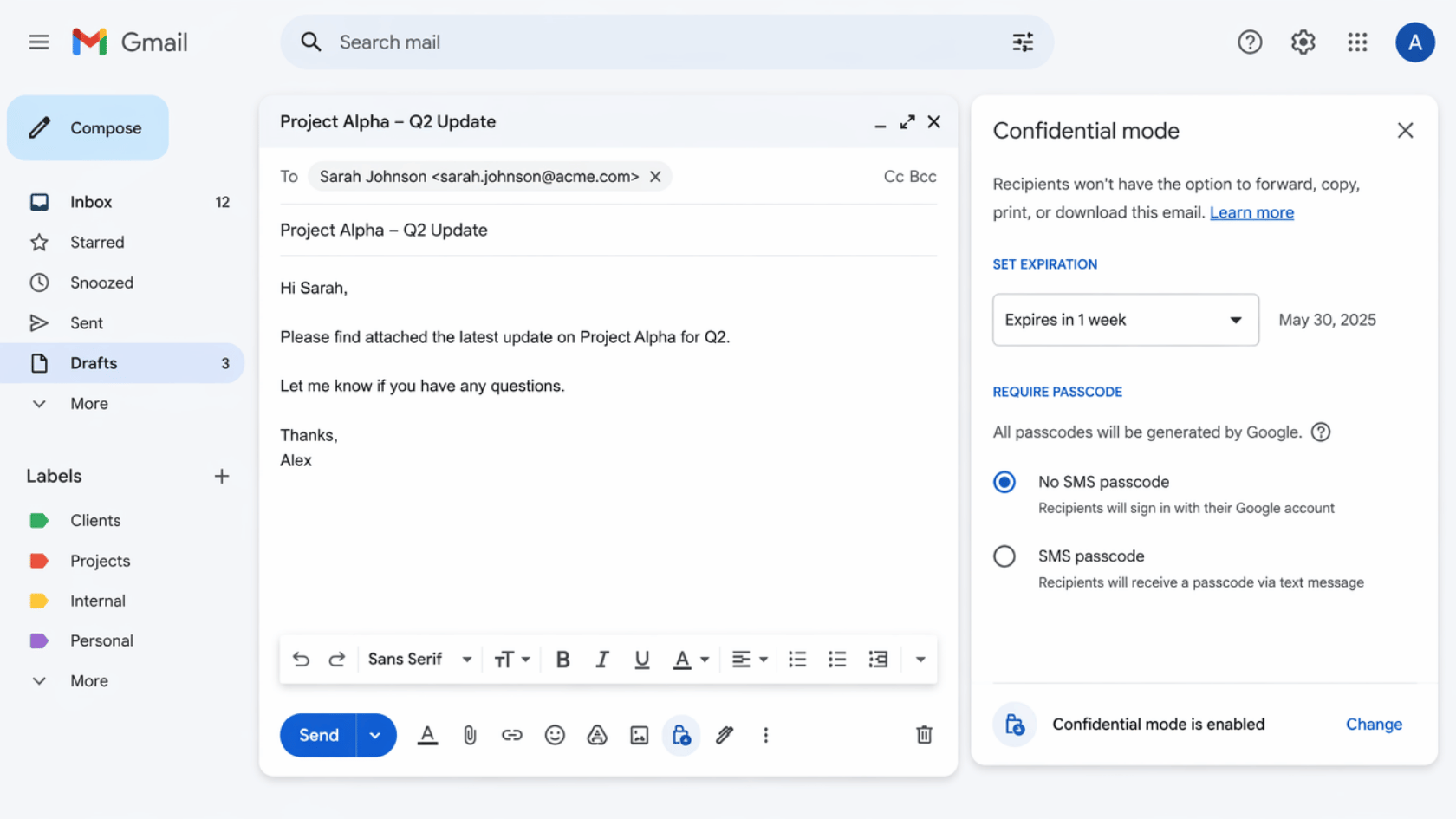
Gmail’s Confidential Mode lets you add basic protection to any email. It is built into Gmail and is free for all standard users.
Follow these steps to use it:
- Open Gmail and click Compose.
- Look for the clock and lock icon at the bottom of the compose window.
- Click it and set an expiry date for the email.
- Optionally, add an SMS passcode so the recipient must verify their identity to open the message.
Confidential Mode works best for stopping accidental forwarding or putting a time limit on messages with sensitive information.
2. Gmail S/MIME
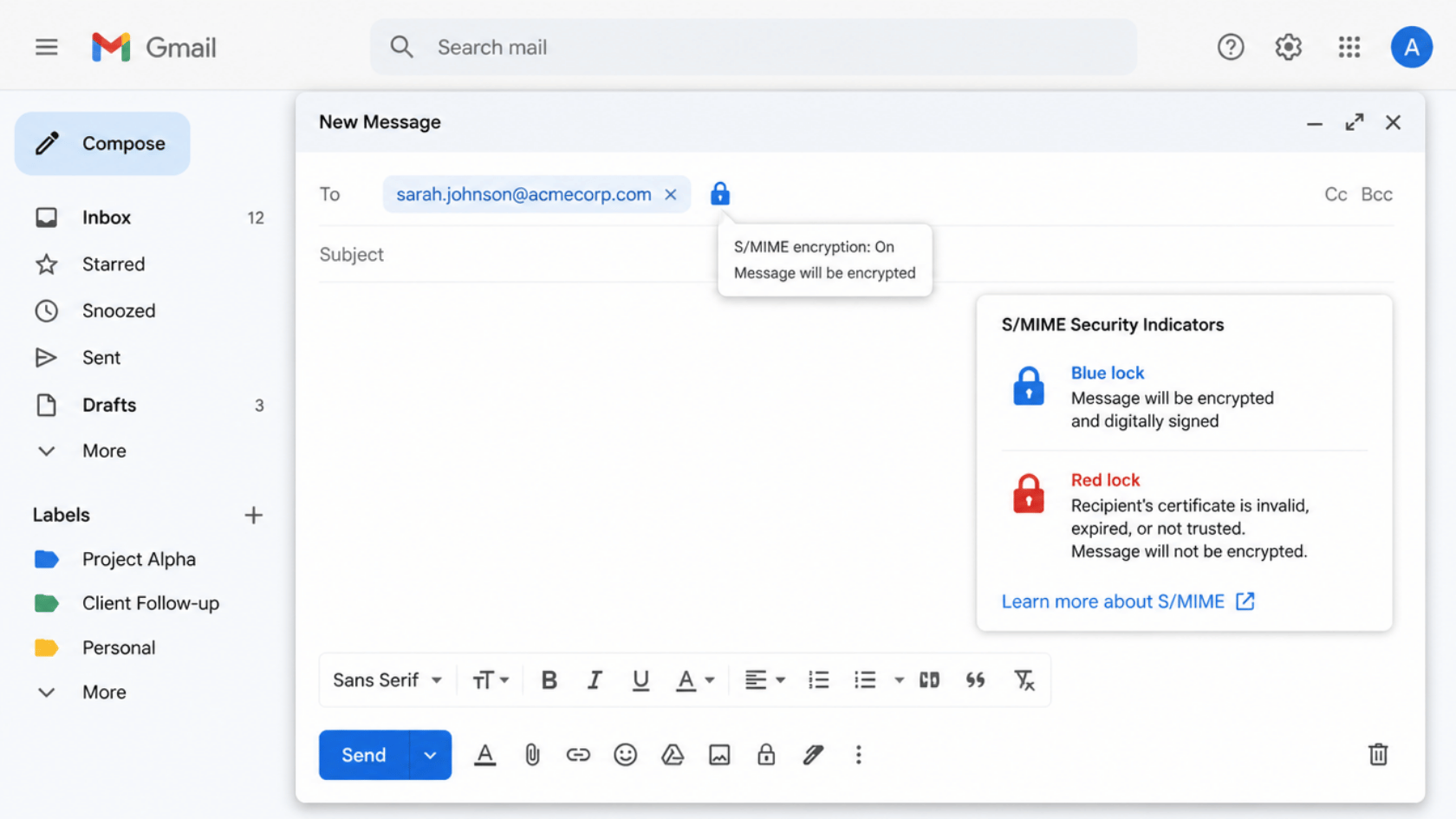
S/MIME is a stronger option, but it is only available to Google Workspace users. The organization’s admin must enable it before anyone can use it.
Each user also needs a digital certificate installed on their account. Once set up, a small lock icon appears next to the recipient’s name while composing.
| Lock Icon Color | What It Means |
|---|---|
| 🔵 Blue | Recipient supports S/MIME. Safe to send an encrypted email. |
| 🔴 Red | Recipient is not set up for S/MIME. The email will not be encrypted. |
S/MIME is best suited for business or enterprise environments where both sides are already configured.
How to Send Encrypted Email on Mac?
Mac users have two options for sending encrypted email. Pick the one that fits your comfort level.
1. Apple Mail with S/MIME
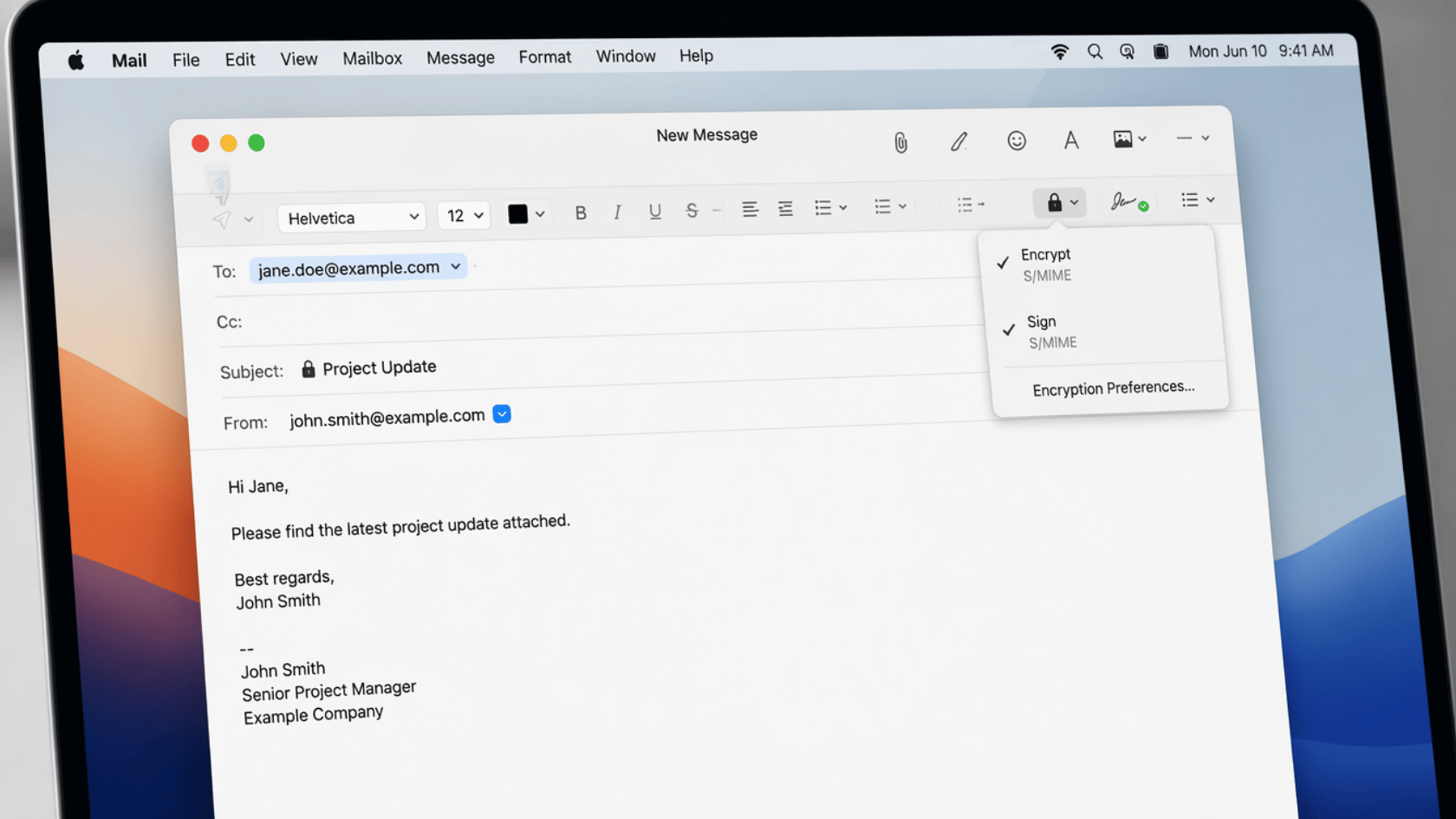
Apple Mail supports encryption through S/MIME, but it needs a quick setup before you can use it. Follow these steps to get started:
- Get a digital certificate from a trusted certificate authority such as Comodo or DigiCert.
- Install the certificate on your Mac.
- Open Apple Mail and start a new message.
- Look for the lock icon next to the subject line and click it to encrypt the email.
- Click the tick mark icon beside the lock to add a digital signature, which confirms the email came from you and was not changed during delivery.
Once both icons are active, your email is encrypted and verified before it leaves your device.
2. Proton Mail on Mac
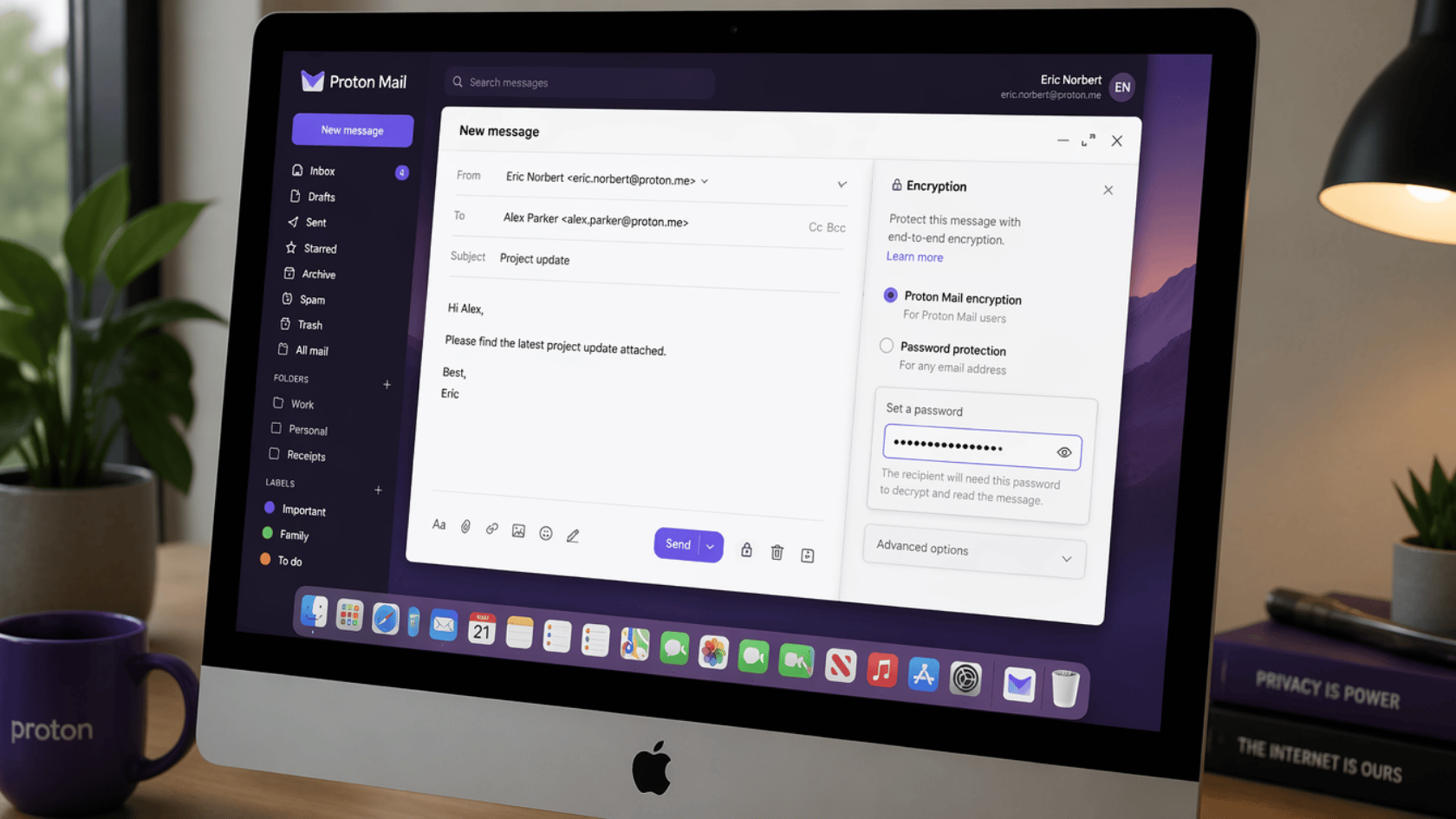
If the certificate setup feels like too much work, Proton Mail is a simpler option with no configuration needed. Follow these steps to send an encrypted email:
- Open Proton Mail in any browser or download the Proton desktop app.
- Sign in and click New Message.
- Type your recipient’s address. If they use Proton Mail, encryption is automatic.
- For non-Proton recipients, click the lock icon in the compose window and set a password.
- Hit Send . Non-Proton recipients will get a link and must enter the password to read the message.
No certificates, no admin settings. Just a straightforward way to send an encrypted email on Mac.
Sending Encrypted Files via Email
Sometimes the file itself needs protection, not just the email carrying it. Encrypting the file before sending adds an extra layer of security, even if the email gets intercepted.
Password-Protect the File Before Sending
Encrypting the file before attaching it adds an extra layer of security, especially for sensitive documents or financial records.
- For any file or folder, use 7-Zip (free). Right-click the file, add it to an archive, set encryption to AES-256, and create a password.
- For PDF files, use Adobe Acrobat or the free tool PDFEncrypt to add a password before opening.
- For Word, Excel, or PowerPoint, go to File, click Info, select Protect Document, and choose Encrypt with Password.
Always share the password separately through a text or phone call. Never send it in the same email as the file.
Use a Secure File Transfer Service
A secure file transfer service is a better option when the file is large or when the recipient does not have an encrypted email set up on their end.
- WeTransfer Pro lets you send files with password protection and an automatic expiry date.
- Google Drive allows you to share files with restricted access so that only specific people can open them.
- OneDrive lets you generate a password-protected link for any file you want to share.
- Use a transfer service when the file is too large to attach directly to an email.
- It also works well when you want the link to stop working after a set period of time.
These services give you more control over who can access your files and for how long after sending.
Best Encrypted Email Providers
Built-in options like Gmail and Outlook work for most people. But if you send sensitive data regularly, a dedicated encrypted email provider is worth considering.
| Provider | Free Plan | Automatic E2EE | Best For |
|---|---|---|---|
| Proton Mail | Yes | Yes | Anyone wanting a private, easy-to-use email account |
| Tuta | Yes | Yes | Users who prefer open-source software on desktop and mobile |
Both providers encrypt your emails on their servers and cannot read your messages or share your data with third parties.
Conclusion
Knowing how to send an encrypted email is not a really difficult or lengthy process. Most of the options covered here are already built into the tools you use every day.
Start with what you already have. Gmail and Outlook both offer basic encryption with just a few clicks. If your work involves sensitive files or legal documents, Proton Mail or Tutanota offer stronger protection.
The most important step is simply getting started. Even basic encryption is far better than sending sensitive information without any protection.
Have a question or want to share which method worked for you? Drop a comment below.
Frequently Asked Questions
What Happens if The Recipient’s Email Provider Does Not Support Encryption?
It depends on the method used. Outlook sends a secure link instead. Proton Mail lets you set a password. In some cases, the email may be delivered without encryption, so always verify first.
Does Encrypting an Email Slow Down the Sending Process?
No. Encryption happens instantly in the background. There is no noticeable delay when sending an encrypted email through Outlook, Gmail, or Proton Mail.
Does Email Encryption Work for Group Emails?
Yes, but all recipients need to be set up for the same encryption method. If even one recipient is not configured, the email may not be fully encrypted for that person.