The LinkedIn banner size matters more than most people realize. It directly affects how clean and professional your profile looks to anyone who visits it.
LinkedIn has different banner dimensions for personal profiles, company pages, and events. Using the wrong size can make your banner look stretched, blurry, or cropped in the wrong places.
Getting the size right is just one part. You also need to think about safe zones, file formats, and how the banner appears on both mobile and desktop screens.
Quick Answer: What is Linked in Banner Size?
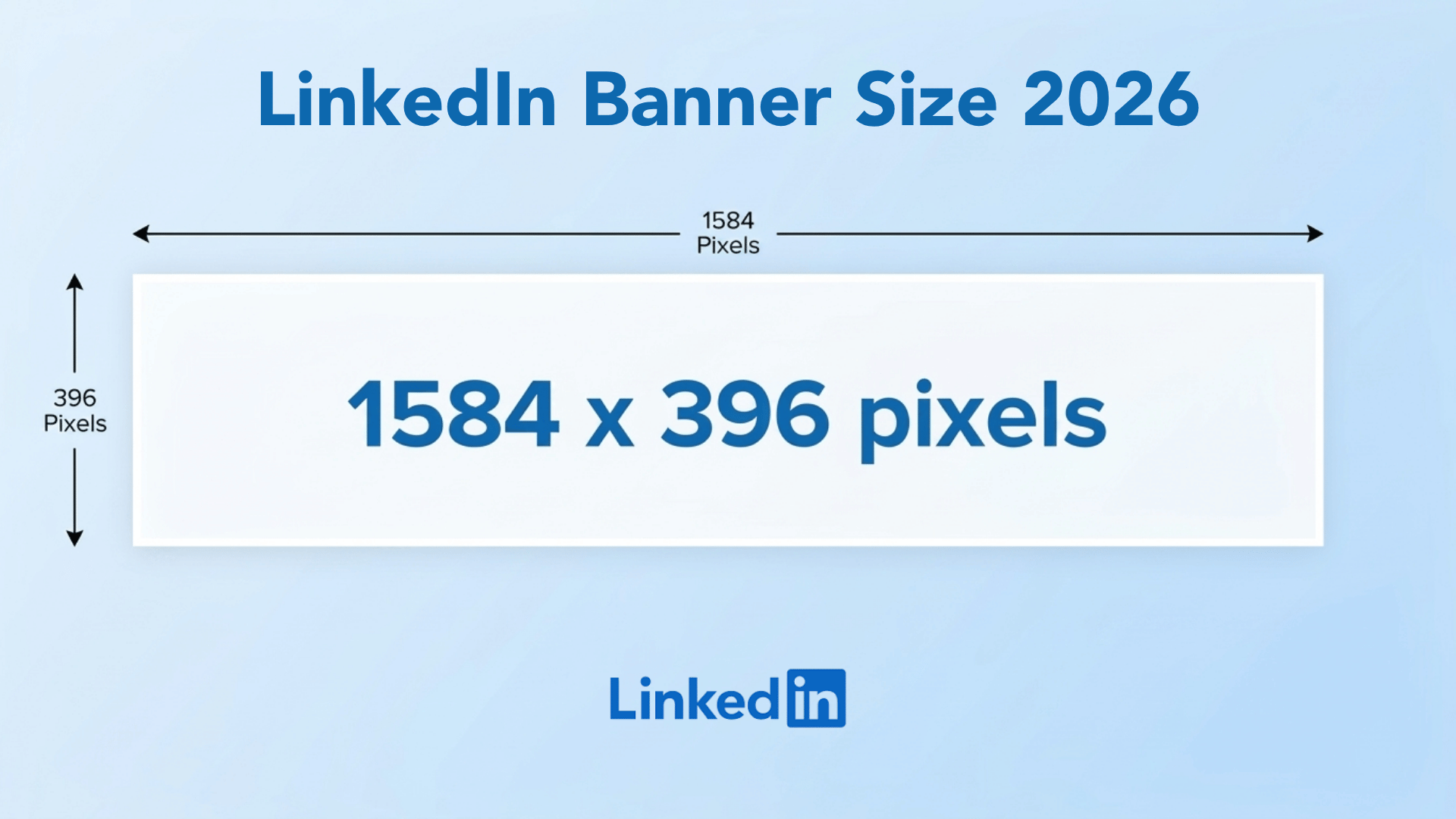
The LinkedIn banner size is 1584 × 396 pixels for personal profiles and 1128 × 191 pixels for company pages. Event banners use 1600 × 900 pixels. Keep key content in the center safe zone to avoid cropping. Use JPG or PNG files within LinkedIn’s upload limits.
What is LinkedIn Header Size?
The LinkedIn banner (aka header) is the wide image that appears at the top of your profile or page. It is the first visual element anyone sees when they visit your LinkedIn.
The banner size changes depending on the type of page. Personal profiles, company pages, and event pages each have their own specific dimensions and aspect ratios.
| Banner Type | Dimensions | Aspect Ratio |
|---|---|---|
| Personal Profile | 1584 × 396 px | 4:1 |
| Company Page | 1128 × 191 px | ~6:1 |
| Event Page | 1600 × 900 px | 16:9 |
LinkedIn Image Requirements You Must Know
LinkedIn also has specific rules for file types, upload sizes, and how your banner displays across different devices.
1. File Type and Size Limits
LinkedIn only accepts JPG and PNG file formats for banner uploads. Other formats like GIF or WebP are not supported and will be rejected during upload.
Heavy compression can make your banner look pixelated or blurry after upload. Always export at the highest quality possible while staying within the file size limit.
| Page Type | Accepted Formats | Max File Size |
|---|---|---|
| Personal Profile | JPG, PNG | 8MB |
| Company Page | JPG, PNG | 3MB |
| Event Page | JPG, PNG | 8MB |
2. Safe Zone Rules
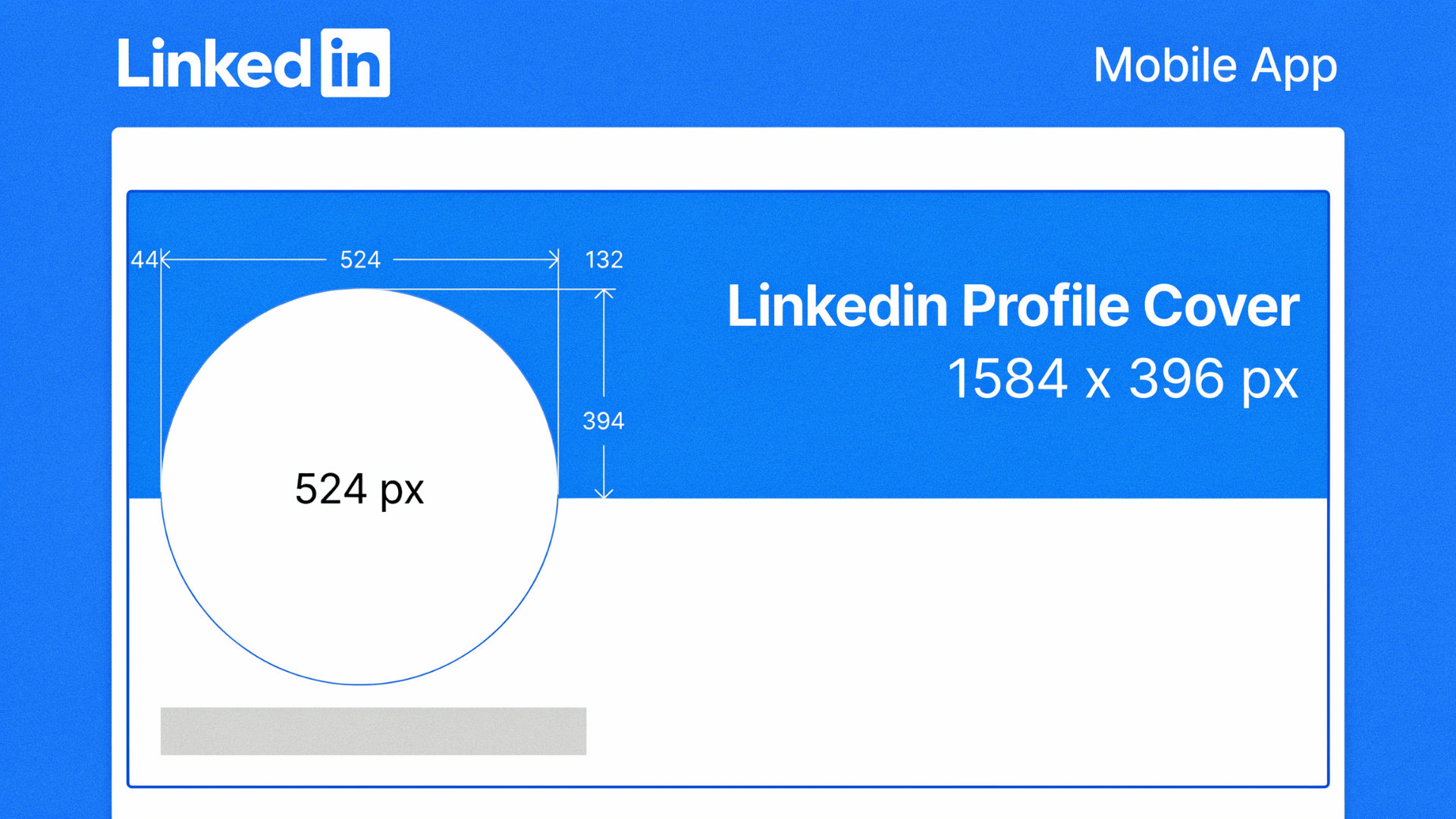
On personal profiles, the circular profile photo is located in the bottom-left corner of the banner. Anything placed in that area will be covered and completely hidden from visitors.
The edges of your banner are also risky, as LinkedIn may crop them across different screen sizes. Always keep text, logos, and key design elements away from the borders.
|
Quick Tip: Follow these safe zone rules to avoid losing important content:
|
3. Mobile vs Desktop Display
LinkedIn banners look different on mobile and desktop screens. Desktop shows more of the banner width, while mobile trims the sides and focuses on the center portion.
Always check your banner on a mobile screen before publishing. What looks balanced on a desktop can shift or get cropped in unexpected ways on a smaller device.
How to Resize a LinkedIn Banner?
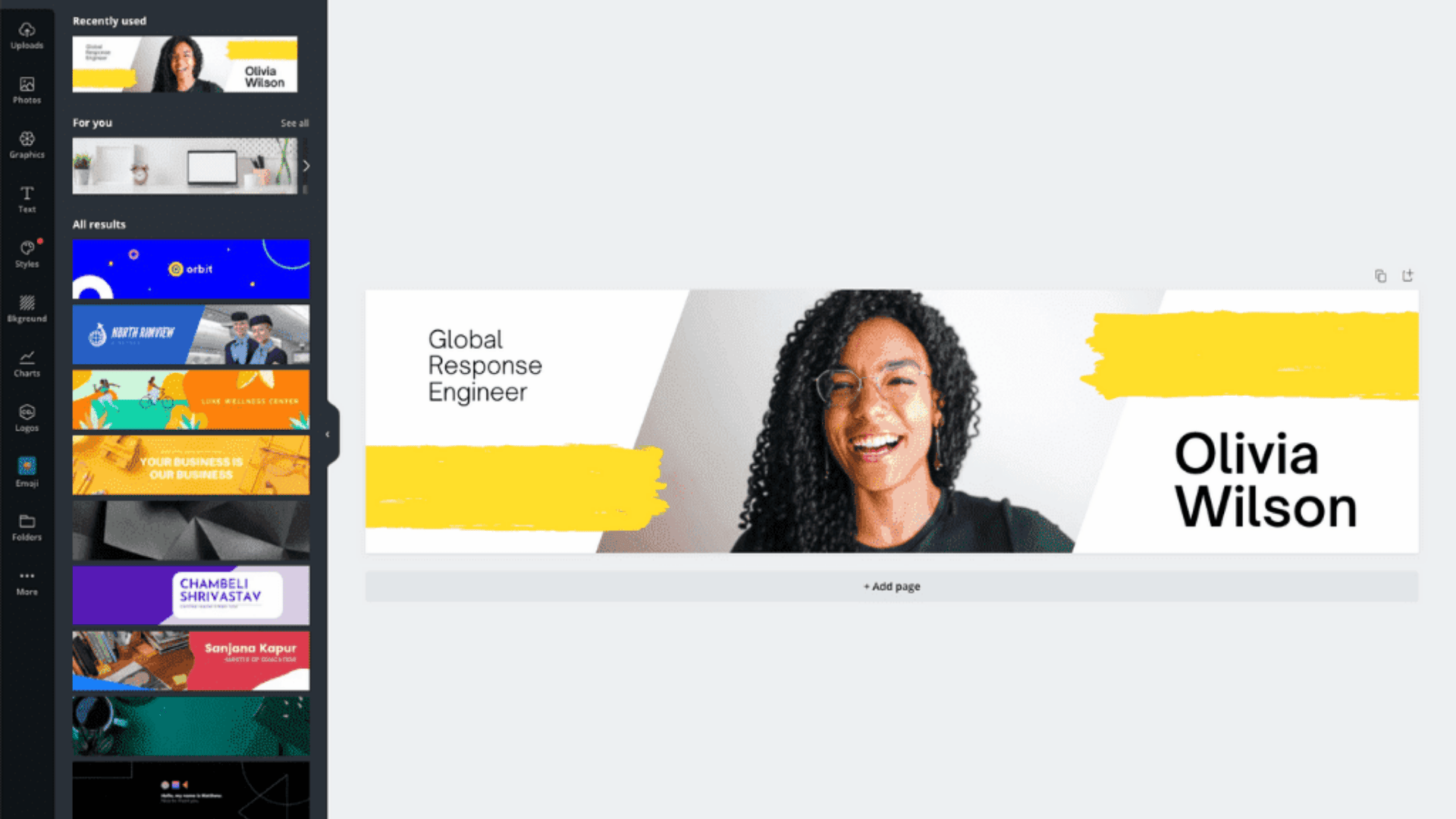
Source: Canva
Resizing a LinkedIn banner does not require advanced design skills. There are several tools available that make it easy to get the exact dimensions right on the first try.
1. Canva Templates
Canva has pre-built LinkedIn banner templates that already come set to the correct dimensions. This means you do not need to manually calculate or set the canvas size yourself.
The drag-and-drop editor makes it simple to add text, images, and brand colors without any design experience. Once the design is ready, export it as a JPG or PNG for direct upload to LinkedIn.
Get the most out of Canva for your LinkedIn banner:
- Search “LinkedIn banner” in Canva to find ready-made templates
- Stick to the preset canvas size and avoid resizing the template
- Use the download settings to export at the highest quality
- Select PNG for designs with text and JPG for photo-heavy banners
2. Figma Presets
Figma gives you full control over your canvas size and layout, making it a great option for more precise banner designs. You can set the exact pixel dimensions and use grids to keep everything aligned.
The grid feature in Figma is especially helpful for maintaining consistent spacing and safe zone margins. It keeps your design structured and reduces the chance of elements shifting during export.
3. Manual Resizing
If you prefer working in tools like Photoshop or any other image editor, you can manually set the canvas to the correct LinkedIn banner size. Start by entering the exact pixel dimensions before adding any design elements.
Best Practices for LinkedIn Banner Design
Clarity, consistency, and mobile-readiness are the three things every good LinkedIn banner has in common. Getting these right means your banner works well across every screen and every audience.
- Use a maximum of one to two lines of text and focus on a single message such as your role or a simple value statement
- Match your banner colors, fonts, and visual style to your existing brand materials for a consistent look
- Place your logo in the center or right side to avoid the profile photo overlap area on the left
- Keep all important content within the center third of the image and avoid placing anything near the left or right edges
- Choose a font size large enough to read on mobile and always preview your banner on a smaller screen before publishing
- Stick to one clear focal point and remove any element that does not directly support your main message
- Use negative space to give your design room to breathe
LinkedIn Banner Size Comparison Table
LinkedIn uses different banner sizes across its various page types. Using the correct dimensions for each format saves time and prevents blurry or cropped results after uploading.
The table below covers all four banner types along with their aspect ratios, accepted file formats, and primary use cases for quick reference:
| Banner Type | Dimensions | Aspect Ratio | File Format | Use Case |
|---|---|---|---|---|
| Personal Profile | 1584 × 396 px | 4:1 | JPG, PNG | Individual profiles |
| Company Page | 1128 × 191 px | ~6:1 | JPG, PNG | Business pages |
| Event Page | 1600 × 900 px | 16:9 | JPG, PNG | LinkedIn events |
| Group Page | 1536 × 768 px | 2:1 | JPG, PNG | LinkedIn groups |
Wrapping Up
Getting the LinkedIn banner size right is the first step toward making a strong impression on your profile. Every dimension, format, and placement rule covered here serves that one goal.
A correctly sized and well-placed banner signals that you pay attention to detail. That matters whether you are a freelancer, a job seeker, or a business.
Small design choices add up to a profile that feels credible and worth paying attention to.
Have you tried updating your LinkedIn banner recently? Share your experience or any tips in the comments below!
Frequently Asked Questions
Why Does My LinkedIn Banner Look Blurry After Uploading?
Blurry banners are usually caused by uploading at low resolution or over-compressing the file before export. Always upload at the correct pixel dimensions and keep the file size close to the maximum limit.
Can I use an animated GIF as my LinkedIn banner?
LinkedIn does not officially support animated banners. If a GIF is uploaded, it renders as a still image. Stick to JPG or PNG formats for the best display quality across all devices.
What Is the Exact Safe Zone Size for a LinkedIn banner?
The true safe zone for text on a LinkedIn banner is roughly 1000 × 250 pixels, centered toward the right side of the image. Keeping content within this area prevents cropping on any device.