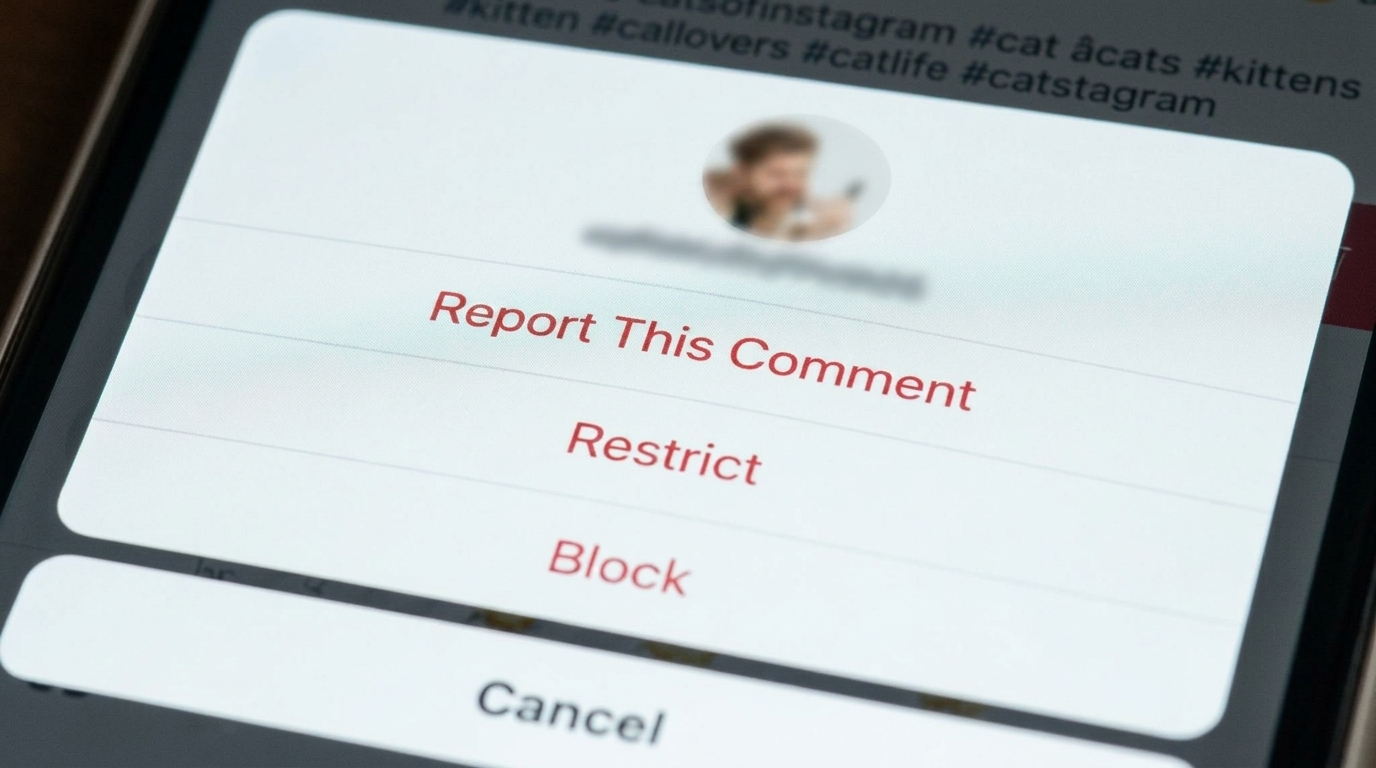
Some interactions on social media do not need a dramatic exit; they just need a quieter kind of boundary.
Instagram quietly built a way to filter out certain accounts without unfollowing, blocking, or making anything obvious to the other side. Knowing how to restrict someone on Instagram hands back control in the most subtle way possible.
The person on the other end sees nothing different, yet everything shifts from how comments appear to how messages land and how online visibility gets handled.
It is one of those features most people scroll past without realizing how much it changes things behind the scenes.
Quick Understanding of the Restrict Feature
Instagram Restrict works like a quiet filter placed between full access and a complete cutoff. It does not announce itself, yet it quietly changes how interactions appear across posts and messages, and how visibility signals are shown.
It fits into a middle zone where control stays in place without creating obvious friction. The other account continues to exist normally, but its actions get redirected in controlled ways.
Key idea in short points
- Keeps interactions limited without blocking access entirely
- Hides comments so only the commenter can see them unless approved
- Sends messages into a filtered request space instead of the direct inbox flow
- Removes activity status visibility so online presence stays private
- Applies across multiple entry points like profile, chats, comments, and settings panel
How to Restrict Someone on Instagram?
Sometimes an account needs limited access without creating a visible change on the other side. Instagram’s restrict option makes that possible through a few simple entry points inside the app.
Each method works from a different screen, so it can be chosen based on where interaction is happening:
How to Restrict Someone via Profile?
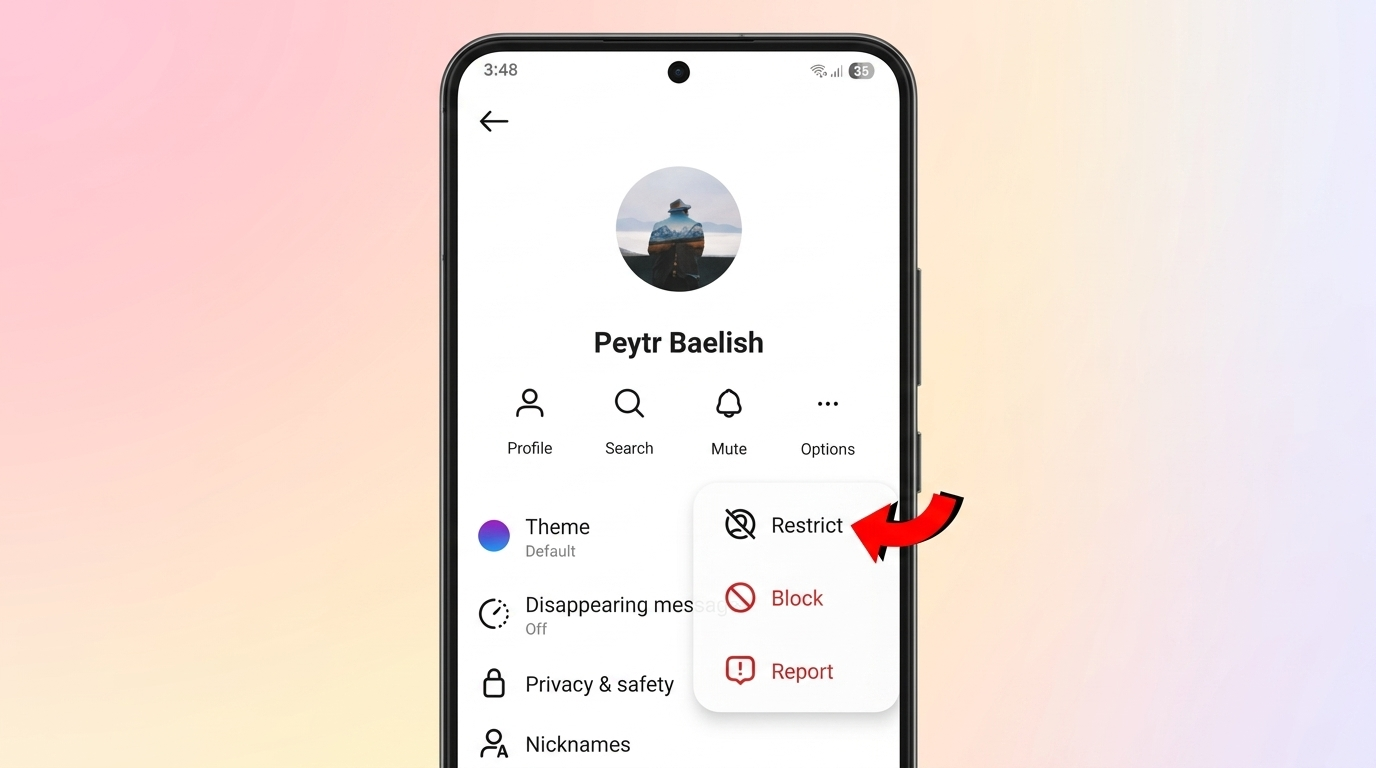
This method works best when someone’s profile is easy to find, and you want full control in one place. It takes just a few taps and works quietly in the background.
Steps:
- Open the Instagram app and tap the search icon at the bottom
- Type the username of the account you want to limit access for
- Tap their profile from the search results to open it fully
- Look at the top right corner and tap the three dots icon (•••)
- A menu will appear with multiple options like block, report, and restrict
- Tap “Restrict” from the list
- Instagram may show a quick explanation screen. Tap confirm to finish
After this, the account is restricted without any notification being sent to them.
How to Restrict Someone via Direct Messages?
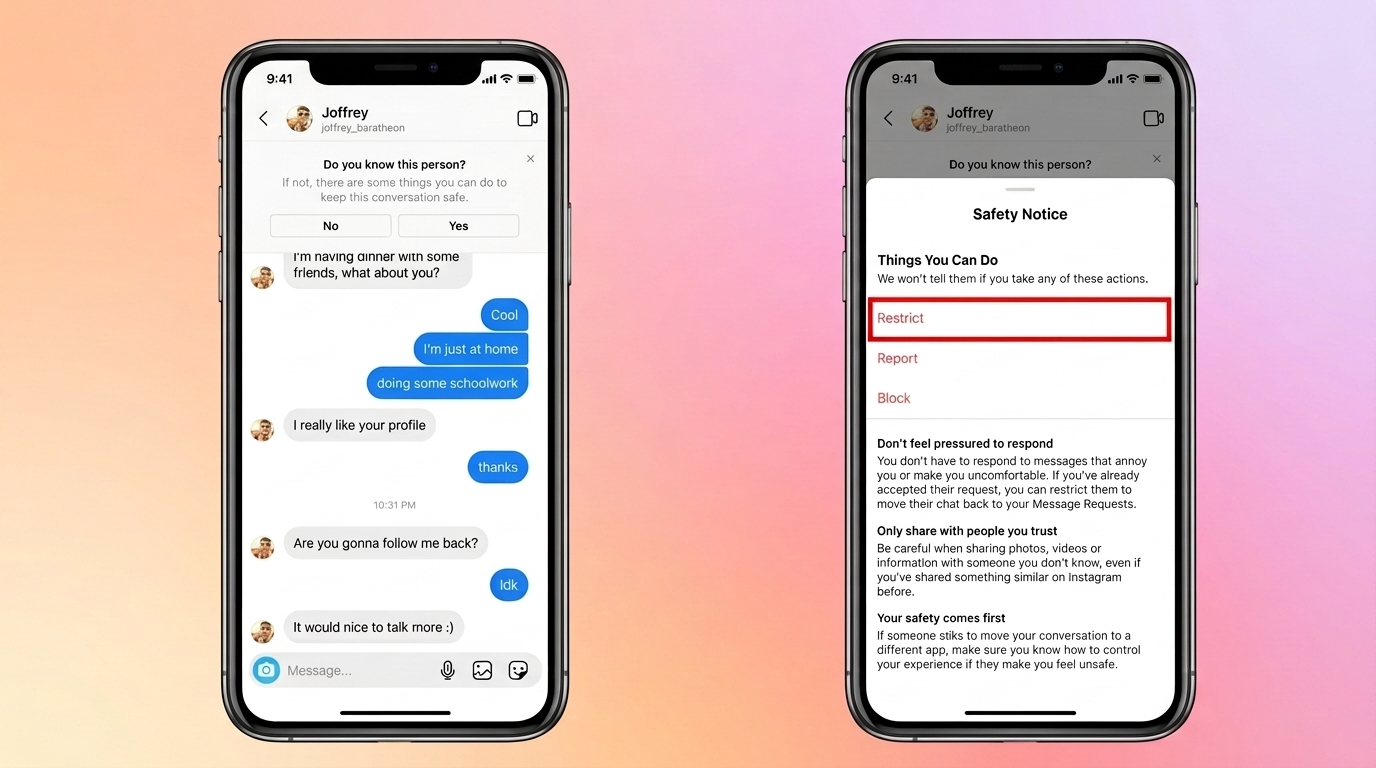
This option is useful when you already have an ongoing chat and want to limit interaction without visiting their profile.
Steps:
- Open Instagram and go to the messages icon at the top right
- Scroll or search inside inbox to find the conversation
- Tap on the chat to open the full message thread
- At the top of the screen, tap the person’s name or profile bar
- A new page opens showing chat settings and controls
- Scroll or look for the options section and tap “Restrict”
- Confirm the action when Instagram asks for approval
Once done, their future messages shift into message requests without normal notifications.
How to Restrict Someone via Comments?
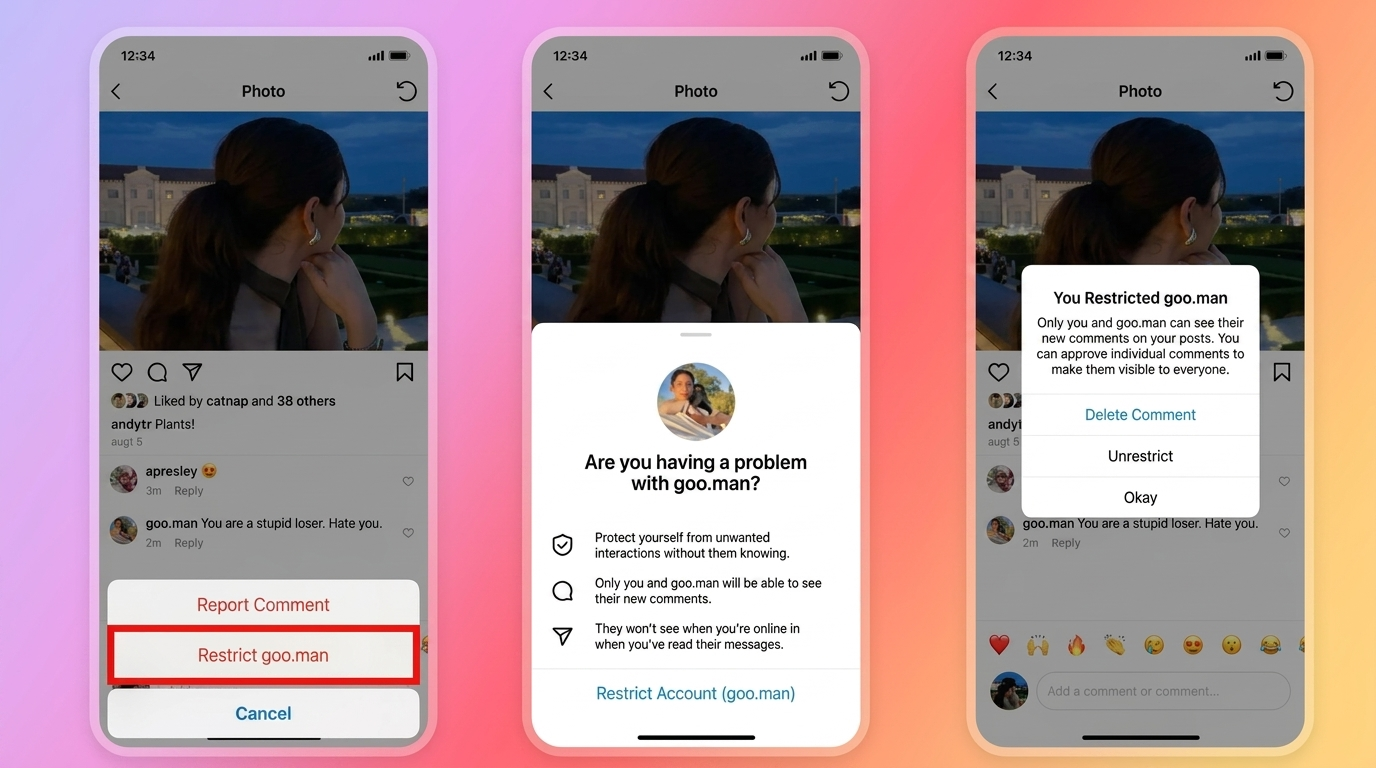
This method is helpful when someone is interacting via comments and you want to quickly limit their visibility.
Steps:
- Open the post where the person has commented
- Locate their comment under your post
- Press and hold the comment until a small action menu appears
- Tap the flag icon or “report” style option, depending on your app version
- From the list of actions, choose “Restrict”
- Confirm when Instagram prompts the final step
After this, their comments stop appearing publicly, even though they still exist on their side.
What Happens After Someone Gets Restricted?
Once the restrict option is applied, Instagram quietly changes how that person interacts with the account. Nothing feels loud or obvious, but everything shifts in the background.
Effects on comments
Their comments still appear on posts, but only they can see them by default. To others, it looks like nothing new has been added unless it is approved.
- Comments stay hidden from public view
- Manual approval is needed to make them visible
Effects on messages
Chats do not disappear, but they get redirected into a low-priority space. It changes how messages land and how they are noticed.
- Messages move into Message Requests
- Read receipts stop appearing on both sides
Effects on visibility
Their access to online signals and interaction cues gets reduced without any direct alert.
- Activity status becomes invisible
- Tagging and mentions get quietly restricted
How to Manage Restricted Accounts in Settings?
Instagram keeps everything in one quiet control panel, so managing restricted users feels smooth and private. This section lets you adjust the list at any time without switching between chats or profiles.
Steps
- Open Instagram and go to the profile page
- Tap the three-line menu at the top right corner
- Enter “Settings and privacy”
- Scroll and open “Restricted accounts”
- Use the search bar to find any account instantly
- Add new accounts or remove existing ones with a simple tap
Restrict vs Block vs Mute vs Report
Not all Instagram controls hit the same way. Some stay quiet, some go full shutdown, and one sends things straight to Instagram for review.
Here’s a clean side-by-side look:
| Feature | What it actually does | Impact on visibility |
| Restrict | Puts a soft filter on interactions without alerting the other person | Comments stay hidden from public view, DMs move into requests, limited interaction signals |
| Block | Cuts off access completely from both sides | Profile, posts, stories, and messages become unreachable |
| Mute | Silences content from appearing in feed without affecting connection | Posts and stories stop showing up in your feed, but connection stays intact |
| Report | Sends account or content for platform review | Instagram may investigate and take action based on policy checks |
This setup helps quickly decide how strict the control should feel, from low-key filtering to full removal or escalation.
Final Thoughts
Instagram does not always need loud exits or dramatic switches. Sometimes a softer boundary does the job while keeping everything in place.
The restrict option sits right in that space, giving control over interactions without creating a visible shift for the other person. It helps manage attention, filters out unwanted noise, and maintains personal space without extra friction.
If this feature has ever been used or feels useful for certain situations, drop a thought in the comments. Curious to know how others handle tricky Instagram interactions and what approach feels most comfortable in real use.
Frequently Asked Questions
How to Soft Block on Instagram?
To soft block on Instagram, you block a follower and immediately unblock them. This forces them to unfollow you without notifying them. Go to their profile, tap the three dots in the top right, select Block, wait a few moments, and then tap Unblock.
What Does Instagram Look Like when Someone Restricts You?
When someone restricts you on Instagram, their profile and posts look entirely normal from your end, but your interactions are quietly altered. You won’t see when they are active, your direct messages will never show as “seen,” and any comments you leave on their posts will only be visible to you.
Can Someone See how Many Times I Viewed Their Story?
No, someone cannot see exactly how many times you viewed their story. Platforms like Instagram only show the creator a list of unique accounts that have viewed the post. If you watch a Story multiple times, it still registers as just one view on their end.