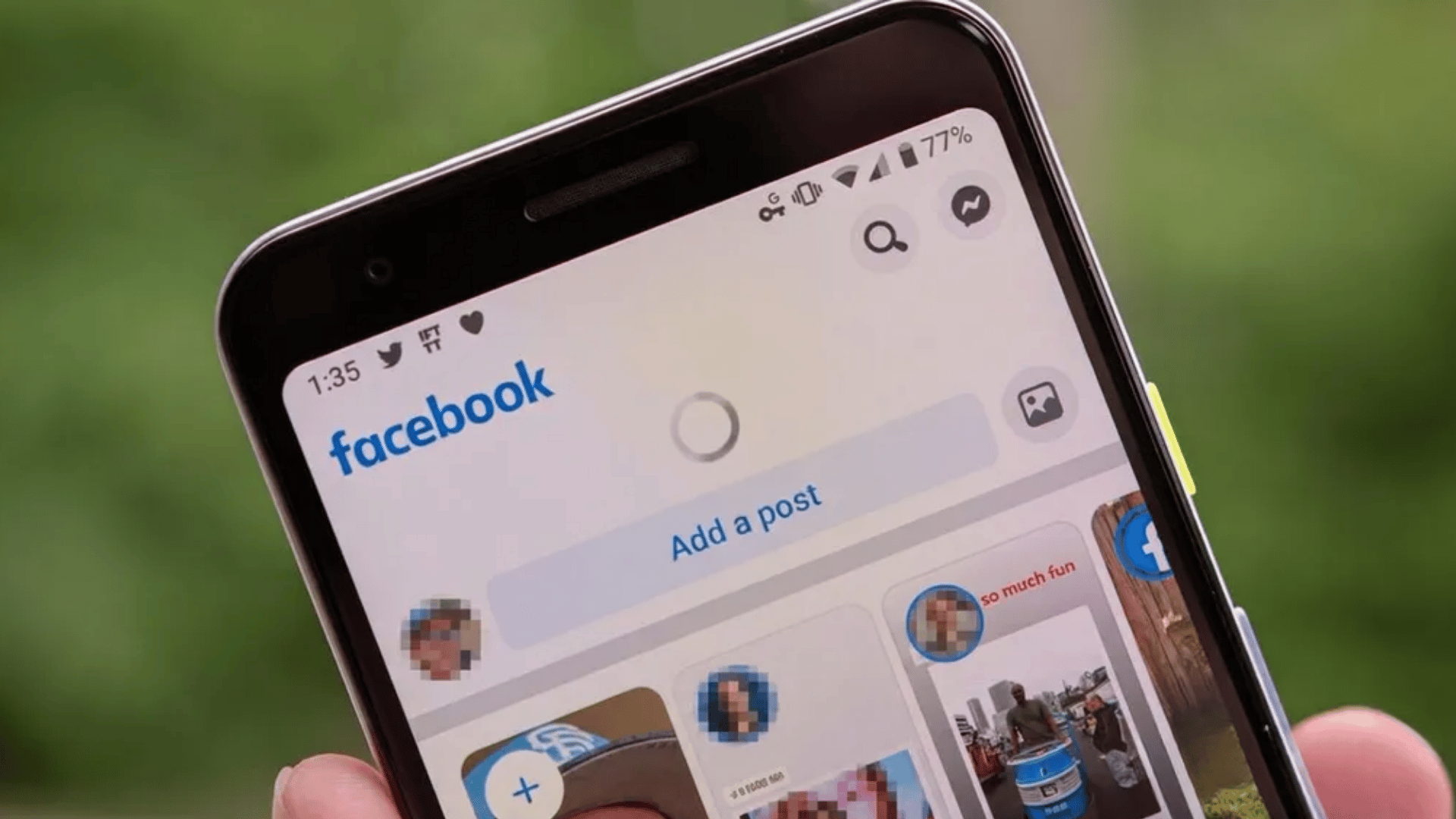
Ever opened Facebook and felt like time just froze on the same posts, even though you know people are actively posting?
That moment when the feed refuses to move forward can feel oddly disconnected, like the app is running but the updates forgot to show up.
It’s usually not a major glitch, just a mix of delayed syncing, cached data, or background loading behavior that quietly slows things down.
The best part is, this isn’t permanent. A few simple refresh actions can pull the feed back into real time and get everything flowing normally again.
Why Facebook Feed Stops Updating?
Sometimes Facebook doesn’t really “break”, it just gets stuck in a loop where old posts keep showing up like nothing new exists. The feed feels paused, even though the platform is still running in the background.
What’s Usually Behind It:
- Cached data piling up inside the app or browser, causing older feed versions to keep reappearing
- Weak or unstable internet connection interrupting fresh post loading
- Background app errors after updates that temporarily slow feed syncing
- Feed ranking system prioritizing older or suggested posts over recent updates
- Temporary server-side delays where Facebook itself takes time to push new content
How to Refresh Facebook Feed: Mobile + Desktop Fixes That Actually Work
Facebook doesn’t usually fail outright, but it can sometimes linger while serving older posts, cached data, or delayed updates.
A few simple refresh actions can reset the feed and bring everything back in real time without touching advanced settings.
1. Quick Refresh on Mobile: Swipe Down Method
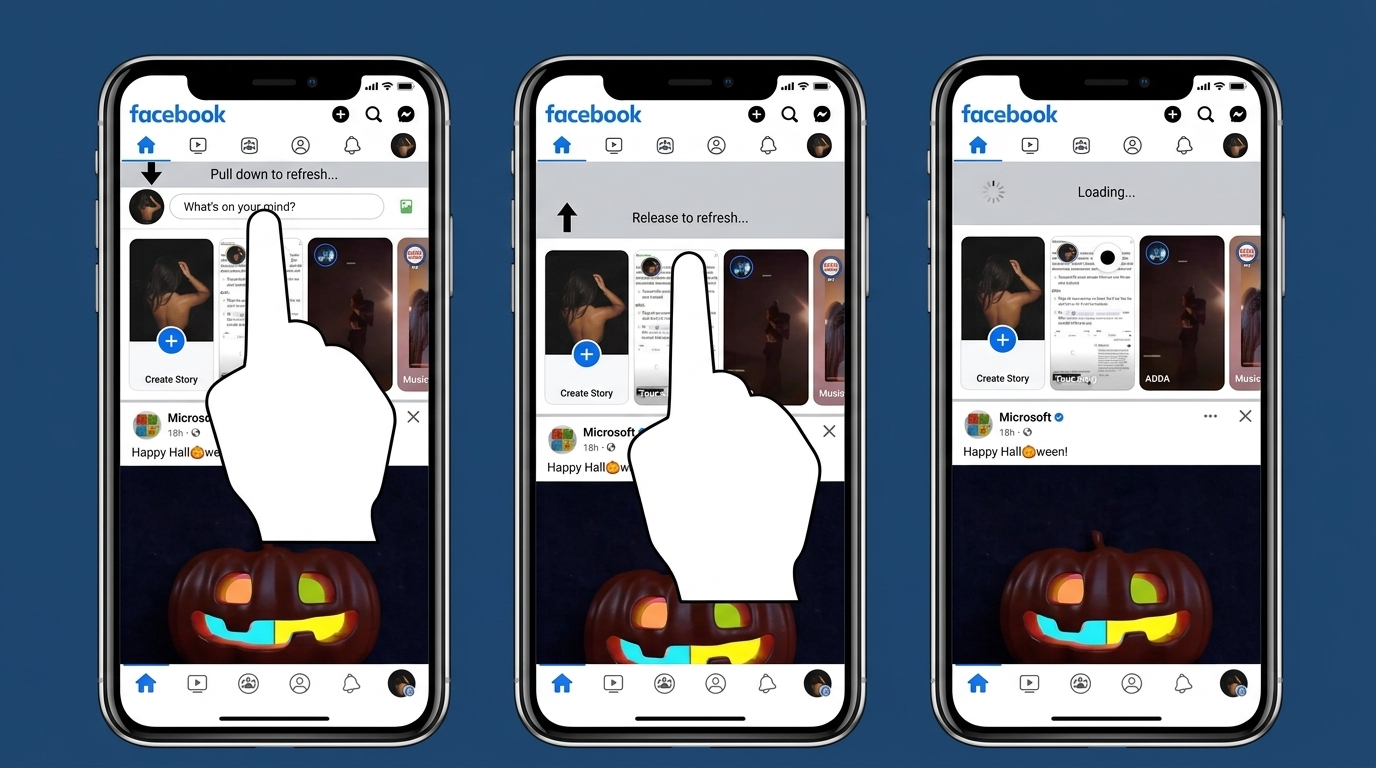
This is the fastest built-in way to reload your feed when new posts are not appearing.
Steps:
- Open the Facebook app on your phone
- Place your finger at the very top of the feed
- Swipe downward slowly and release
- Wait for the loading icon to spin and disappear
- Scroll to confirm fresh posts have loaded
This method directly triggers a feed update request from the app server.
2. Restart App Method: Fast Reset Trick
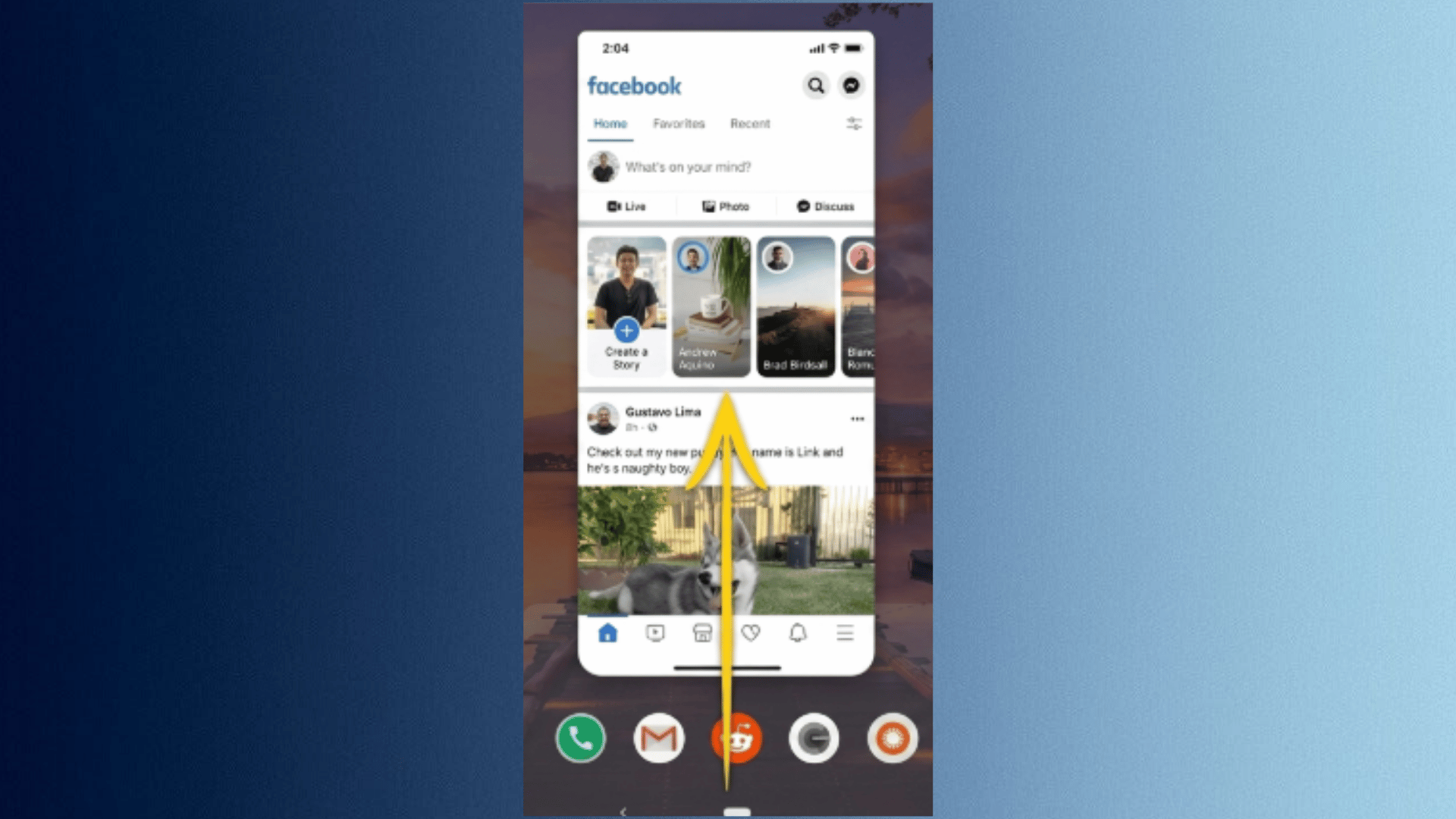
If swipe refresh feels slow or unresponsive, restarting the app clears temporary glitches.
Steps:
- Open recent apps screen on your device
- Swipe Facebook away to close it completely
- Wait 3–5 seconds before reopening
- Launch Facebook again from home screen
- Go directly to Home feed
- Let the feed reload fully before scrolling
This clears temporary memory issues and resets the current session.
3. Log Out and Sign Back In: Full Feed Reload
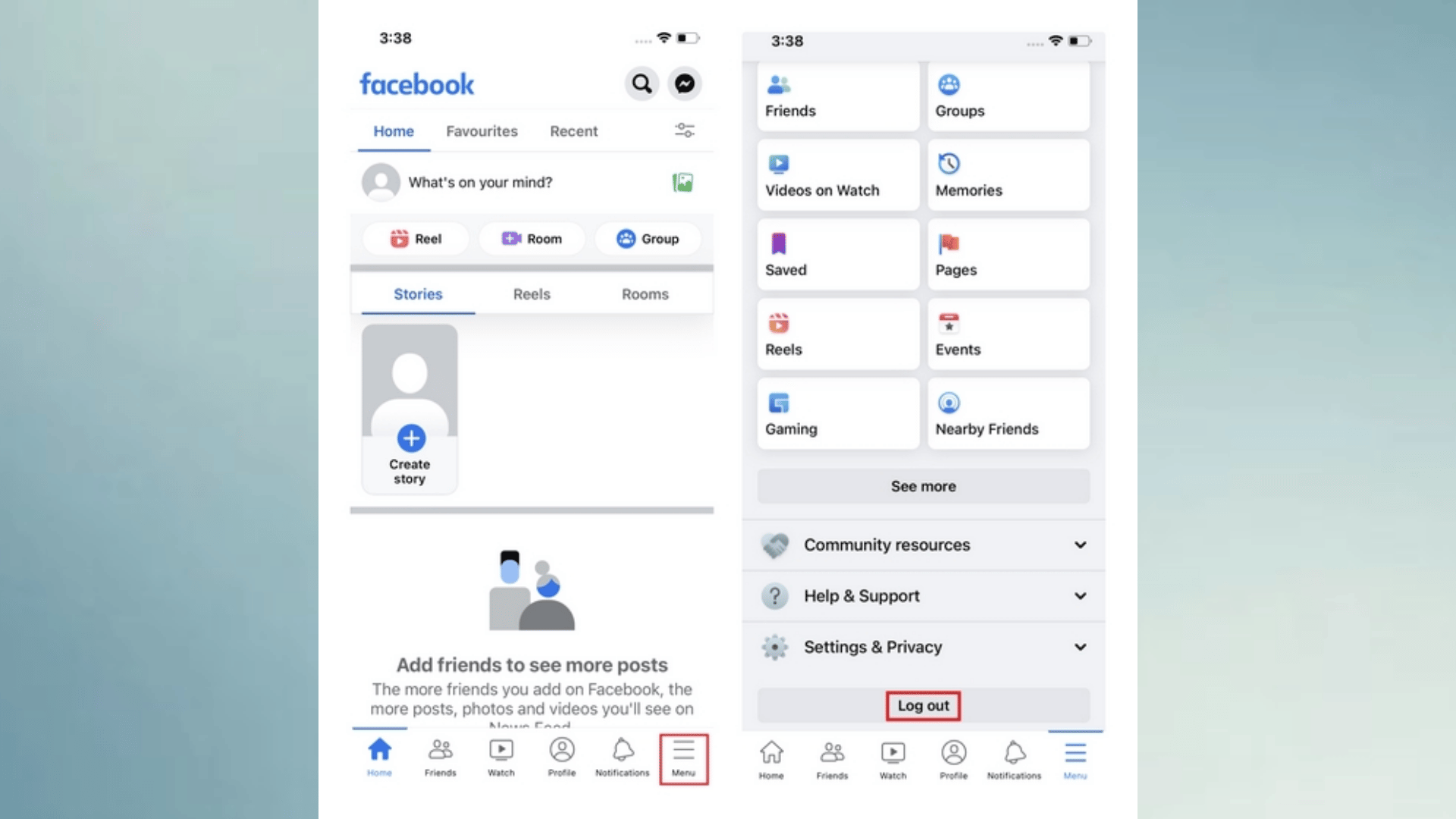
This is a stronger refresh when your feed stays outdated or stuck for long periods.
Steps:
- Open Facebook and tap the menu (three horizontal lines)
- Scroll down to find Log Out option
- Tap Log Out and confirm
- Close the app completely
- Reopen Facebook
- Enter login details and sign back in
- Wait for feed to fully load
This forces a full account sync with Facebook’s servers.
4. Clear Cache on Android: Storage Reset Fix
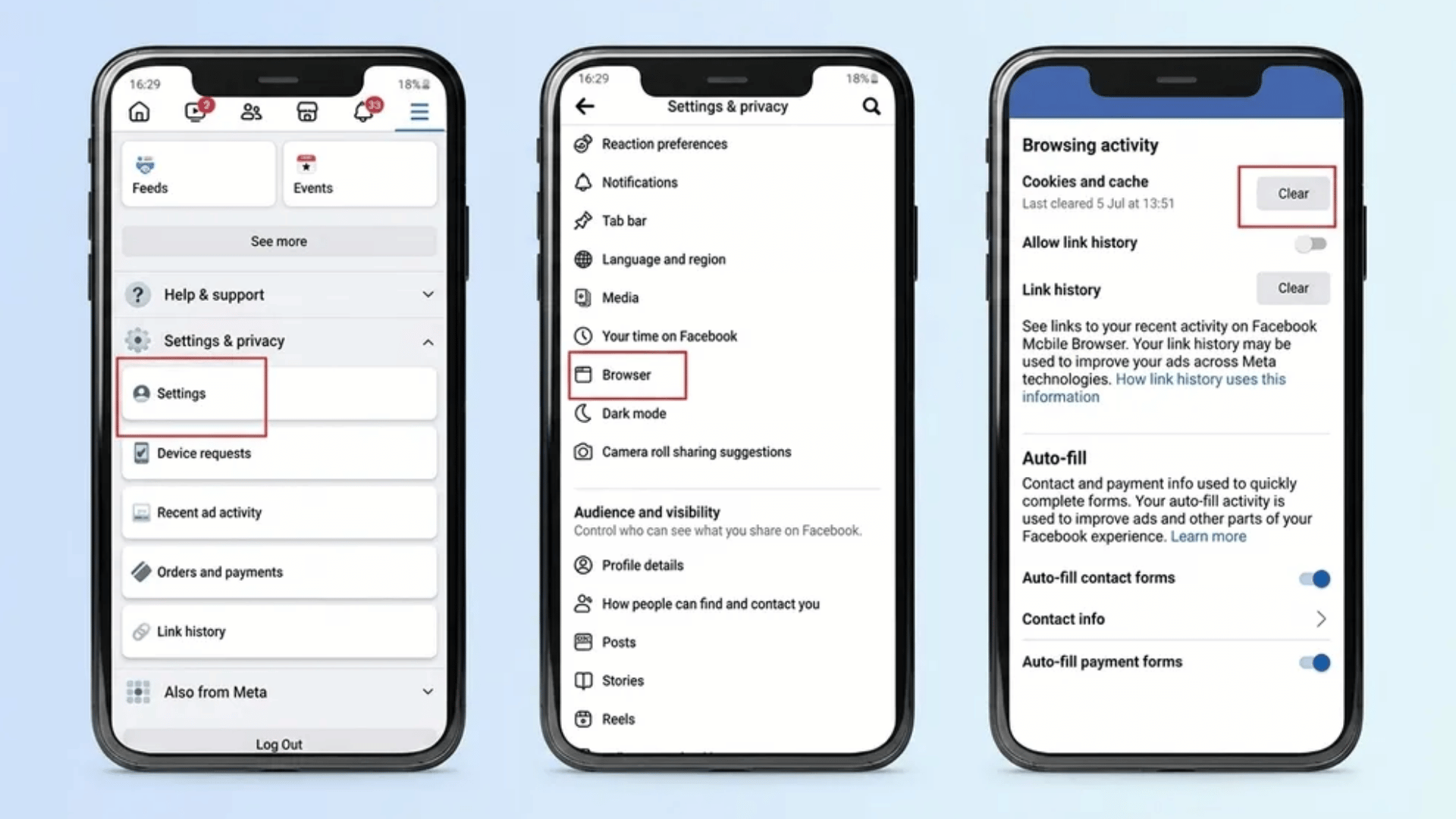
Cached data can quietly build up and stop your feed from updating properly.
Steps:
- Open your phone Settings
- Tap Apps or App Management
- Find and select Facebook
- Tap Storage & Cache
- Select Clear Cache
- Reopen Facebook app
- Check if feed updates normally
This removes temporary stored files without affecting login or personal data.
5. iPhone Offload App Method: Clean Refresh Option
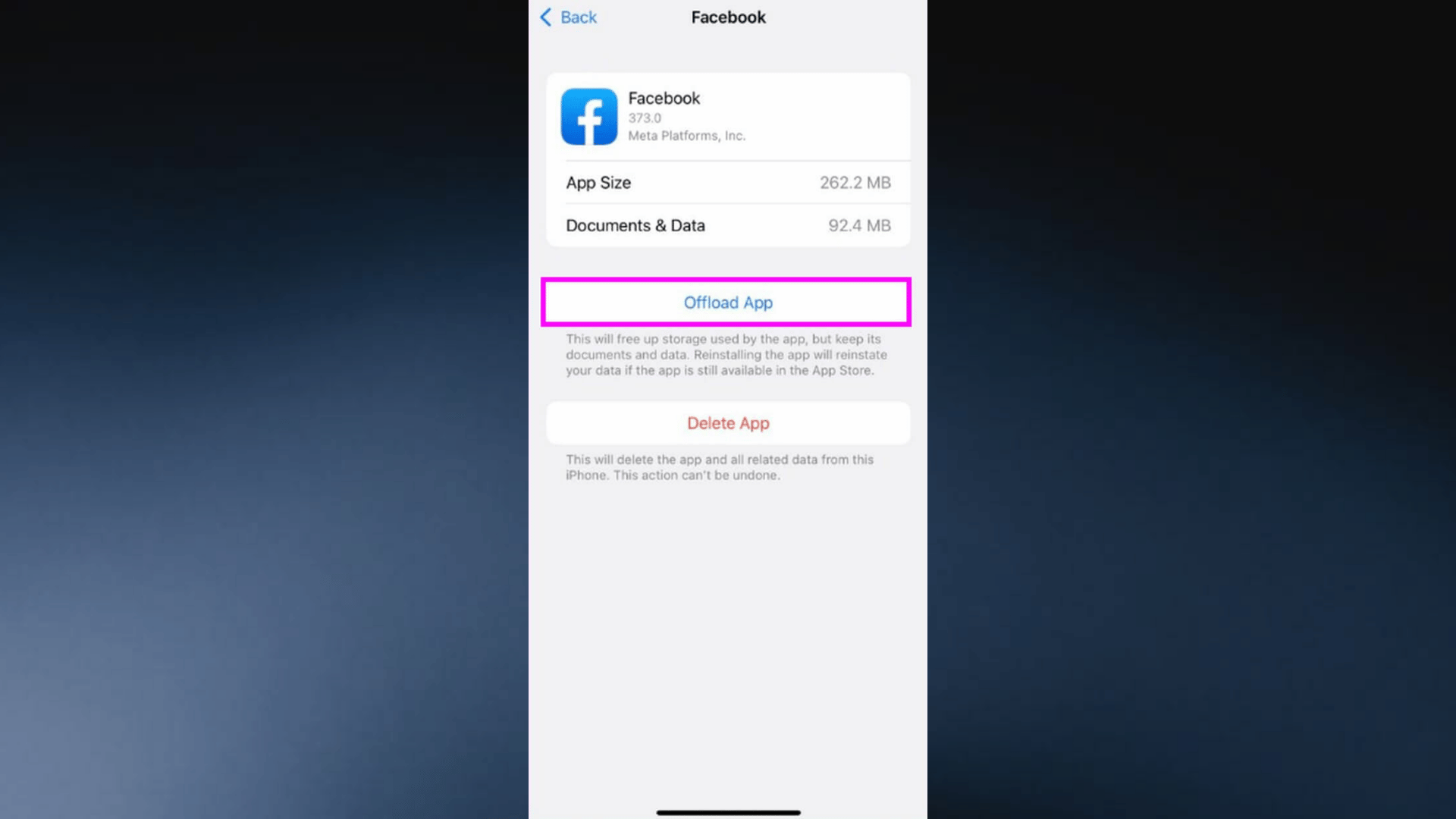
On iPhone, offloading removes app clutter while keeping your account data safe.
Steps:
- Open Settings on iPhone
- Go to General
- Tap iPhone Storage
- Scroll and select Facebook
- Tap Offload App
- Confirm action
- Reinstall Facebook from App Store
- Log back in if required
- Open Home feed again
This refreshes the app while keeping your information intact.
6. Desktop Refresh Options: Browser Controls
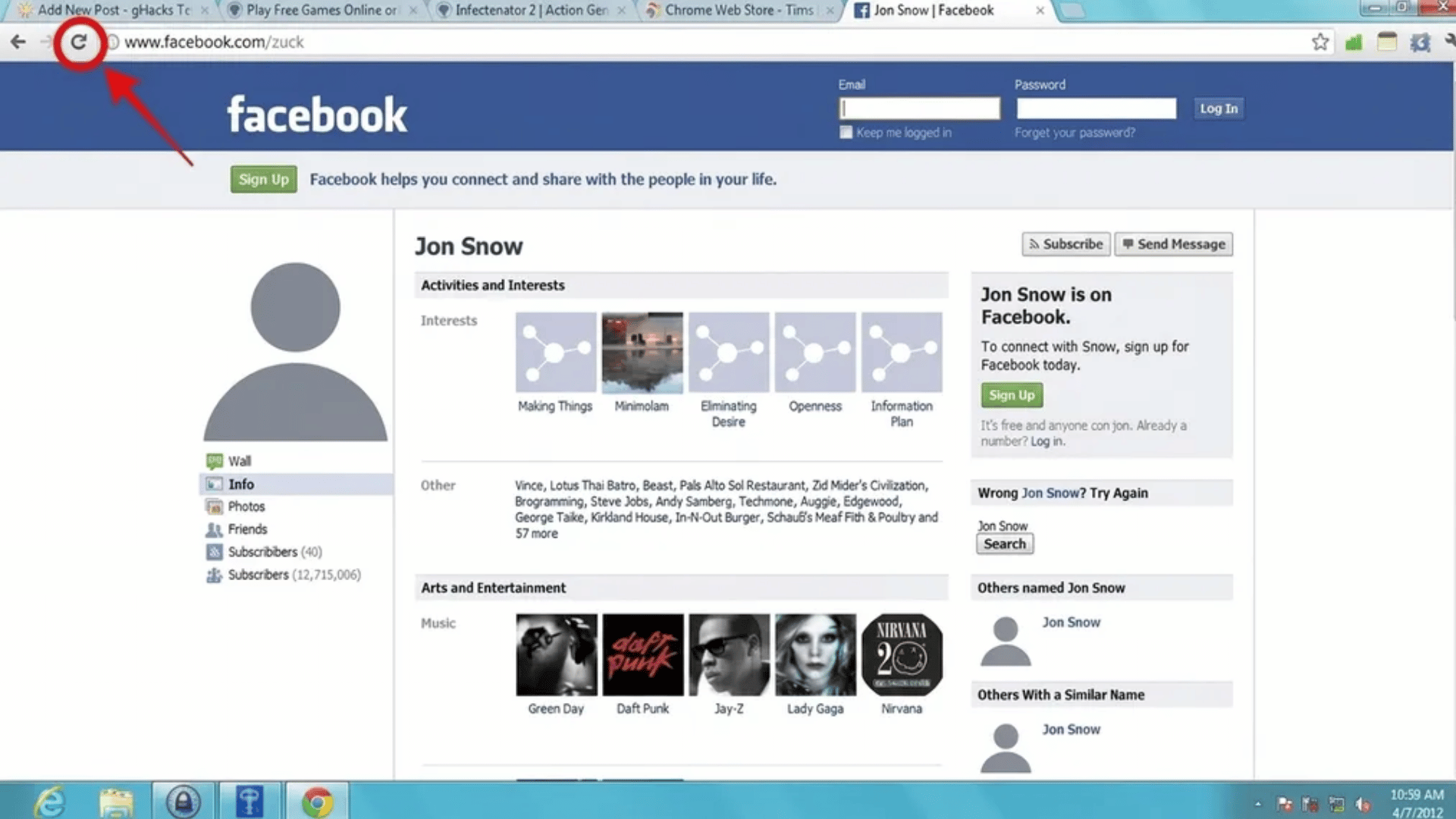
Facebook on browsers can freeze due to cached pages or outdated sessions.
Basic Refresh Steps:
- Open Facebook in your browser
- Click the refresh icon near address bar
- Or press F5 on your keyboard
- Wait for page reload
Hard Refresh Steps (more powerful):
- Windows: Press Ctrl + F5 or Shift + F5
- Mac: Press Cmd + Shift + R
- Wait for full page reload without cached data
Hard refresh forces the browser to fetch the newest version of the feed.
7. Switch Feed View: Friends vs Suggested Content
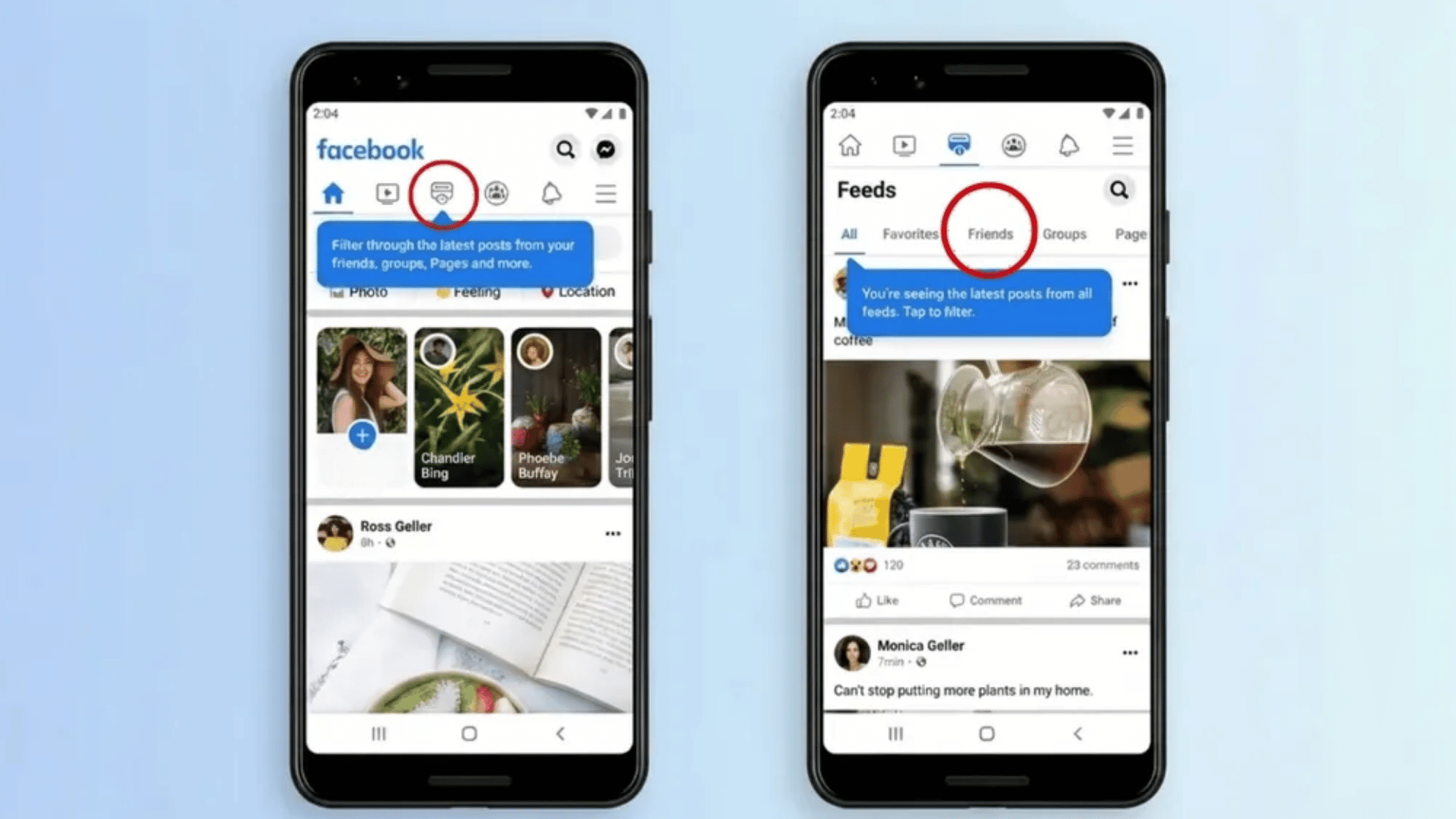
Many times, the feed isn’t stuck; it’s just showing a different content mix.
Steps:
- Open Facebook and go to Home feed
- Tap or select the Feeds tab
- Choose Friends to see posts from people you follow
- Or select Most Recent for chronological updates
- Refresh once after switching views
- Scroll to confirm updated feed layout
This changes how Facebook prioritizes and displays content instantly.
When Facebook Still Feels Stuck?
A lot of times the feed refuses to move forward no matter how many times you refresh it. That usually means the issue is sitting a little deeper than a simple swipe fix.
Here’s how to break that loop without overthinking it:
- Update the app so you’re not running on an older version that struggles with new data loads
- Check your internet connection because even a small dip can freeze the feed mid-refresh
- Restart your phone or device to clear background glitches that quietly slow things down
- Reinstall Facebook if nothing else works, giving the app a completely clean reset
Keeping Feed Responsive Going Forward
Small habits help Facebook stay smooth and reduce feed freezing over time. A few quick checks in your daily use can prevent most lag or stale feed issues before they even start.
| Habit | What it actually does | Why it helps |
|---|---|---|
| Keep app updated regularly | Installs latest Facebook fixes | Keeps performance improvements and bug patches active so feed loads cleanly |
| Avoid outdated versions | Stops using older app builds | Older versions often struggle with newer feed systems and can freeze or lag |
| Switch Wi-Fi and mobile data when lag appears | Changes the network route instantly | Helps bypass weak connections that block fresh content from loading |
| Clear cache periodically (Android) | Removes stored temporary files | Prevents buildup of old data that can slow scrolling and refresh response |
Conclusion
In most cases, a stuck Facebook feed is less about something going wrong and more about the app needing a quick reset of how it pulls and displays updates. Once the flow restarts, everything feels normal again, with fresh posts sliding in as expected.
What matters is knowing which fix to use at the right moment instead of randomly trying everything at once.
If you’ve dealt with this before, you’ve probably noticed how small actions can make a big difference in getting things moving again. Drop a comment and share which refresh method actually worked for you or if your feed behaves differently on your device.
Frequently Asked Questions
Is It Good to Clear Facebook Cache?
Yes, it is perfectly safe and highly recommended to clear your Facebook cache. It helps free up valuable storage space on your device, boosts app performance, and fixes glitches (like loading errors or outdated posts) without deleting your account or photos.
Does Clearing the Facebook Cache Delete Messages?
No, clearing Messenger cache does not delete your messages, chats, or conversation history.
How Do I Get My Facebook Back to Normal?
To get your Facebook account and feed back to normal, the steps depend on what changed. The most common issues are fixed by resetting your feed, turning off Professional Mode, or clearing your app data.