Your Mac takes forever to start. You sit there, waiting, watching that loading bar crawl. It’s frustrating – especially when you’re in a hurry.
The fix is simpler than you’d expect. Slow startups almost always trace back to the same handful of issues.
A few quick changes can add up to minutes saved every single day. Knowing how to fix a slow boot on your Mac also keeps your system in better shape in the long term.
No technical background needed. No expensive repairs required. The exact steps to speed up your Mac’s startup – from clearing login items to resetting system settings – fast and for free.
How to Fix Slow Boot Mac?
Your Mac can boot faster – just clear out unnecessary login items and shut down background apps that slow it down.
Free up disk space so macOS can properly manage cache and swap memory during boot.
Check Activity Monitor to identify and close processes that are using a lot of CPU or memory.
Restart the Mac to clear temporary files and refresh system performance.
If the issue continues, Safe Mode or Disk Utility First Aid can help diagnose deeper problems.
Why Does a Mac Slow Down After an Update or During Boot?
A Mac slows down after an update or during startup because multiple system processes run together and temporarily overload CPU, memory, and storage.
Key reasons for the slowdown:
- Background system tasks after update: macOS runs Spotlight indexing, cache rebuilding, iCloud syncing, and system optimization, which increase CPU and disk usage.
- Startup process overload: Login items, background services, and system checks all load at once, increasing boot time.
- Low storage space pressure: Limited free space reduces swap memory efficiency and slows down system operations.
- High RAM usage: When memory is full, macOS uses slower disk swap, causing lag and delayed startup.
Slow or aging storage drives: HDDs take longer to read system files than SSDs, increasing boot time.
Combined Impact
When these factors occur together, the system becomes temporarily overloaded, leading to slower boot times and reduced performance until background tasks finish or resources are freed.
What Quick Fixes can Restore Mac Speed in Minutes?
Quick fixes to restore Mac speed include removing login items, closing heavy apps, and restarting the system. Freeing up disk space and checking Activity Monitor also quickly improves performance.
1. Remove Login Items and Background Apps
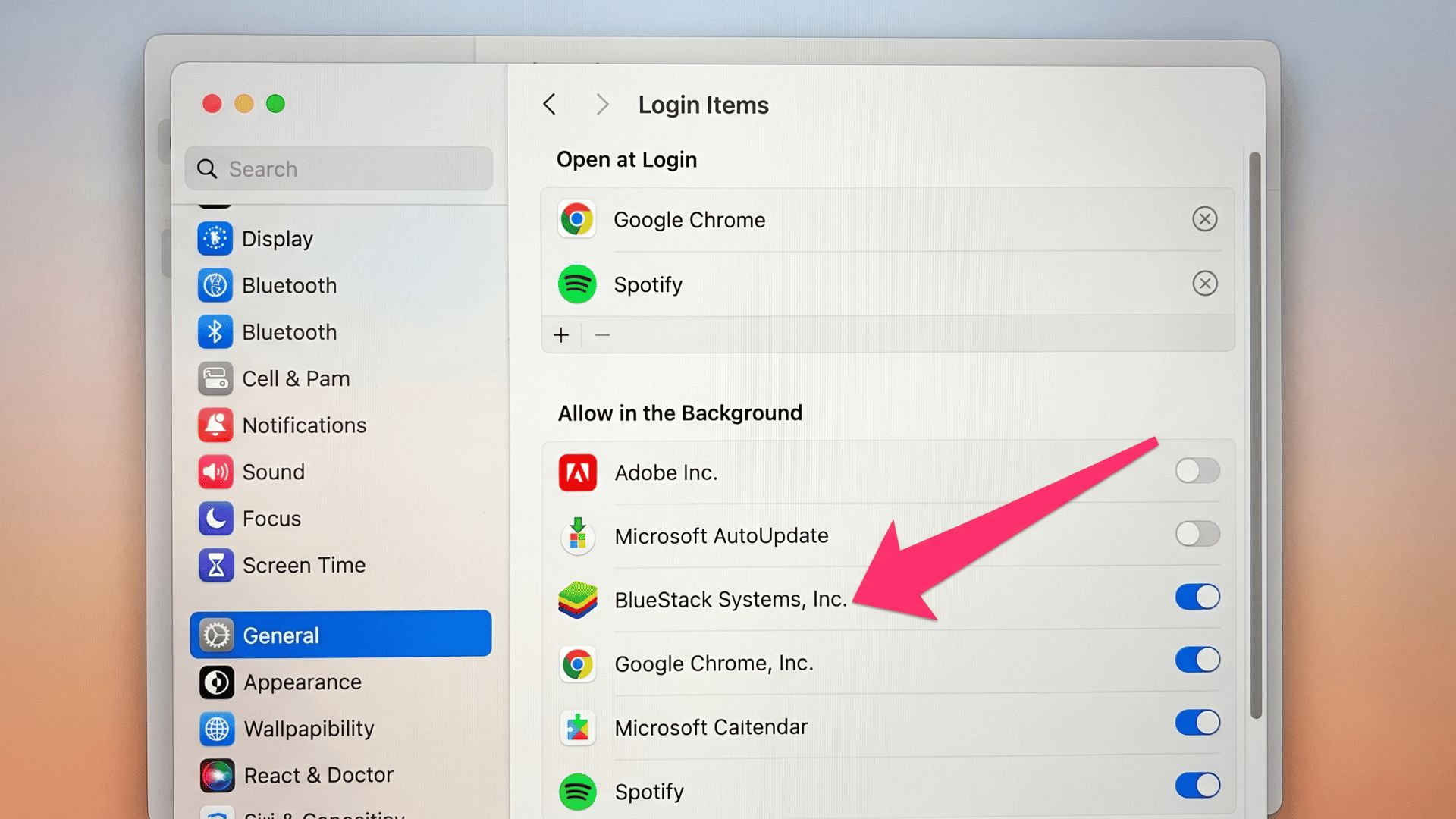
Removing unnecessary login items prevents extra apps from launching when your Mac starts, reducing startup load and improving boot speed.
It also lowers CPU and memory usage by preventing background apps from running automatically, making the system run more smoothly.
You can do this by going to System Settings → Users & Groups → Login Items and removing apps you don’t need at startup.
2. Free up Disk Space
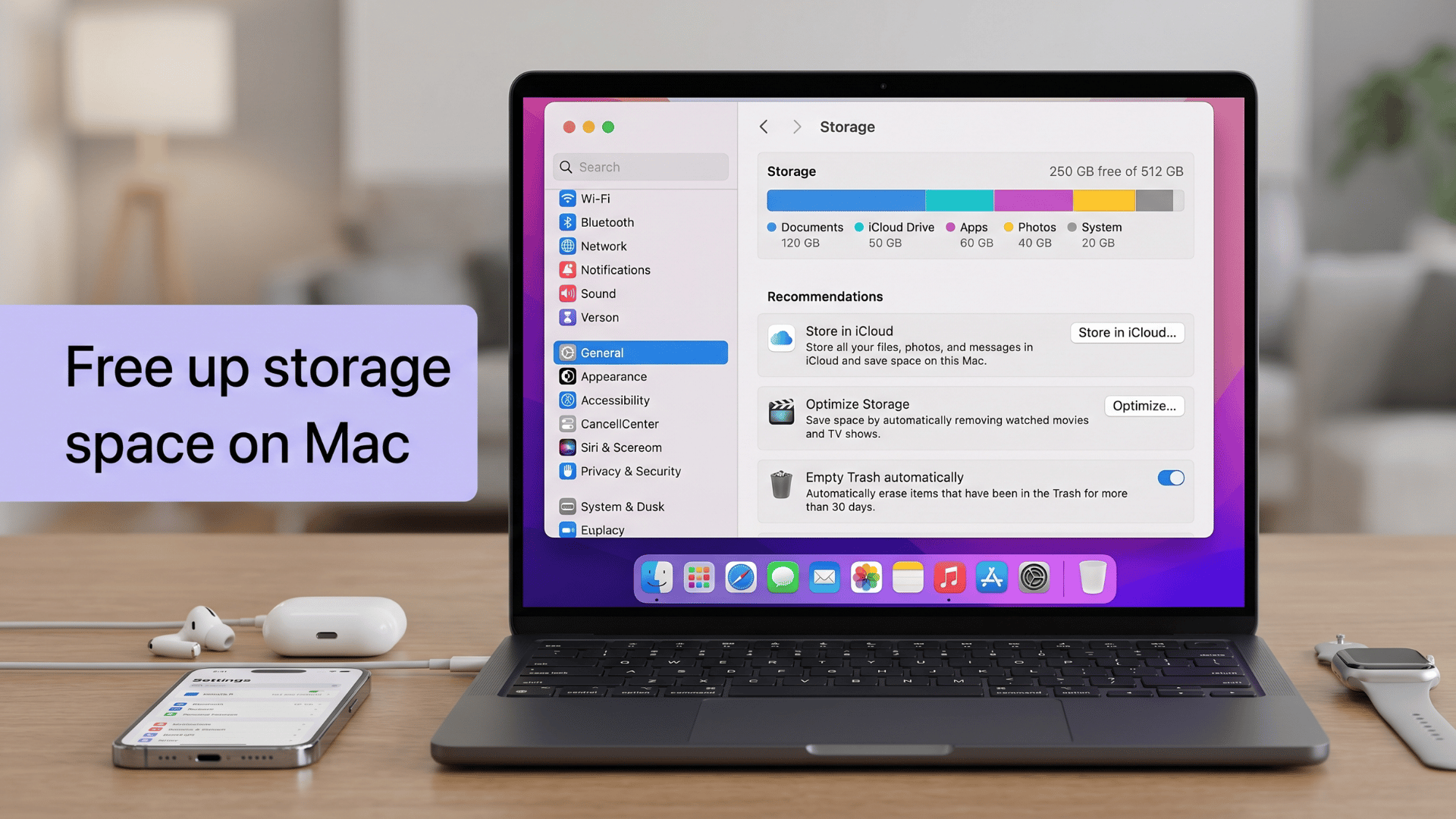
Freeing up disk space improves speed because macOS uses storage for swap memory and system tasks.
When space is low, boot time and performance slow down due to limited temporary storage. When storage is low:
- Swap memory slows down
- System updates run slower
- Boot time increases
Delete large unused files, clear downloads, and empty the trash. Keeping at least 15–20% free space helps performance.
3. Check Activity Monitor for Heavy Processes
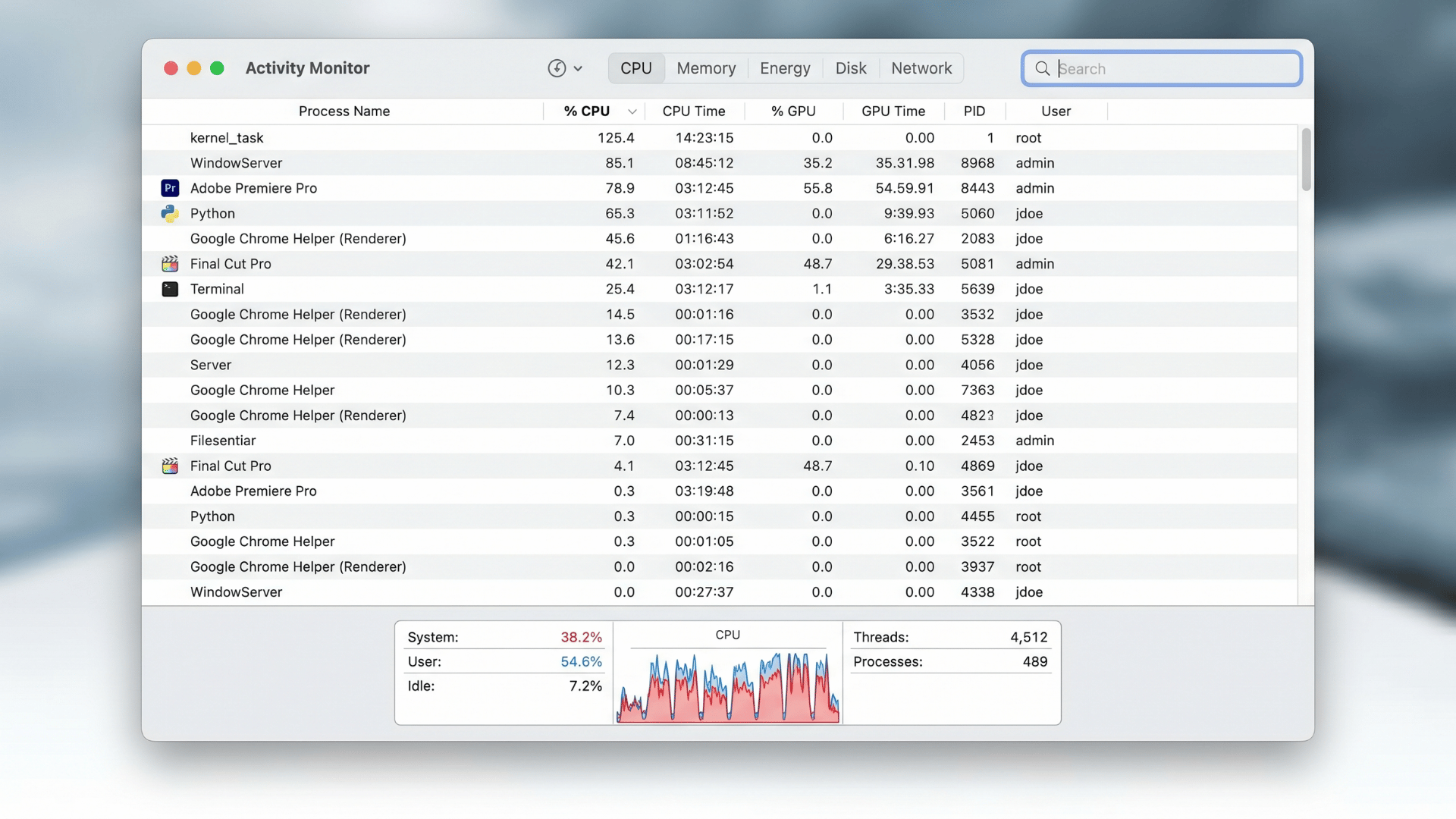
Activity Monitor helps identify apps using high CPU, memory, or disk resources that slow down your Mac.
Closing or updating these heavy processes quickly reduces system load and improves performance. Quit or update any app that is consistently using too many resources.
| Performance Issue | What It Means | Effect on Mac |
|---|---|---|
| High CPU usage apps | Apps using too much processing power | Slows down system speed and responsiveness |
| High memory consumption | Apps using excessive RAM | Causes lag and reduces multitasking performance |
| Background processes using the disk heavily | Hidden tasks constantly reading/writing data | Increases boot time and overall system delay |
4. Restart the Mac
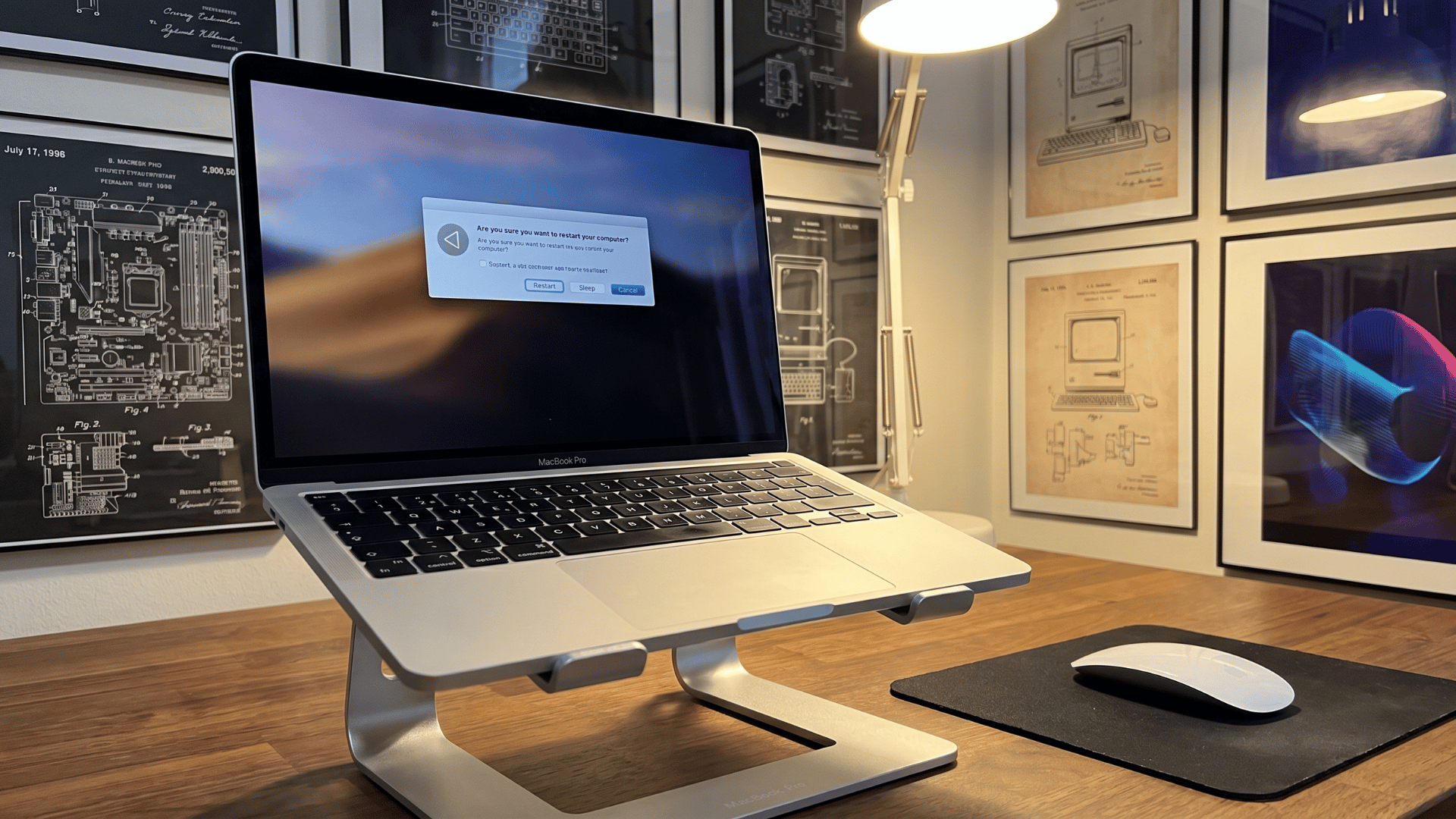
Restarting the Mac clears temporary system files and stops stuck background processes that may slow performance.
It refreshes memory usage and often restores normal speed and responsiveness quickly. It helps:
- Stop stuck background processes
- Refresh system memory
- Reset temporary cache usage
When is Hardware the Real Cause of Slow Mac?
Hardware is the main cause when software fixes don’t improve speed, and the Mac stays slow during boot, app launches, and everyday use.
Common signs include an aging HDD instead of an SSD, low RAM leading to heavy swap usage, or failing storage resulting in constant delays and freezing.
HDD vs SSD performance difference
HDDs are slower due to spinning disks, while SSDs are faster because of flash storage. See the table below for SSD benefits.
| Benefit | What It Means | Impact on Mac Performance |
|---|---|---|
| Faster boot time | System starts up more quickly | Reduces waiting time to reach desktop |
| Quick app loading | Apps open in less time | Improves workflow speed and efficiency |
| Better overall responsiveness | System reacts faster to actions | Makes Mac feel smoother and more stable |
Tip : Upgrading to SSD is often the biggest performance improvement.
How to Prevent Mac from Slowing Down After Future Updates?
Keeping your Mac fast after updates depends on regular maintenance and smart usage habits.
Managing storage, login items, and updates prevents background load buildup and performance slowdown.
- Keeping storage space free: Sufficient free storage allows macOS to manage cache, updates, and swap memory smoothly. Low storage slows boot time and overall performance.
- Manage login items regularly: Fewer login items reduce startup load, helping the Mac boot faster and run more efficiently.
- Keep macOS and apps updated: Updates improve performance and compatibility, while outdated apps can slow startup and increase memory usage.
- Monitor system performance occasionally: Regular checks using Activity Monitor help identify heavy apps and prevent long-term slowdowns.
Regular maintenance like this keeps your Mac stable, responsive, and consistently fast even after future updates.
Conclusion
A slow startup doesn’t have to be your daily reality. Small changes can make a big difference. You now know how to fix a slow-booting Mac the right way – without spending a dollar.
From trimming login items to freeing up storage, every step adds up. Your Mac can feel fast again.
Start with one fix today. You’ll notice the difference right away. Don’t wait for the problem to get worse. Found this helpful? Share it with a friend whose Mac could use a speed boost, too.
Ready to breathe new life into your Mac? Try these fixes now and take back your time.
Have questions or tips of your own? Drop them in the comments below we’d love to hear from you!
Frequently Asked Questions
Why Is My Mac so Slow when I Have Plenty of Storage?
A Mac can still be slow even with enough storage because issues like high RAM usage, background apps, login items, or heavy system processes can overload performance. Storage alone is not the only factor affecting speed.
Why is My Mac so Slow All of a Sudden?
A Mac may slow down suddenly due to background updates, Spotlight indexing, too many startup apps, or a heavy process running in Activity Monitor. These tasks can temporarily increase CPU and memory usage.
Why is My Mac so Slow Even After a Factory Reset?
If a Mac is still slow after a factory reset, the issue is usually hardware-related, such as an aging HDD, low RAM, or failing storage. Software fixes will not fully solve performance problems in such cases.