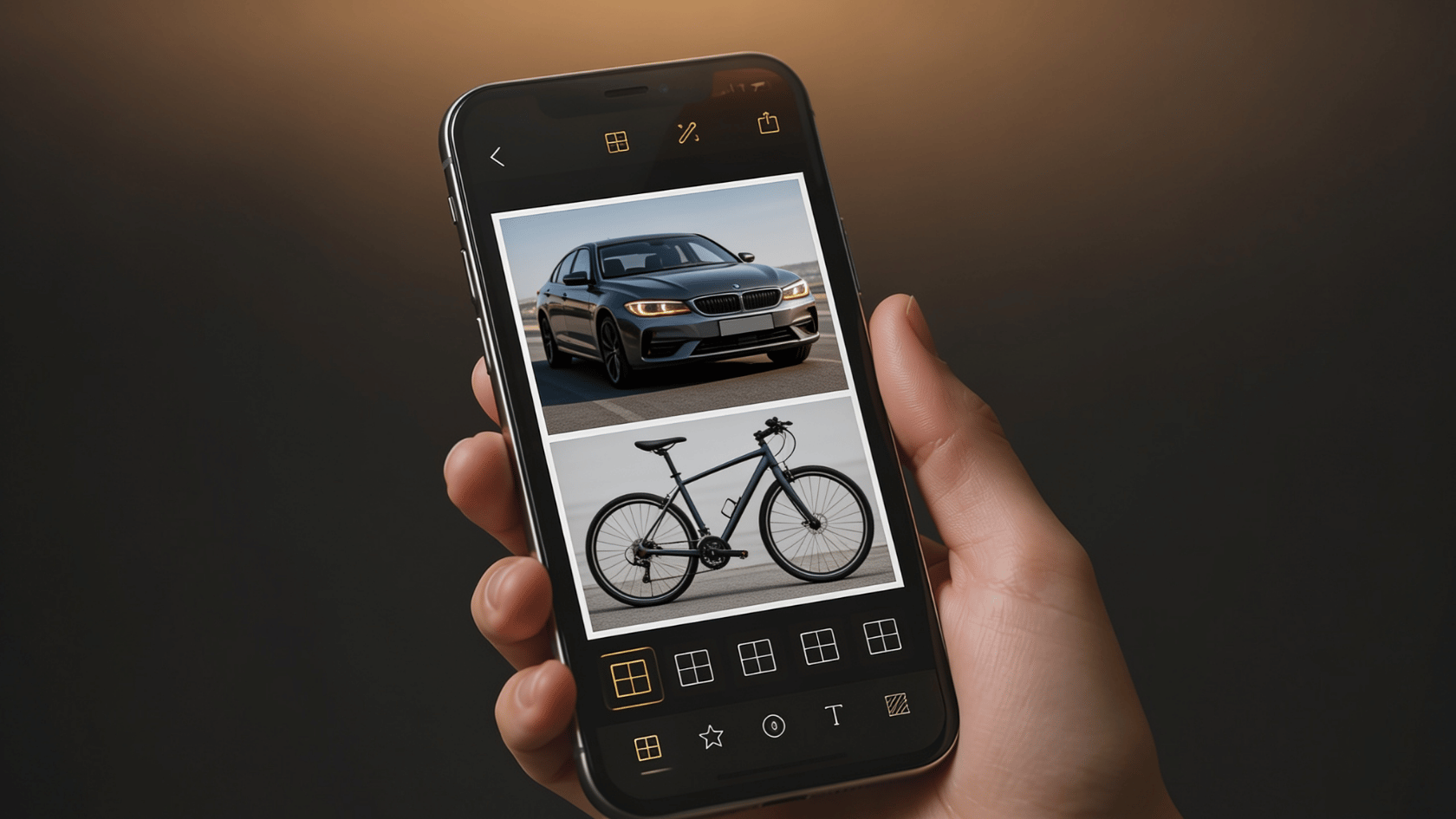
Most people think they need a third-party app to merge photos on iPhone. They do not. The iPhone already has everything built in, no downloads or subscriptions needed.
The Shortcuts app comes pre-installed on every iPhone running iOS 13 and above. It combines two photos in seconds while preserving the original quality. Set it up once, and it works forever.
Here you will learn exactly how to combine two photos on iPhone using only the Shortcuts app, which layouts to choose from, and how to fix common issues if something does not work.
Best Built-In Way to Combine Two Photos on iPhone
The Shortcuts app is a free automation tool built by Apple. It comes pre-installed on every iPhone running iOS 13 or later, so there is nothing to download.
For merging photos, it is the most reliable built-in option available. It keeps your original photo quality intact, unlike the screenshot method. You build the shortcut once and reuse it anytime in just a few taps.
It also supports three layout options: side-by-side, vertical, and grid, so you can choose whichever fits your needs.
What You’ll Need Before You Start?
Before getting into the steps, take a moment to make sure everything is in place. The setup is simple and should only take about 2 minutes.
Here is what you need:
- An iPhone running iOS 13 or later: This includes the iPhone 6S and any model released after it.
- The Shortcuts app: It comes pre-installed on most iPhones; if you cannot find it, check your App Library by swiping to the far right of your home screen.
- Setup time: Approximately 2 minutes.
Quick Tip: If the Shortcuts app is missing from your phone, it may have been deleted at some point. You can get it back for free by searching “Shortcuts” in the App Store. It is an official Apple app, so it costs nothing to download.
How to Build Your “Merge Photos” Shortcut?
Good news: you only need to do this once. After the shortcut is built, you will never have to repeat these steps again.
Step 1: Open the Shortcuts App and Create a New Shortcut
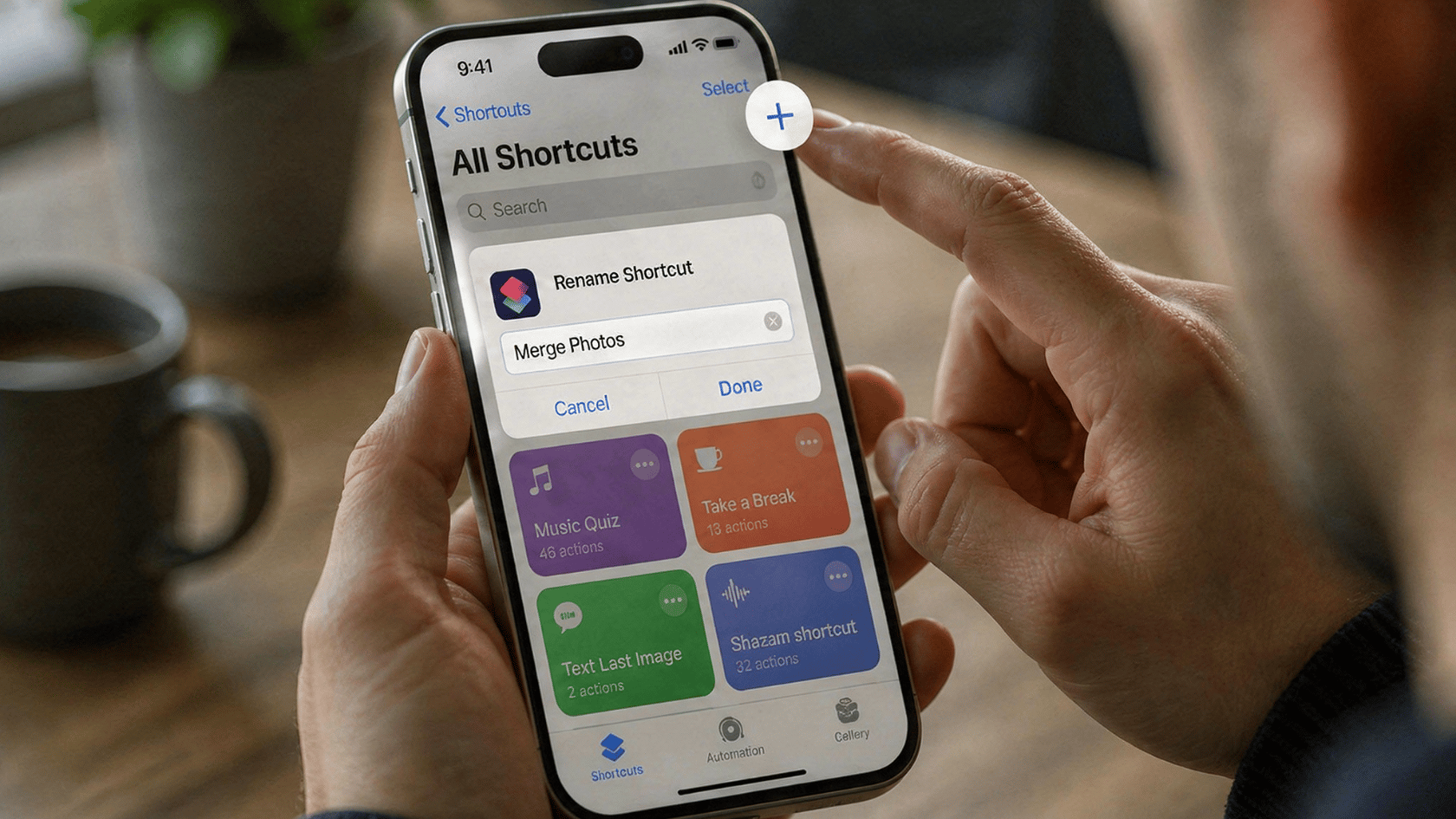
- Open the Shortcuts app on your iPhone.
- Tap the + icon in the top right corner.
- Tap the dropdown arrow at the top of the screen.
- Select Rename and type a name like “Merge Photos”.
- Tap Done.
Step 2: Add the “Select Photos” Action
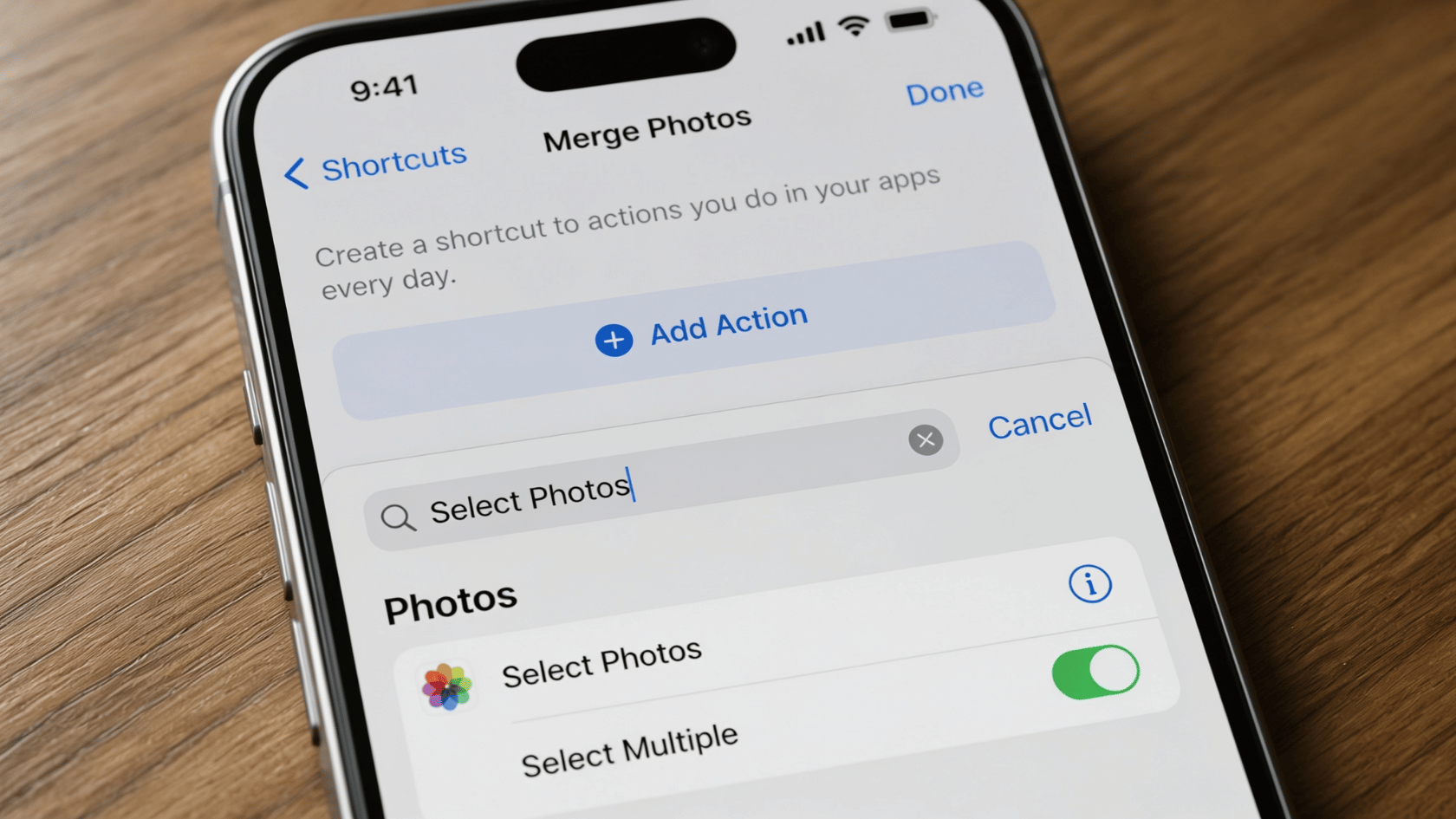
- Tap Add Action.
- In the search bar, type “Select Photos” and tap it to add.
- Tap the small arrow next to “Select Photos”.
- Toggle on Select Multiple so you can pick two or more photos at once.
Step 3: Add the “Combine Images” Action
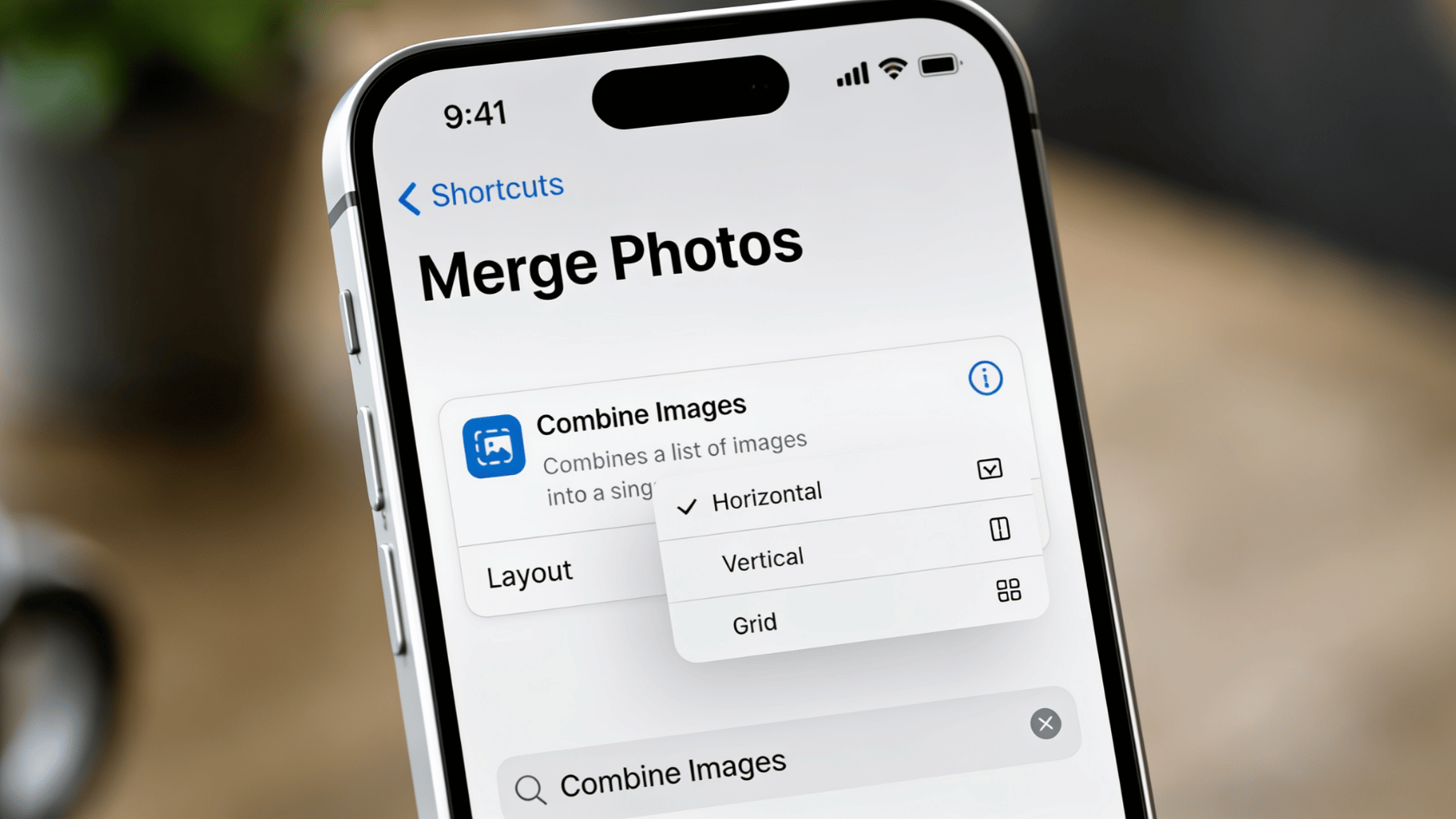
- Tap the search bar at the bottom of the screen.
- Type “Combine Images” and tap to add it.
- By default, it will show “Combine Images Horizontally”.
- Tap horizontally to change the layout if needed.
Step 4: Add the “Save to Photos” Action
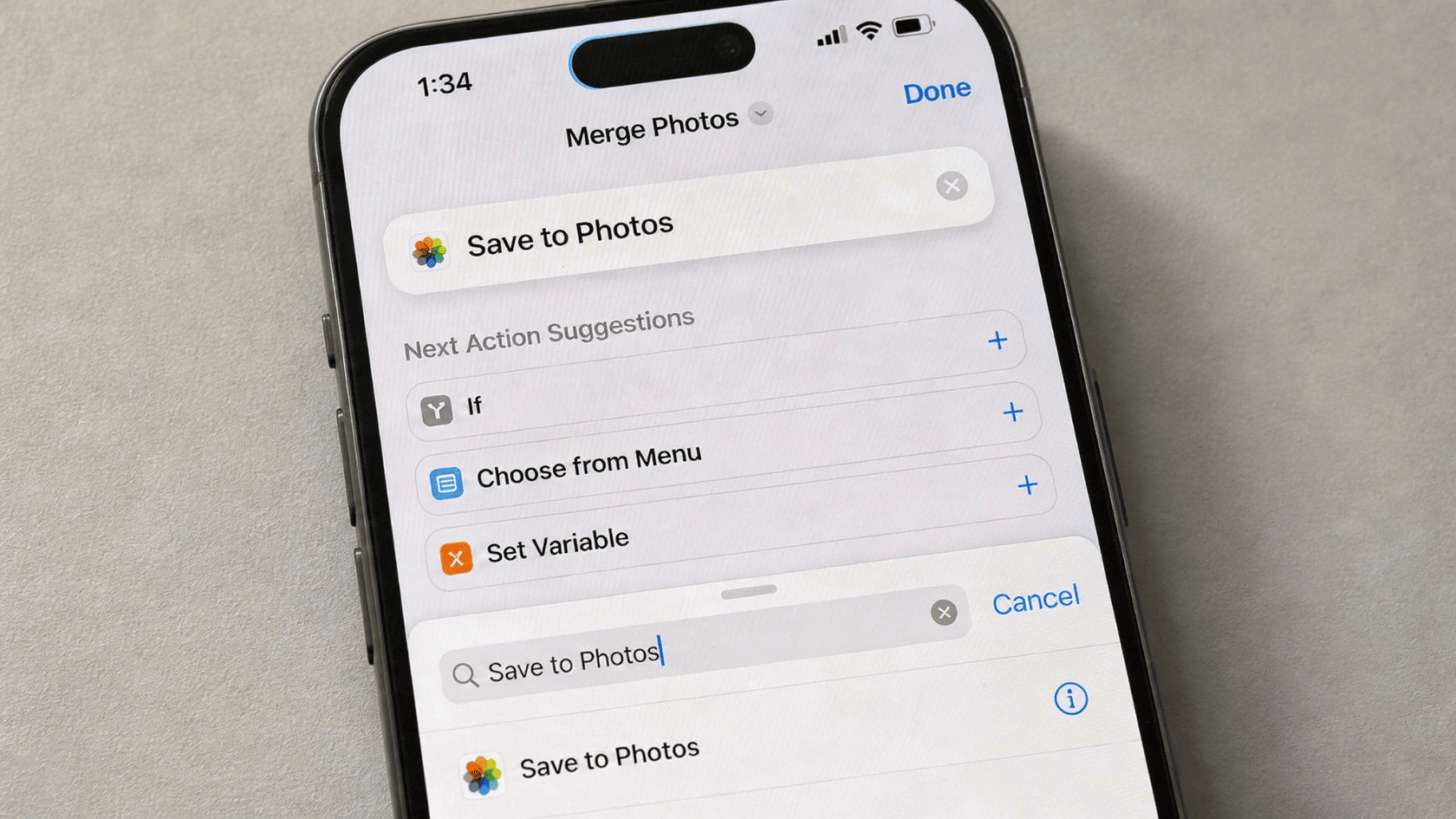
- Tap the search bar again at the bottom.
- Type “Save to Photos” and tap to add it.
- This step makes sure your combined photo saves directly to your Camera Roll.
Do not skip this step. Without it, your merged photo will not be saved anywhere on your phone.
Step 5: Save Your Shortcut
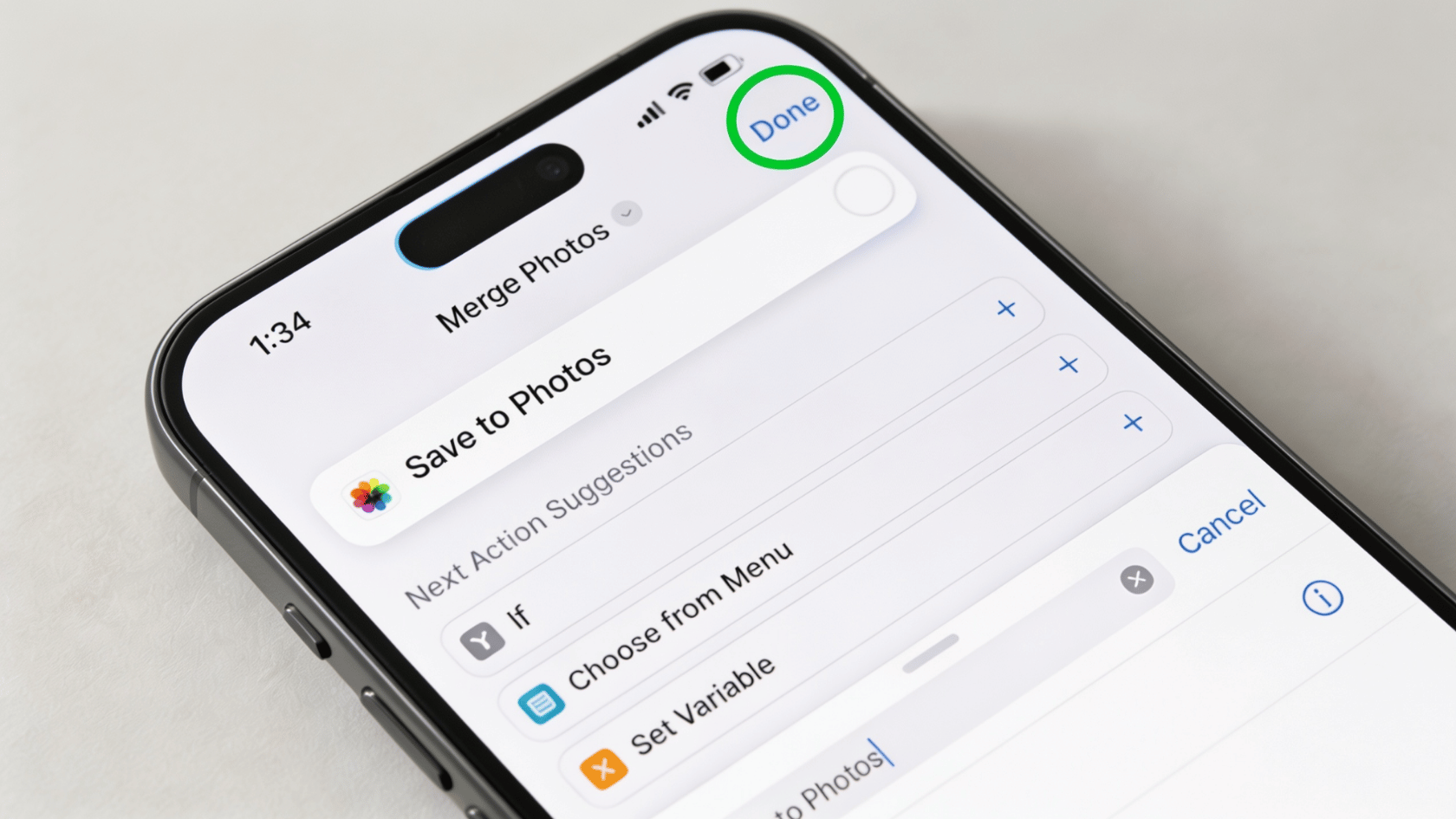
- Tap Done in the top right corner.
- Your shortcut is now saved and ready to use anytime.
How to Use the Shortcut to Combine Two Photos?
Once the shortcut is built, merging photos takes less than 10 seconds. Follow these steps every time you want to combine two photos.
Step 1: Open the Shortcuts app on your iPhone and tap your Merge Photos shortcut.
Step 2: Your Photos library will open automatically on the screen.
Step 3: Select the two photos you want to combine.
Step 4: Tap Add in the top right corner.
Step 5: The shortcut will process the images on its own no extra tapping needed.
Step 6: The combined photo saves directly to your Photos app and is ready to use.
Pro Tip: Photos are combined in the order you select them. Tap the photo you want on the left side first, then tap the second one. This gives you full control over how the final image looks.
How to Get a Side by Side Photo on iPhone?
If you want two photos placed side by side, select Horizontally in Step 3 when building the shortcut. That is the only setting you need to change.
Common uses for the side by side layout:
- Before and after comparisons
- Two moments from the same event
- Quick collages for social media
To create separate shortcuts for each layout, long press the shortcut, tap Duplicate, rename it, and change the layout setting inside.
Conclusion
The Shortcuts app gives you a simple, built-in way to handle how to combine two photos on iPhone without downloading anything extra. Set it up once and it is ready to use whenever you need it.
The whole process takes under two minutes to build and under ten seconds to run. Your photos stay sharp, the layout is up to you, and nothing gets saved to a third-party app.
Try it today and see how quick it really is. If you have questions or ran into any issues along the way, drop them in the comments below.
Frequently Asked Questions
Can I Combine Photos of Different Sizes or Orientations?
Yes. The Shortcuts app can merge photos regardless of their size or orientation.
Will My Original Photos be Deleted After Merging?
No. The shortcut creates a brand new combined image and saves it to your Camera Roll.
Can I Rename or Delete the Shortcut Later?
Yes. Long press the shortcut in the Shortcuts app to get options for renaming, duplicating, or deleting it at any time.