AirDrop is designed to handle file transfers seamlessly, though occasional issues can interrupt its functionality.
At times, a device may not appear, a transfer may stall, or connections may fail without an obvious cause.
In most cases, these issues are linked to simple configuration settings, connectivity conflicts, or temporary software behavior.
Take a look at the most common causes and practical steps to quickly and reliably restore AirDrop performance.
A quick checklist of essential fixes is provided at the end to help verify and resolve AirDrop issues step by step.
Why Isn’t My AirDrop Working?
AirDrop usually stops working when one small setting blocks the connection.
It needs Wi-Fi, Bluetooth, device visibility, and an awake receiving device to work at the same time.
If one of these is off, AirDrop may get stuck on waiting, fail to send, or show no nearby devices.
Common Reasons For AirDrop Not Working:
Here are the main reasons behind the “why isn’t my AirDrop working?” problem:
- Wi-Fi or Bluetooth is turned off
- The receiving device is locked or asleep
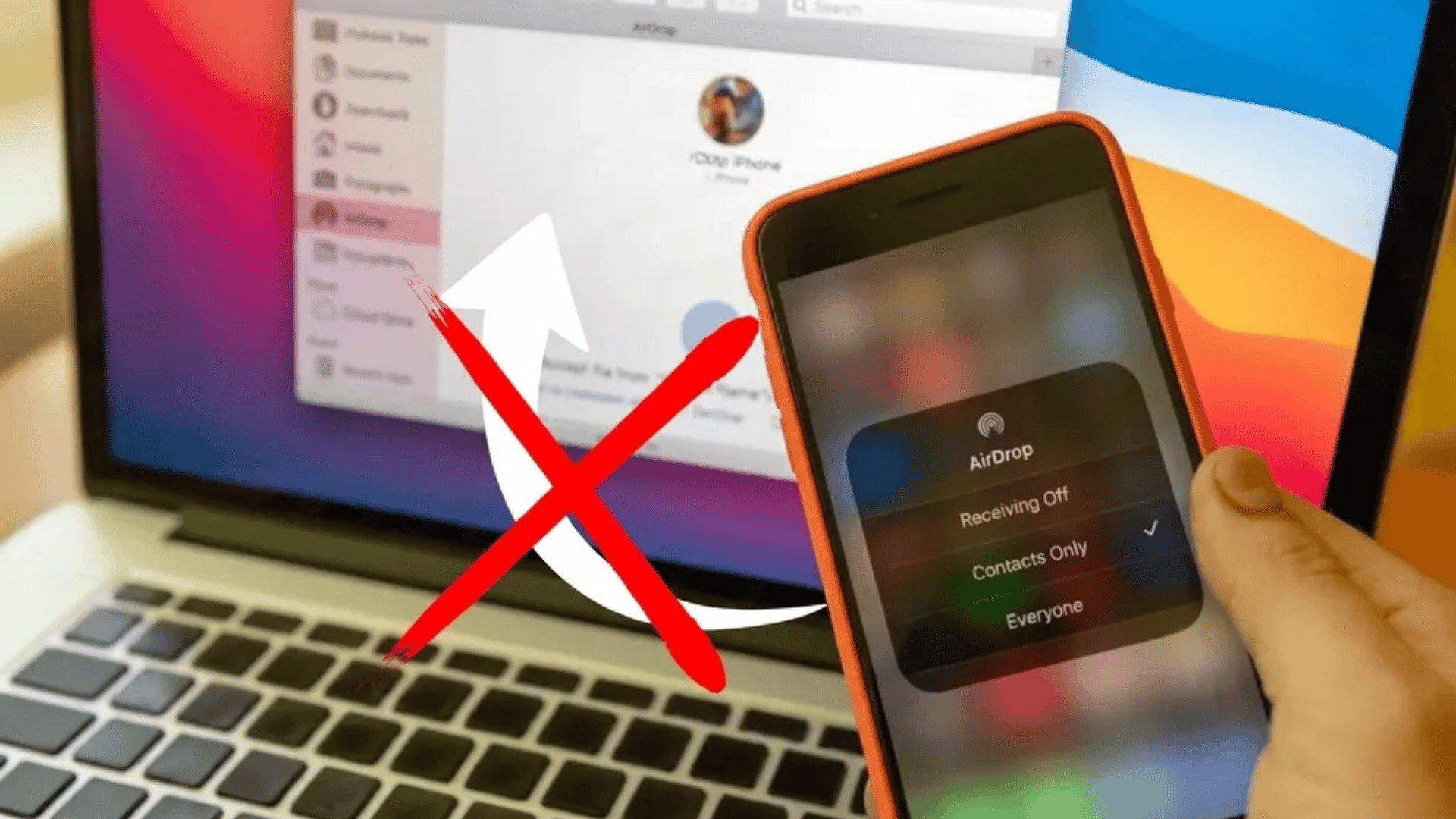
- AirDrop visibility is set to Contacts Only
- Contact details do not match
- Personal Hotspot is turned on
- VPN or firewall settings are blocking discovery
- The devices are too far apart
- Screen Time has restricted AirDrop
- One device needs a restart or software update
Quick Problem Guide
| Issue | Likely Reason | First Fix |
|---|---|---|
| No People Found | Device is not visible | Set AirDrop to Everyone for 10 Minutes |
| Waiting | Connection is stuck | Toggle Wi-Fi and Bluetooth |
| Failed Transfer | Transfer dropped | Restart both devices |
| Contact Not Showing | Contact details do not match | Check Apple ID email or phone number |
| AirDrop Missing | Restrictions may be active | Check Screen Time settings |
Start with the easiest move.
Set the receiving device to Everyone for 10 Minutes, keep it unlocked, and try sending again.
A detailed breakdown of causes and fixes is covered in the sections below.
Quick Fix First for AirDrop Not Working
When AirDrop cannot spot the other device, this setting is the best place to start. It makes your device easier to find for a short time, so the transfer can get moving without a long settings hunt.
On iPhone or iPad
- Open Control Center.
- Press and hold the box with Wi-Fi and Bluetooth.
- Tap AirDrop.
- Choose Everyone for 10 Minutes.
Keep the receiving iPhone or iPad unlocked while the file is being sent.
On Mac
- Open Finder.
- Click AirDrop in the sidebar.
- Find Allow me to be discovered by.
- Choose Everyone.
- Leave the AirDrop window open until the transfer is done.
- Once the file lands, you can switch back to Contacts Only.
That keeps AirDrop easier to use when you need it and more private when you do not.
For a quick walkthrough, check this YouTube video by Fixed by Chaq and try the fixes as you watch.
Run the AirDrop Rescue: Step-by-Step Guide
Before blaming your iPhone, Mac, or the person standing three feet away, run through these quick checks.
AirDrop relies on a few small settings working together. If one of them is off, the transfer can freeze, fail, or act like the other device has vanished.
1. Check Wi-Fi and Bluetooth Are On
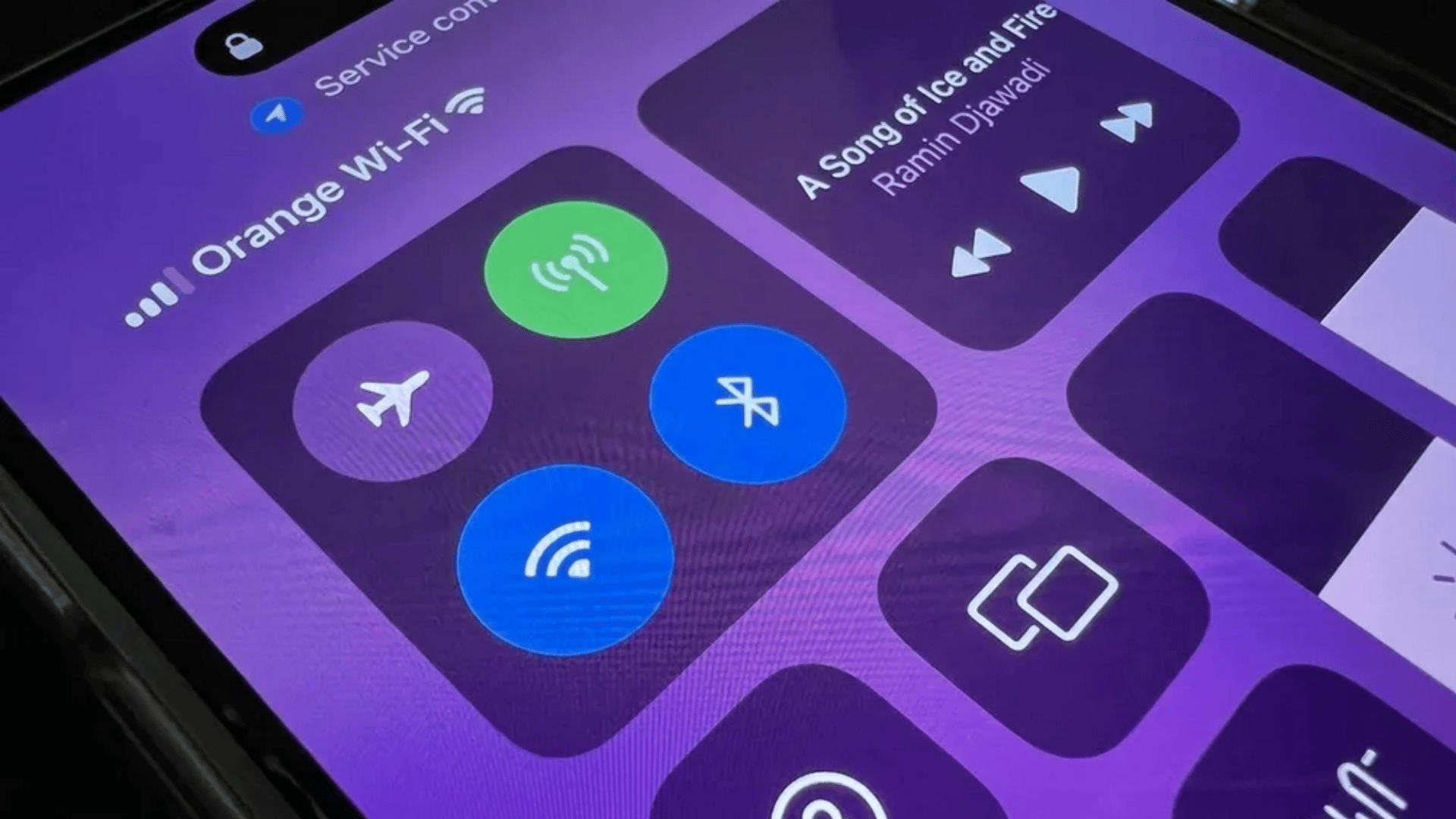
AirDrop needs Wi-Fi and Bluetooth active on the sender and receiver. The devices do not always need to use the same Wi-Fi network, but both radios must be turned on.
Try this first:
- Turn Wi-Fi off, then turn it back on
- Turn Bluetooth off, then turn it back on
- Wait a few seconds before sending again
- Repeat this on both Apple devices
You can also switch Airplane Mode on for a few seconds, then turn it off.
Think of it as giving the wireless connection a quick shake without getting too dramatic.
2. Turn Off Personal Hotspot
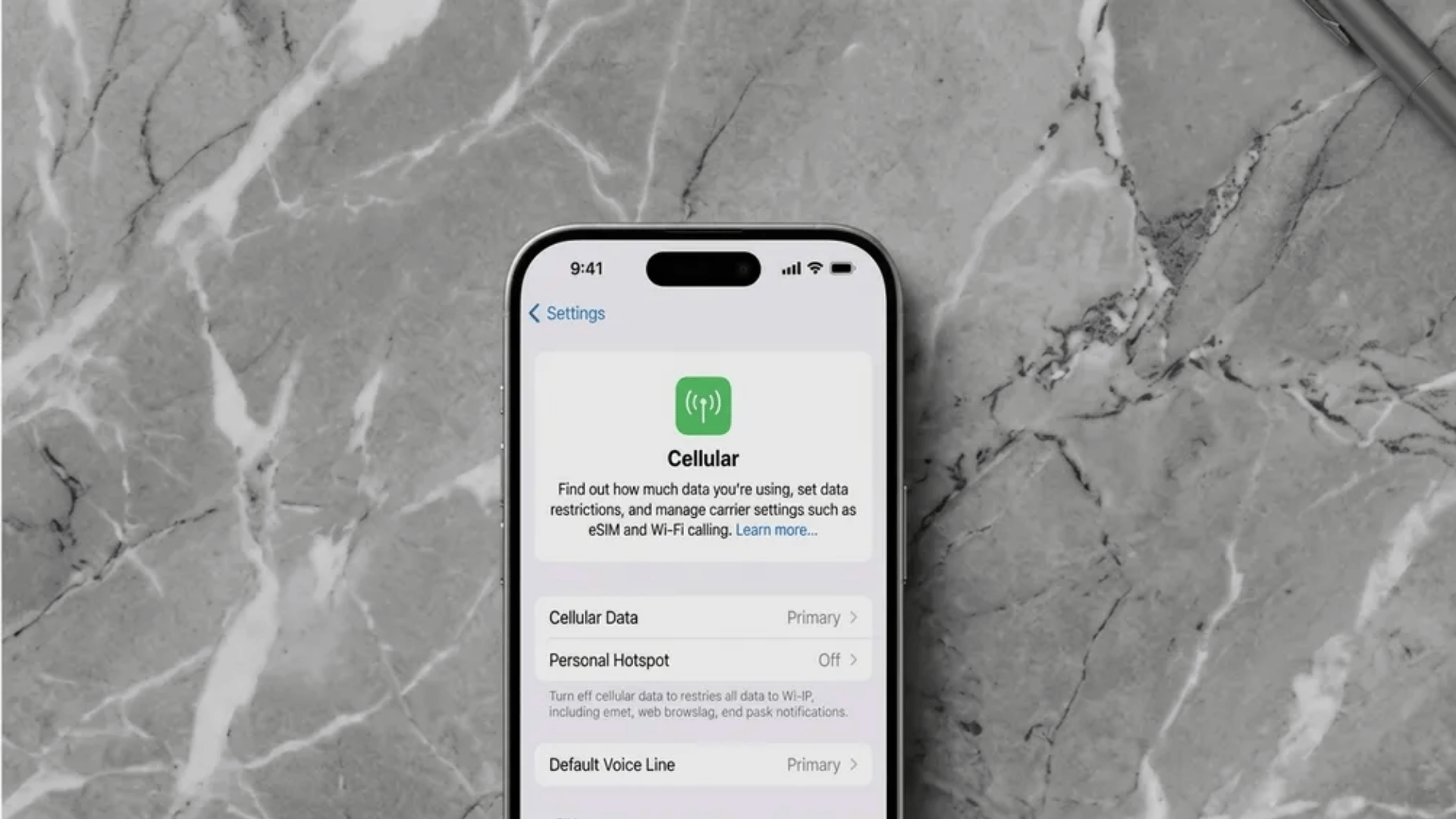
Personal Hotspot can get in AirDrop’s way.
This often happens when someone is trying to send files between an iPhone and Mac while mobile data sharing is still active.
On iPhone or iPad:
- Open Settings
- Tap Personal Hotspot
- Turn off Allow Others to Join
After that, try AirDrop again while both devices are close and unlocked.
3. Keep the Receiving Device Awake and Nearby
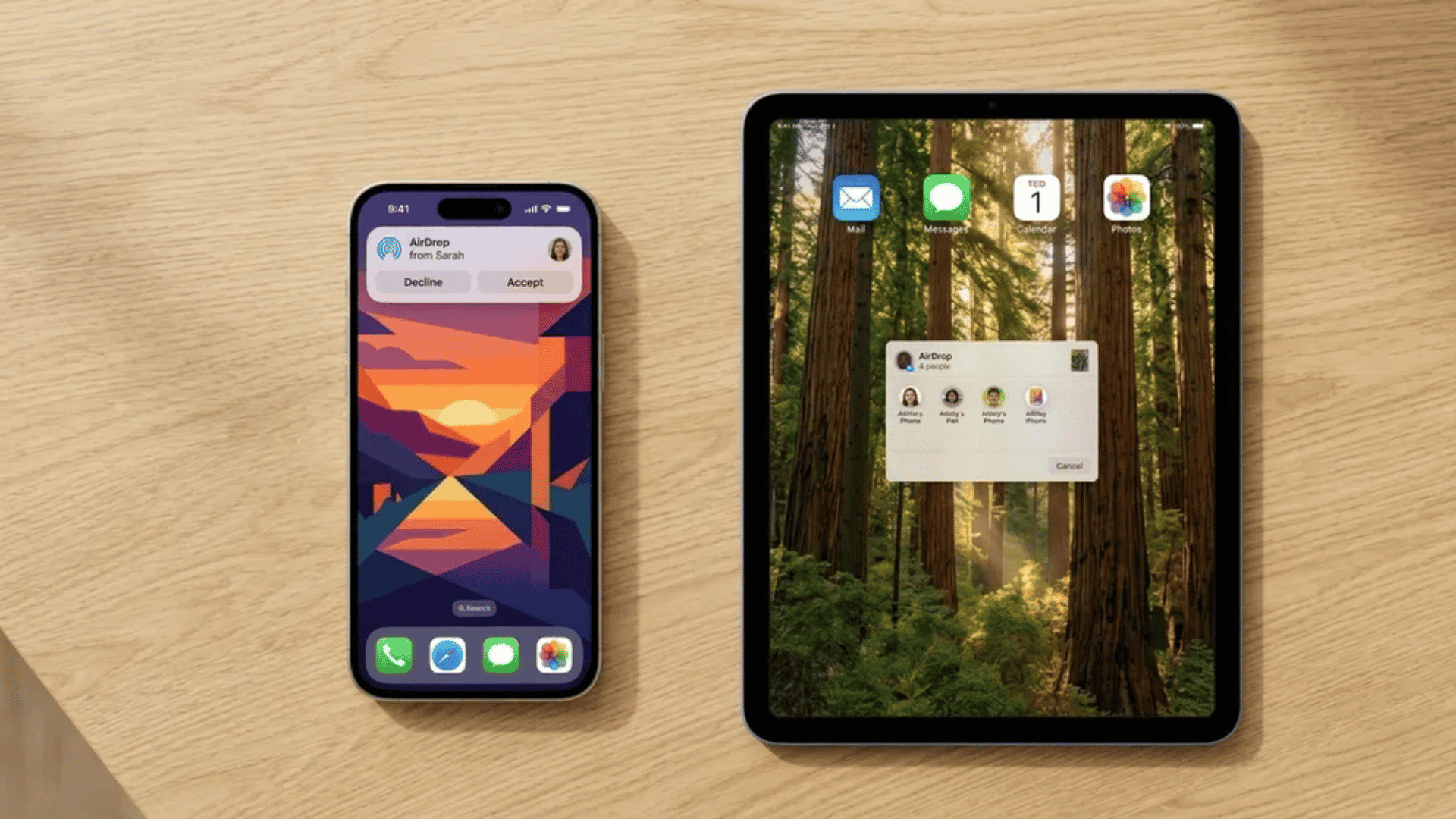
AirDrop will not work well if the receiving device is locked, asleep, or sitting too far away.
Check these basics:
- Keep both devices awake
- Unlock the receiving iPhone or iPad
- Place the devices near each other
- Stay within Bluetooth range
- Avoid sending through walls or across rooms
AirDrop is fast, but it is not magic. The other device still needs to be awake enough to answer the door.
4. Fix Contacts only Issues
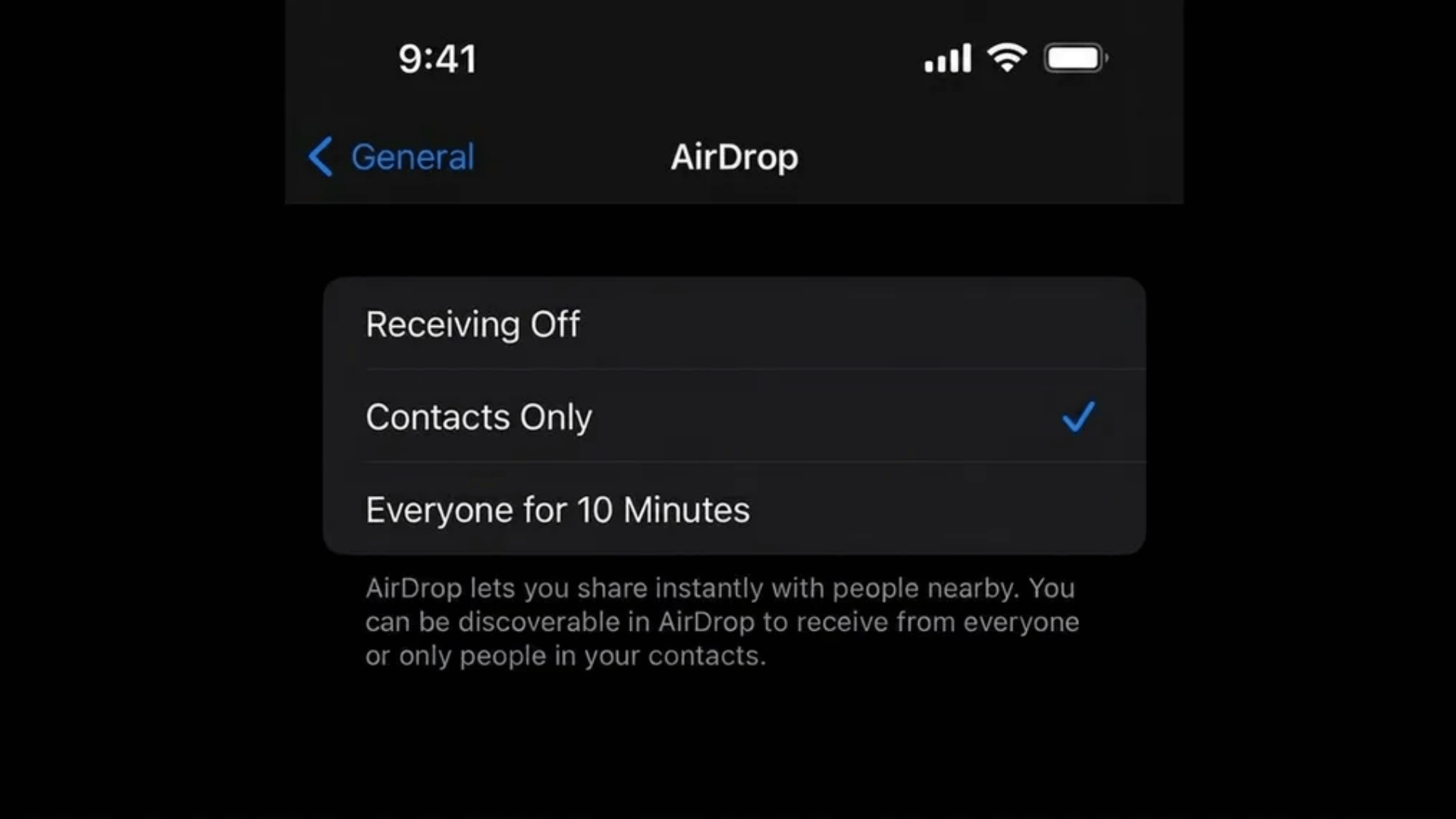
Contacts Only can be picky.
For it to work, both people need to have each other saved with the right Apple ID email or phone number.
Check these details:
- The sender’s Apple ID email is saved in Contacts
- The sender’s phone number is saved correctly
- The receiver’s details are saved on the sender’s device
- Both devices are signed in to iCloud
- Contact cards are not old, duplicated, or missing key details
The easier move is to switch AirDrop to Everyone for 10 Minutes, send the file, then switch back. That skips the contact-matching headache without changing your whole contact list.
5. Pause VPN, Firewall, or Security Tools
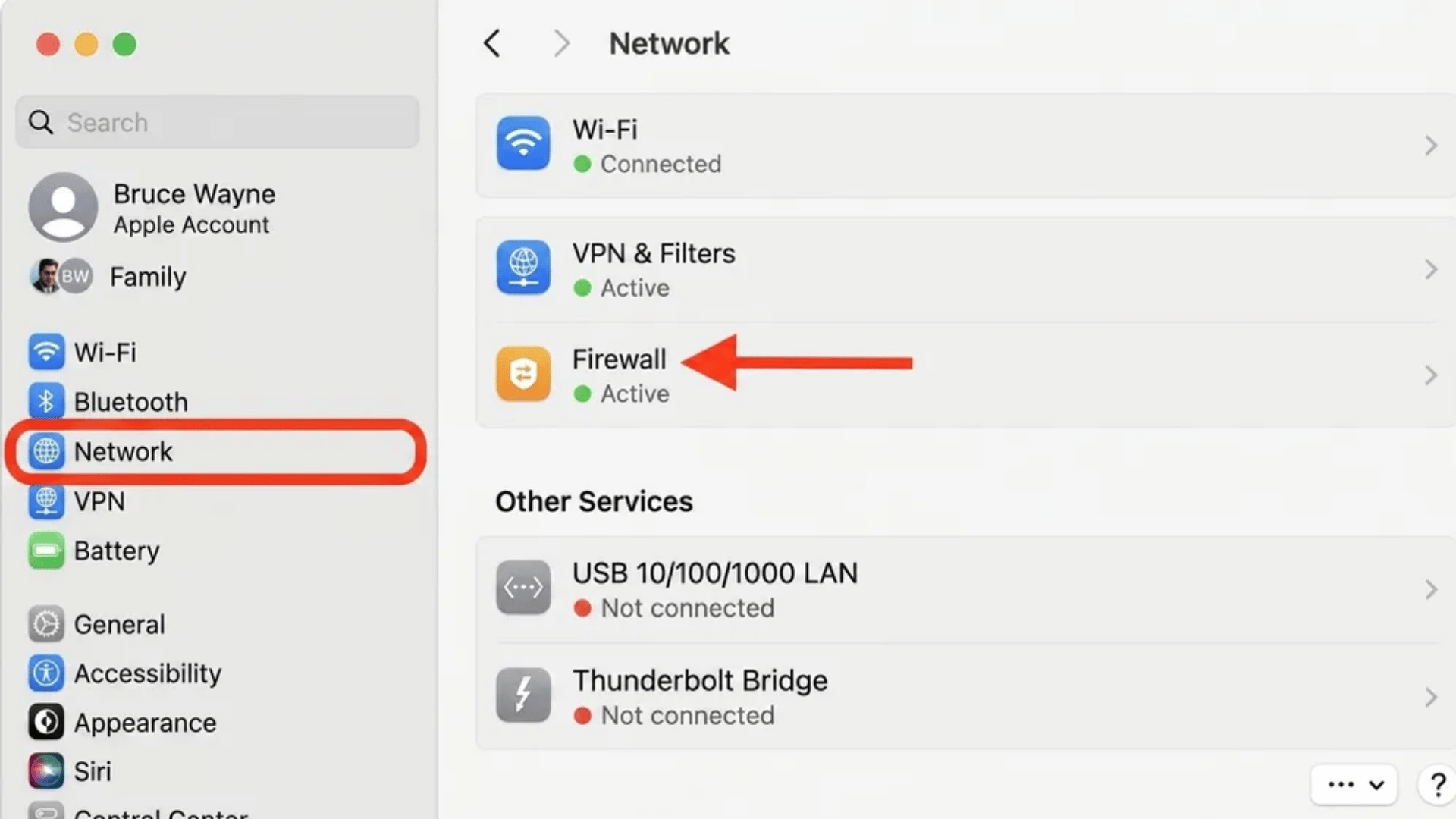
VPNs, strict firewalls, and some security apps can stop nearby devices from finding each other. This is more common when sending files between a Mac and an iPhone.
Try this:
- Turn off VPN on both devices
- Pause third-party security tools for a moment
- On Mac, check firewall settings
- Try AirDrop again
- Turn your security tools back on after testing
If AirDrop works after the VPN is off, the issue is likely with local device detection.
6. Restart Both Devices
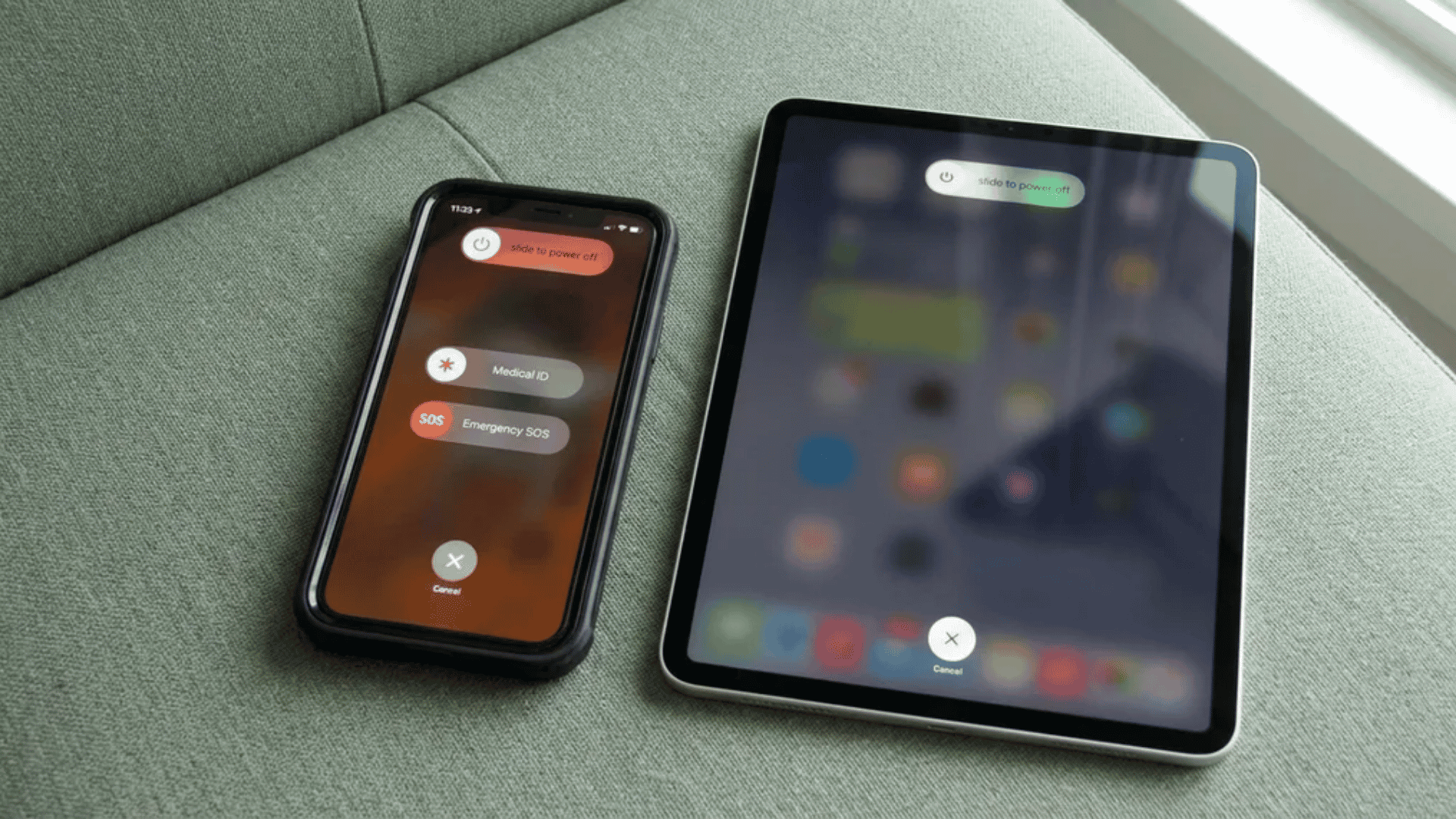
A restart may sound boring, but it often clears stuck wireless connections.
Restart the devices involved in the transfer:
- iPhone
- iPad
- Mac
Do this after checking the main settings first. That way, you are not just hoping a reboot fixes everything. You are clearing the deck after removing the usual blockers.
7. Update iOS, iPadOS, or macOS
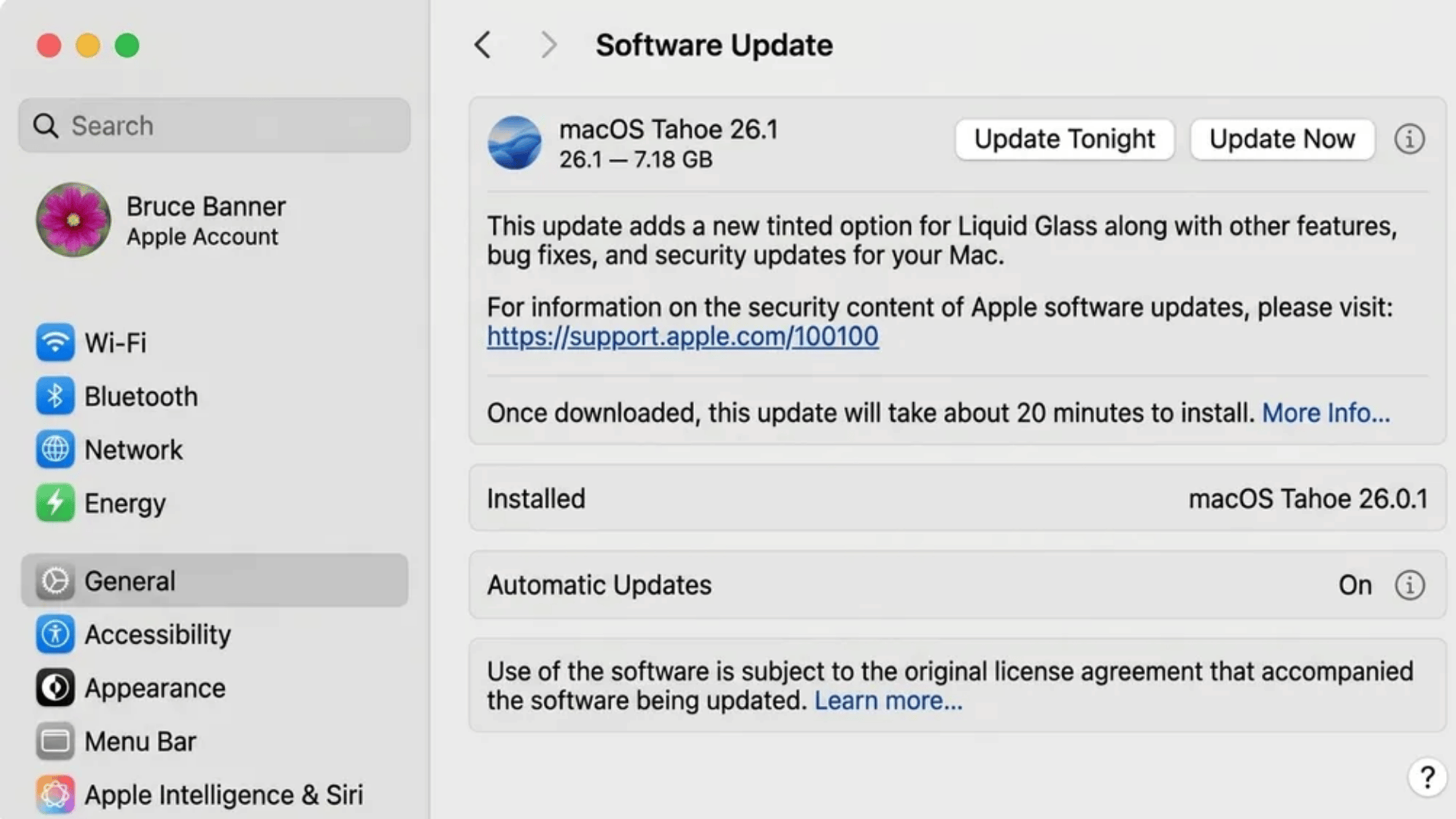
AirDrop can act strange after a software update, but newer updates can also fix bugs and connection issues.
On iPhone or iPad:
- Open Settings
- Tap General
- Tap Software Update
- Install any available update
On Mac:
- Open System Settings
- Go to General
- Click Software Update
- Install the latest available version
Do not treat this as a guaranteed fix.
Treat it as one smart step when AirDrop keeps failing after the basics are handled.
8. Check Screen Time Restrictions
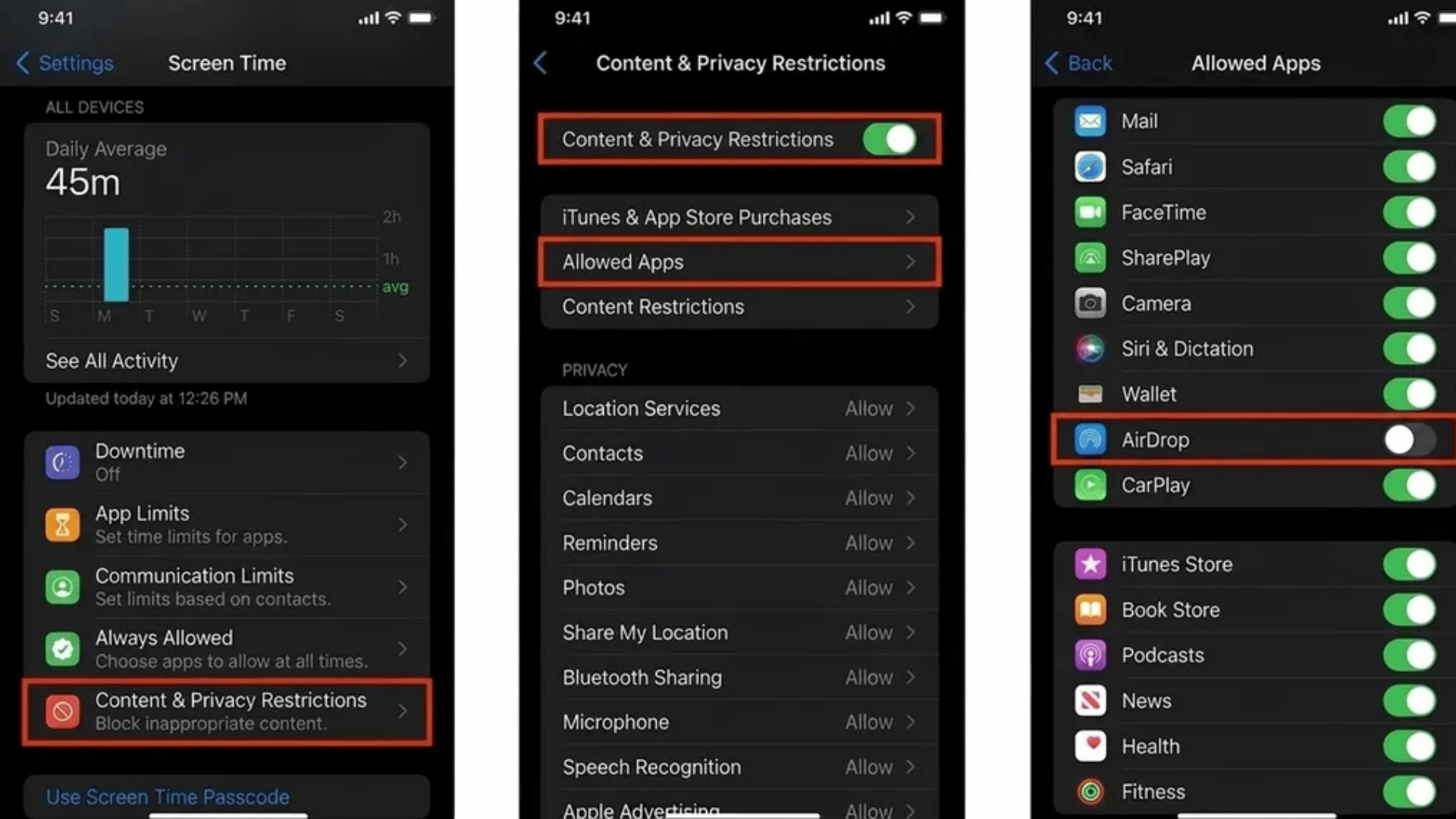
AirDrop can be blocked by Screen Time settings.
This is more likely on a child’s device, work phone, school iPad, or managed Apple device.
On iPhone or iPad:
- Open Settings
- Tap Screen Time
- Tap Content & Privacy Restrictions
- Check Allowed Apps & Features
- Make sure AirDrop is allowed
This fix matters most when AirDrop is missing completely instead of simply failing.
9. Reset Network Settings as A Last Step
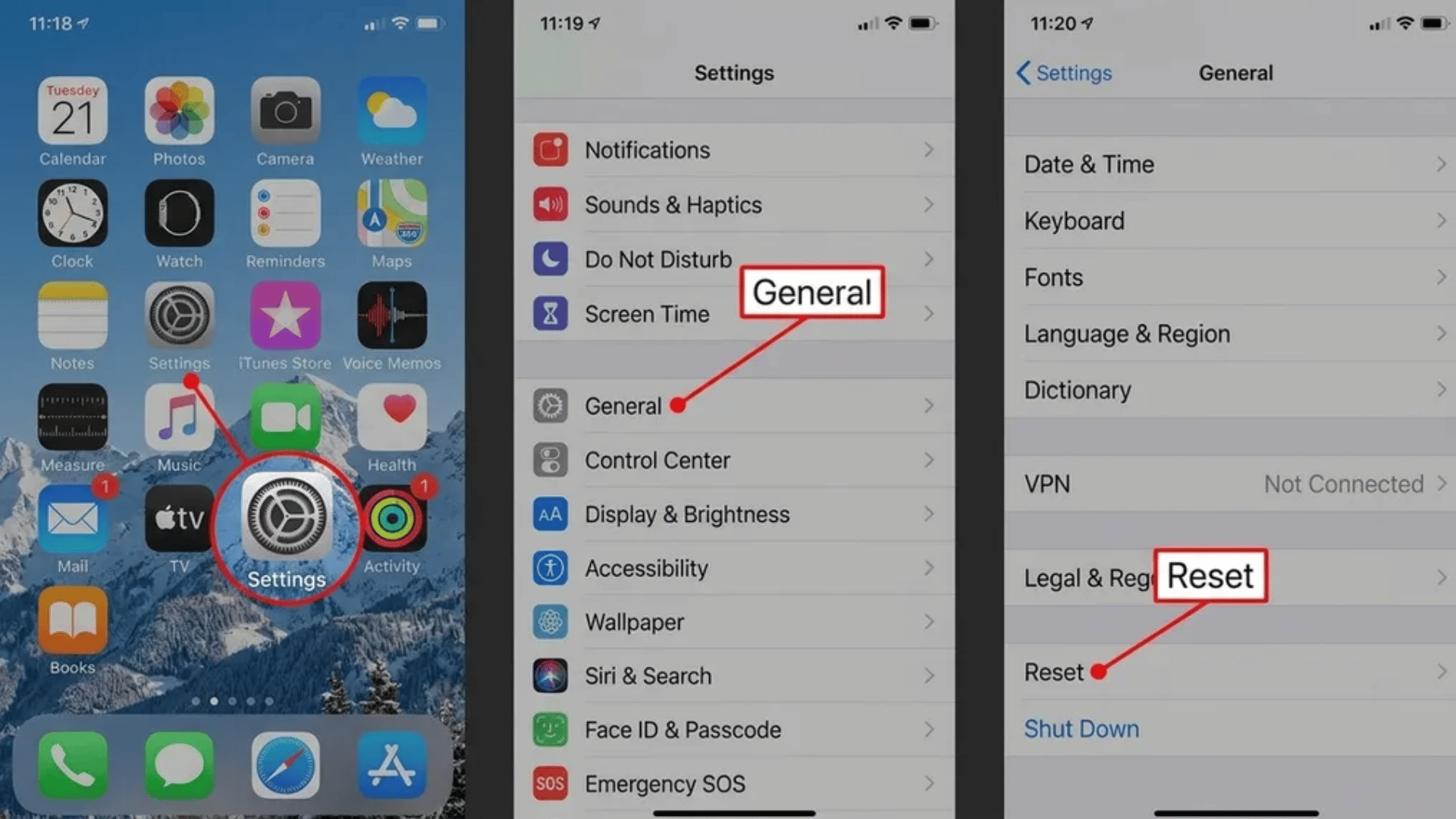
Use this only after the easier fixes.
It can help when Wi-Fi, Bluetooth, and AirDrop keep acting odd even after restarts.
On iPhone:
- Open Settings
- Tap General
- Tap Transfer or Reset iPhone
- Tap Reset
- Choose Reset Network Settings
This removes saved Wi-Fi networks and passwords.
Tip: Try the quicker fixes first, then use these when AirDrop still refuses to cooperate.
AirDrop Not Working Between iPhone and Mac? Use These Checklists
AirDrop can act a little moody when an iPhone and a Mac are involved.
One device may show up, disappear, get stuck on waiting, or refuse to accept the file. Use the right checklist based on what you are trying to send.
|
Mac AirDrop Fix Checklist Open Finder on your Mac and click AirDrop in the sidebar. |
|
Why Your MacBook Is Not Showing Up on iPhone AirDrop Check if the Mac is set to Contacts Only instead of Everyone. |
|
iPhone to iPhone AirDrop Checklist Unlock both iPhones before sending. |
|
iPhone to Mac AirDrop Checklist Open the AirDrop window on the Mac. |
Final Thoughts
AirDrop can go from smooth to stubborn in seconds, but it rarely needs a full tech meltdown to fix.
Most issues come down to small settings, device visibility, or a connection that needs a clean reset.
Work through the fixes in order, test after each one, and you should know pretty quickly where the problem is hiding.
Once it works, send that file with the confidence of someone who just beat a tiny Apple puzzle.
Did one fix work better than the rest for you?
Drop a comment below and share what solved it, especially if your iPhone or Mac had its own weird little AirDrop moment.
Frequently Asked Questions
Why Can’t I Drag and Drop Files on My Mac Anymore?
Drag and drop issues on a Mac are usually caused by a frozen Finder process, glitchy trackpad settings, or a stuck key.
Does AirDrop Have a Limit?
Officially, there is no hard file size or quantity limit on AirDrop transfers between Apple devices.
What Are the Risks of Airdrops?
The main drawbacks of AirDrop are its limited range, reliance on Apple devices, and the potential for unwanted file requests if visibility is set too open.