
A phone in a child’s hand can quickly become more than a device for calls or study. It can open doors to apps, videos, and chats that run far beyond intended use. Without clear boundaries, usage often shifts from structured time to constant scrolling and distraction.
iPhone parental controls offer a built-in way to set those limits without extra tools or complicated setups.
From screen limits to content filters, these settings help shape how the device is used each day. This breakdown walks through each step in a clear, simple way so setup feels direct and manageable.
Why iPhone Parental Controls Matter?
Children spend a large amount of time on their phones for studying, playing games, watching videos, and using social apps. This also increases exposure to content that may not match their age or daily routine.
iPhone parental controls help bring structure to this usage. They allow limits on screen time, filter content, and manage privacy settings in a controlled way.
Apple’s Screen Time and Family Sharing tools keep everything within the device system, making control easier and more stable without extra apps.
Key areas these controls support include:
- Managing daily screen time across apps
- Blocking or limiting age-inappropriate content
- Protecting personal data and app access
These settings help create a safer and more balanced phone routine for children.
What Must Be Ready Before Setup?
A few basics need to be in place before turning on parental controls so the setup works smoothly.
An updated iPhone or iPad is required to access the latest Screen Time features and settings without errors.
Separate Apple IDs for parent and child are needed to link both devices under one system for control and tracking.
Family Sharing should be enabled so settings can be managed from one device instead of setting them individually.
The child must also be added to the family group to activate restrictions, limits, and monitoring options.
Main Ways to Set Up Controls on iPhone
Parental controls on iPhone can be activated in two different ways. The right method depends on whether the child already uses the device or if setup is being handled from a parent’s phone.
On Child’s iPhone (Screen Time Direct Setup)
This method is used when the iPhone is already in the child’s hands and needs immediate configuration.
- Settings are applied directly on the same device
- Useful for first-time setup or quick restriction changes
- Gives full control over usage limits, content access, and downtime
Once enabled, the device starts tracking usage instantly and applies limits without delay. This approach is straightforward but requires physical access to the phone.
On Parent’s iPhone (Family Sharing Setup)
This option allows control without touching the child’s device repeatedly.
- Managed through Apple’s Family Sharing system
- Settings are controlled remotely from the parent’s iPhone
- Ideal for households managing multiple devices
After linking the child’s Apple ID to the family group, Screen Time and restrictions can be adjusted from a single dashboard. This keeps oversight centralized and easier to maintain over time.
How to Put Parental Controls on Iphone? Effective Ways
Parental controls on iPhone are built to manage usage, filter content, and set clear boundaries on how a child interacts with the device.
Each feature works together to create structured control without needing third-party tools:
1. Turning On Screen Time on iPhone
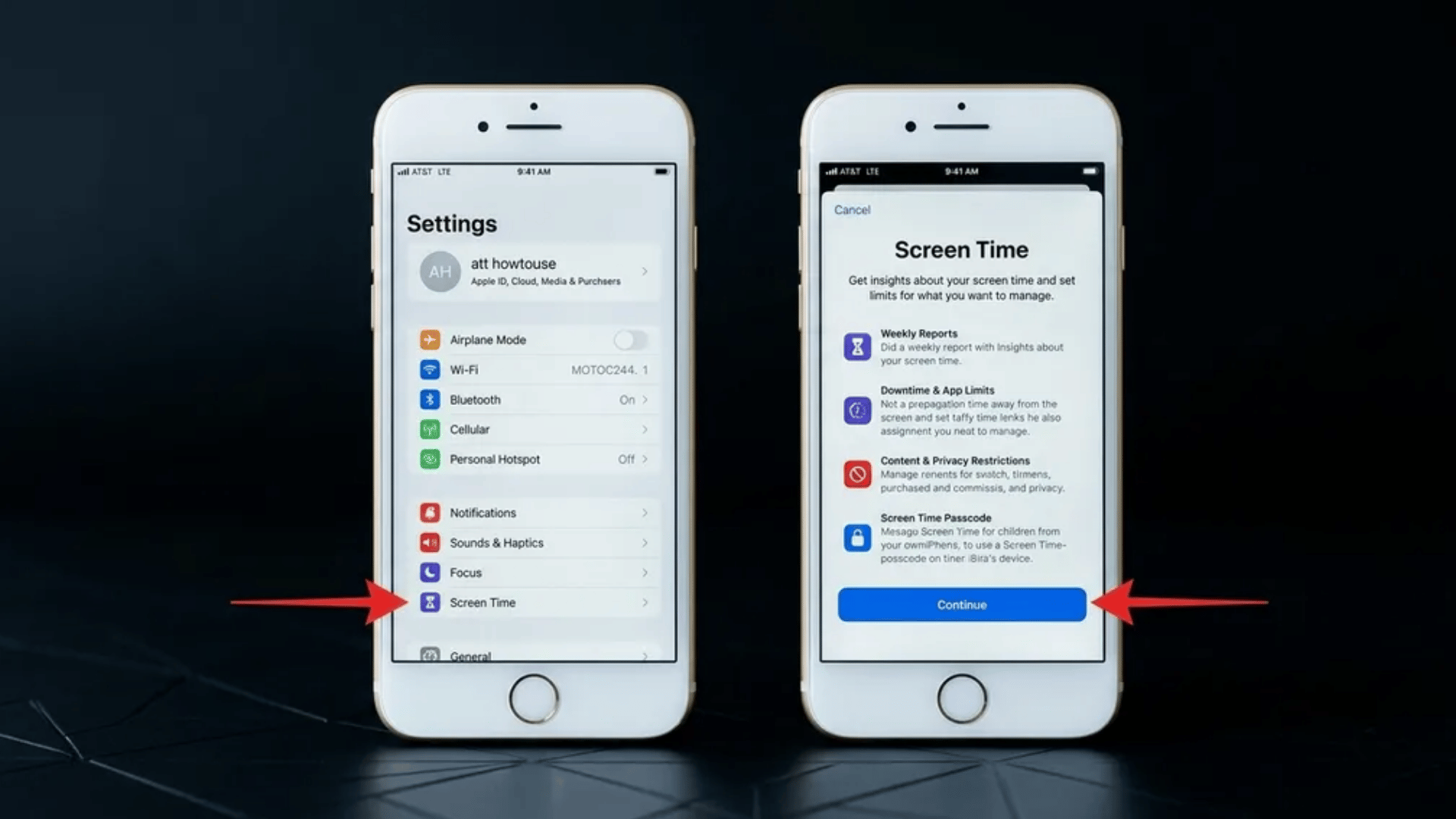
Screen Time acts as the base control layer for managing device usage. It tracks activity and allows restrictions to be applied step by step.
Steps to Set It Up:
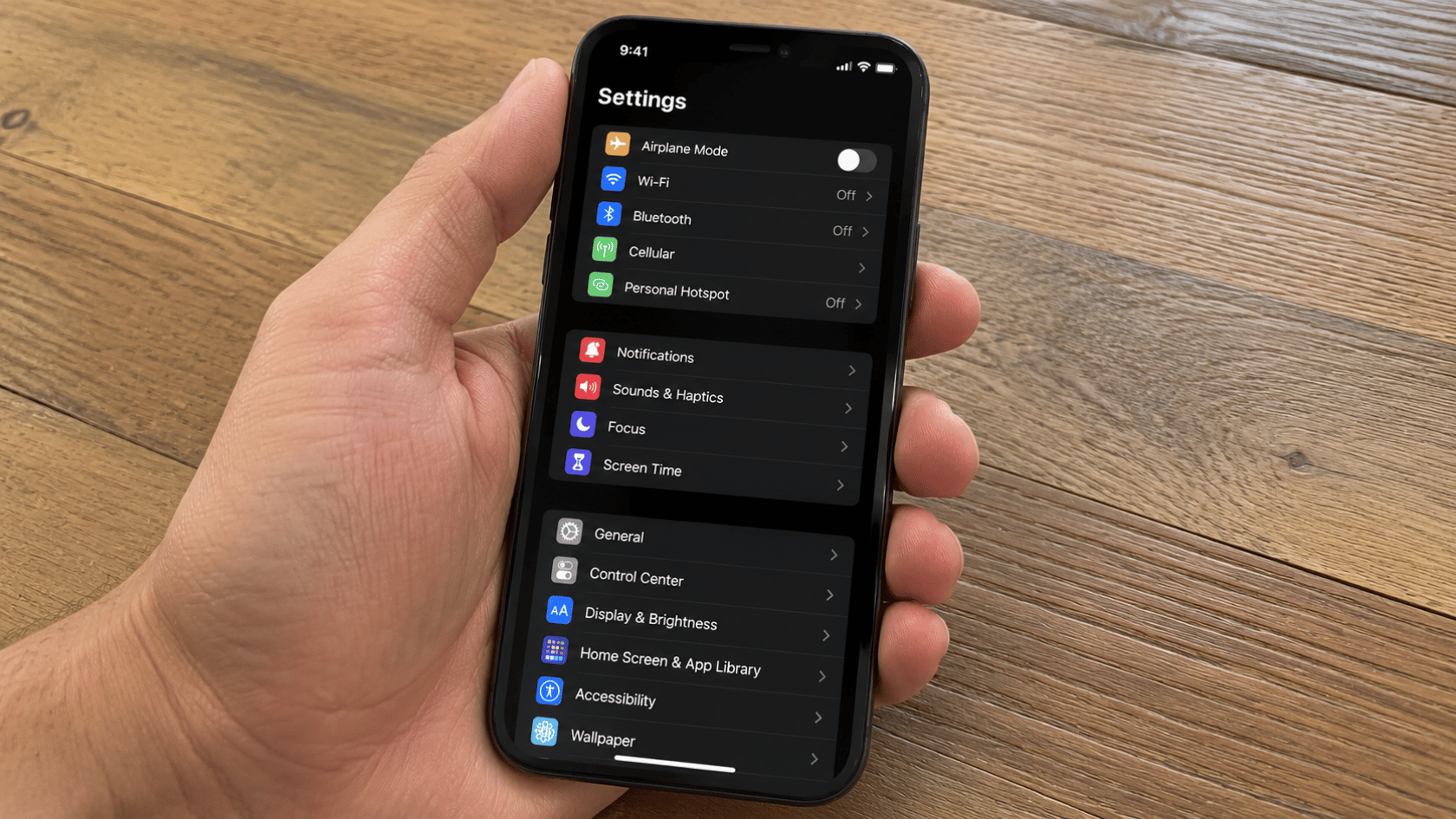
- Open Settings and go to Screen Time
- Tap Turn On Screen Time to activate tracking and controls
- Select “This is My Child’s iPhone” to apply child-specific settings
- Set a Downtime schedule for offline hours such as sleep or study periods
- Create a Screen Time passcode to prevent unauthorized changes
2. Content & Privacy Restrictions Setup
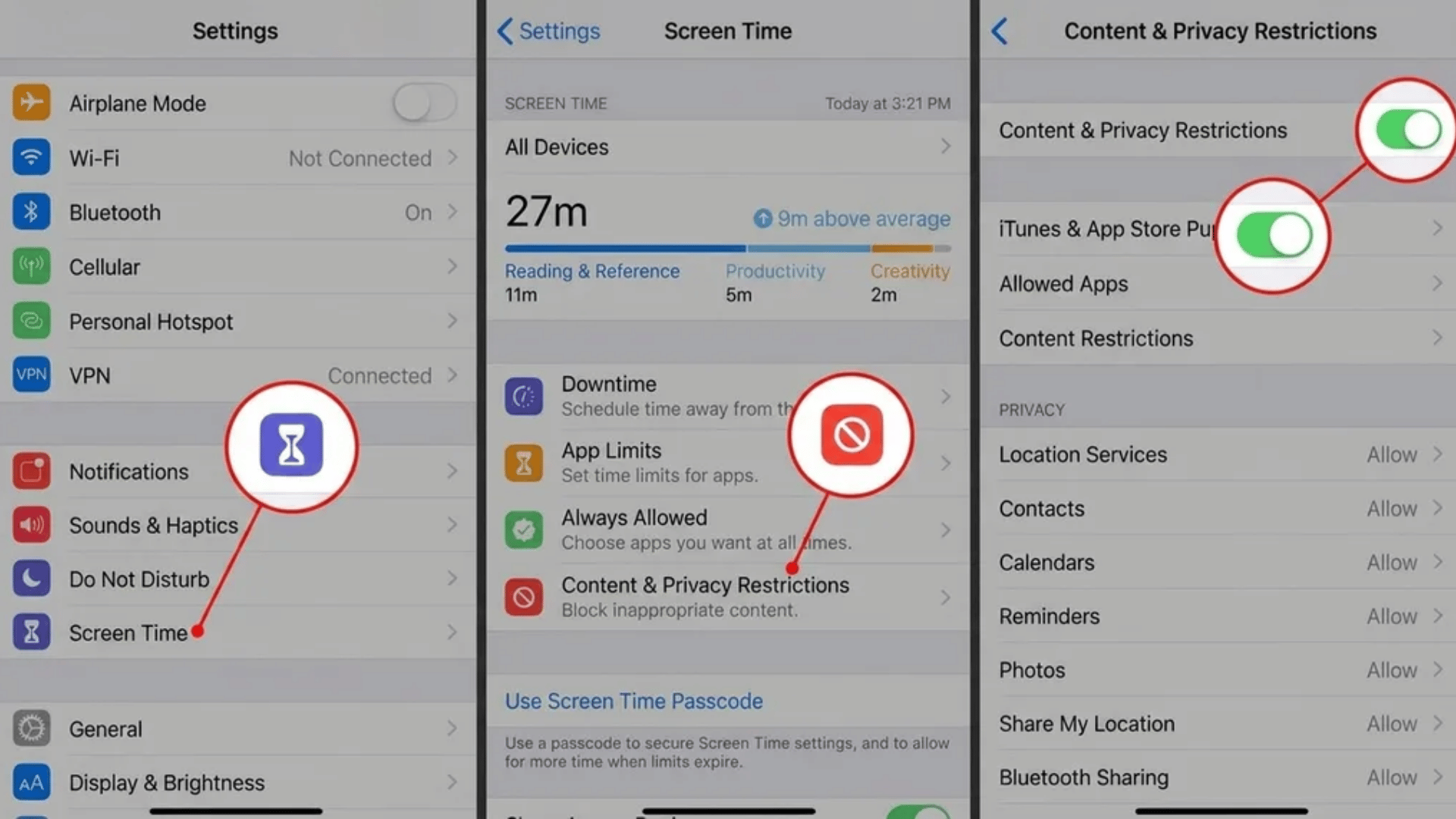
This section defines what can and cannot be accessed on the device, covering apps, web activity, and system permissions.
| Area | Control Focus |
| Apps | Limit downloads based on age ratings |
| Web content | Block adult websites and unsafe pages |
| Privacy settings | Control access to location, photos, and contacts |
| Siri & search | Filter explicit language and unsafe suggestions |
Steps to set it up:
- Open Settings on iPhone
- Tap Screen Time
- Select Content & Privacy Restrictions
- Turn ON the toggle at the top
- Tap Content Restrictions
- Set limits for Apps, Web Content, Siri, and Privacy
- Go back and open iTunes & App Store Purchases
- Restrict Installing apps and in-app purchases
- Review Location, Photos, Contacts access under Privacy
- Exit settings to save changes automatically
3. App Limits and Daily Usage Control
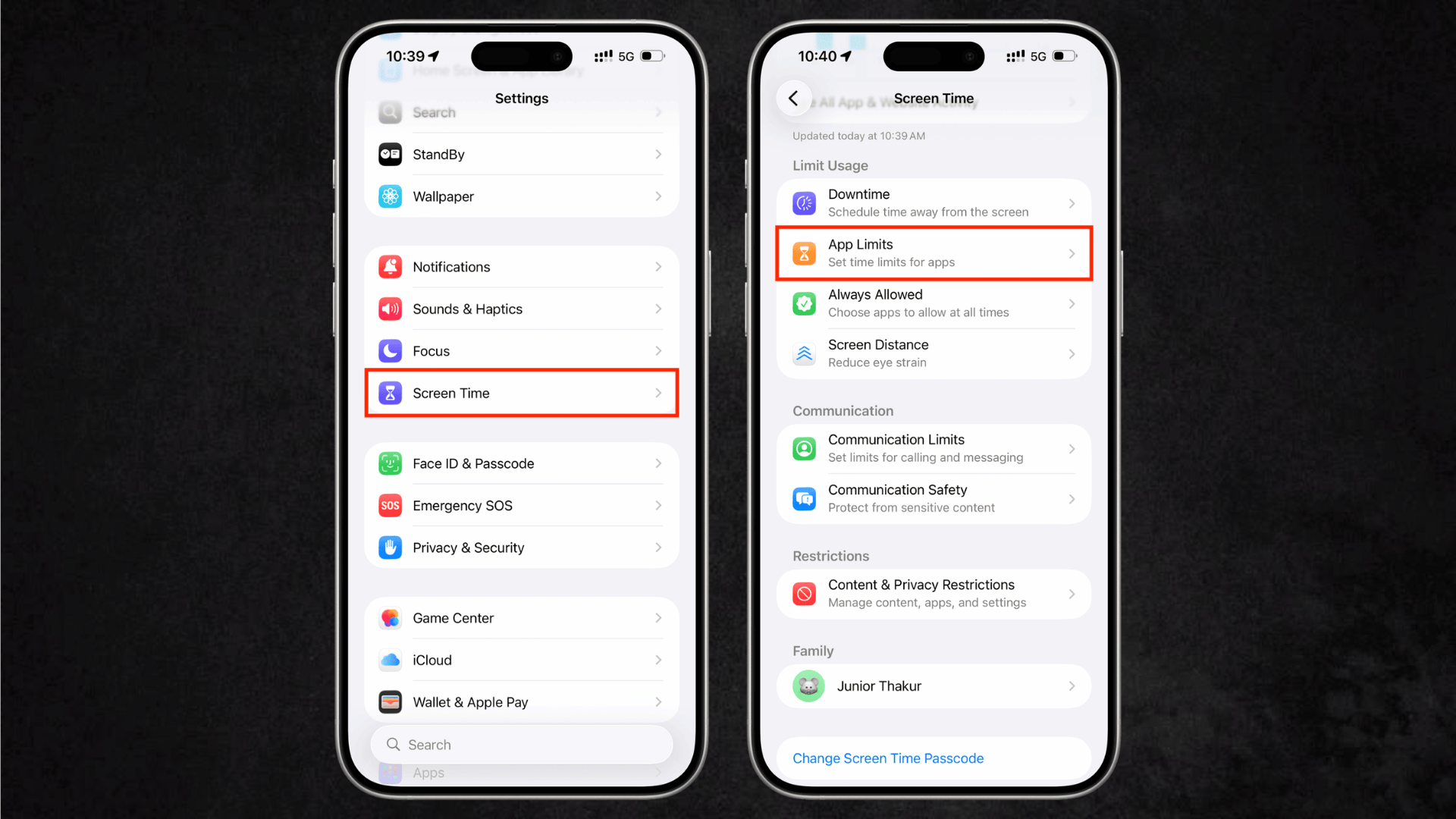
App Limits help manage how much time is spent on specific apps or categories like games, social media, or entertainment.
Steps to Set It Up:
- Open Settings
- Tap Screen Time
- Select App Limits
- Tap Add Limit
- Choose app categories or specific apps
- Set daily time allowance
- Tap Add to confirm
4. Downtime Scheduling
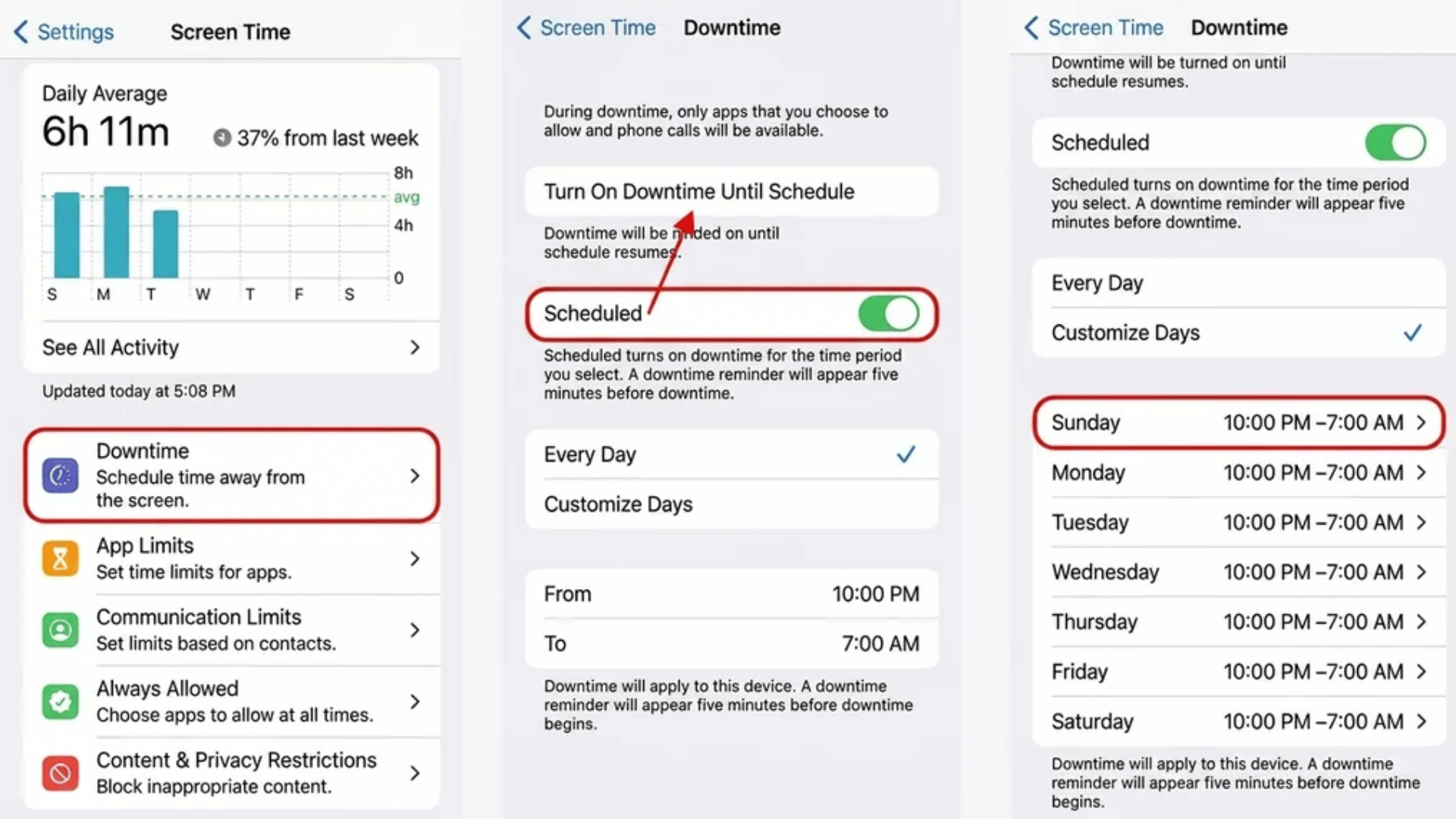
Downtime creates a fixed period where only selected apps and contacts are allowed, usually used for sleep or study hours.
Steps to Set It Up:
- Open Settings
- Go to Screen Time
- Tap Downtime
- Turn on Downtime
- Set start and end time
- Choose apps allowed during downtime
- Save settings
5. Communication Limits
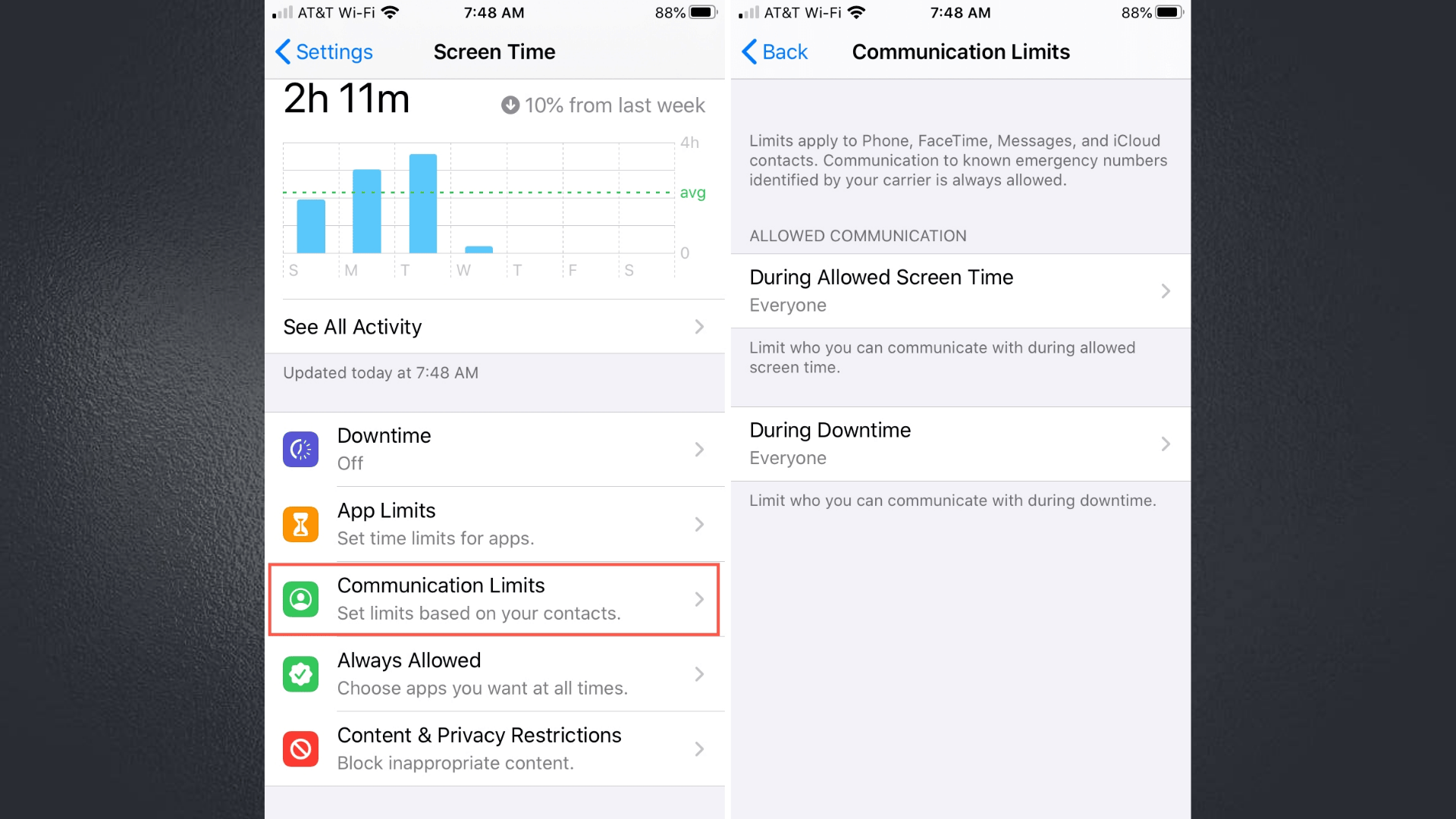
Communication Limits control who can call, message, or FaceTime the device during allowed time and downtime.
Steps to Set It Up:
- Open Settings
- Go to Screen Time
- Tap Communication Limits
- Select During Screen Time or During Downtime
- Choose allowed contacts (Everyone, Contacts, or Specific Contacts)
- Confirm settings
6. Web Content Filtering and Safe Browsing
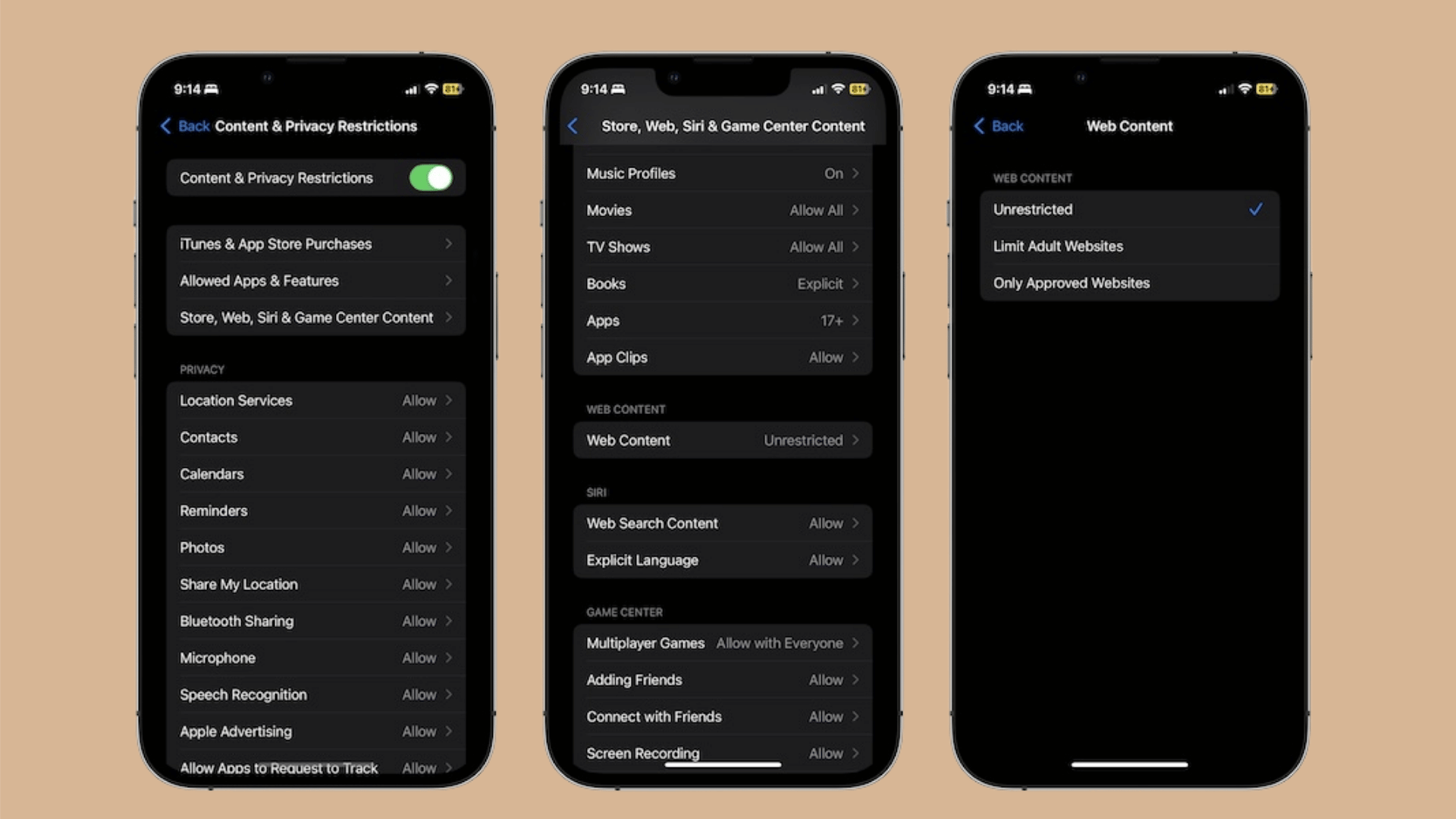
This feature manages which websites can be accessed and blocks unsafe or adult content automatically.
Steps to Set It Up:
- Open Settings
- Go to Screen Time
- Tap Content & Privacy Restrictions
- Turn it ON
- Select Content Restrictions
- Tap Web Content
- Choose Limit Adult Websites or Allowed Websites Only
- Add custom sites if needed
7. Purchase and App Download Controls
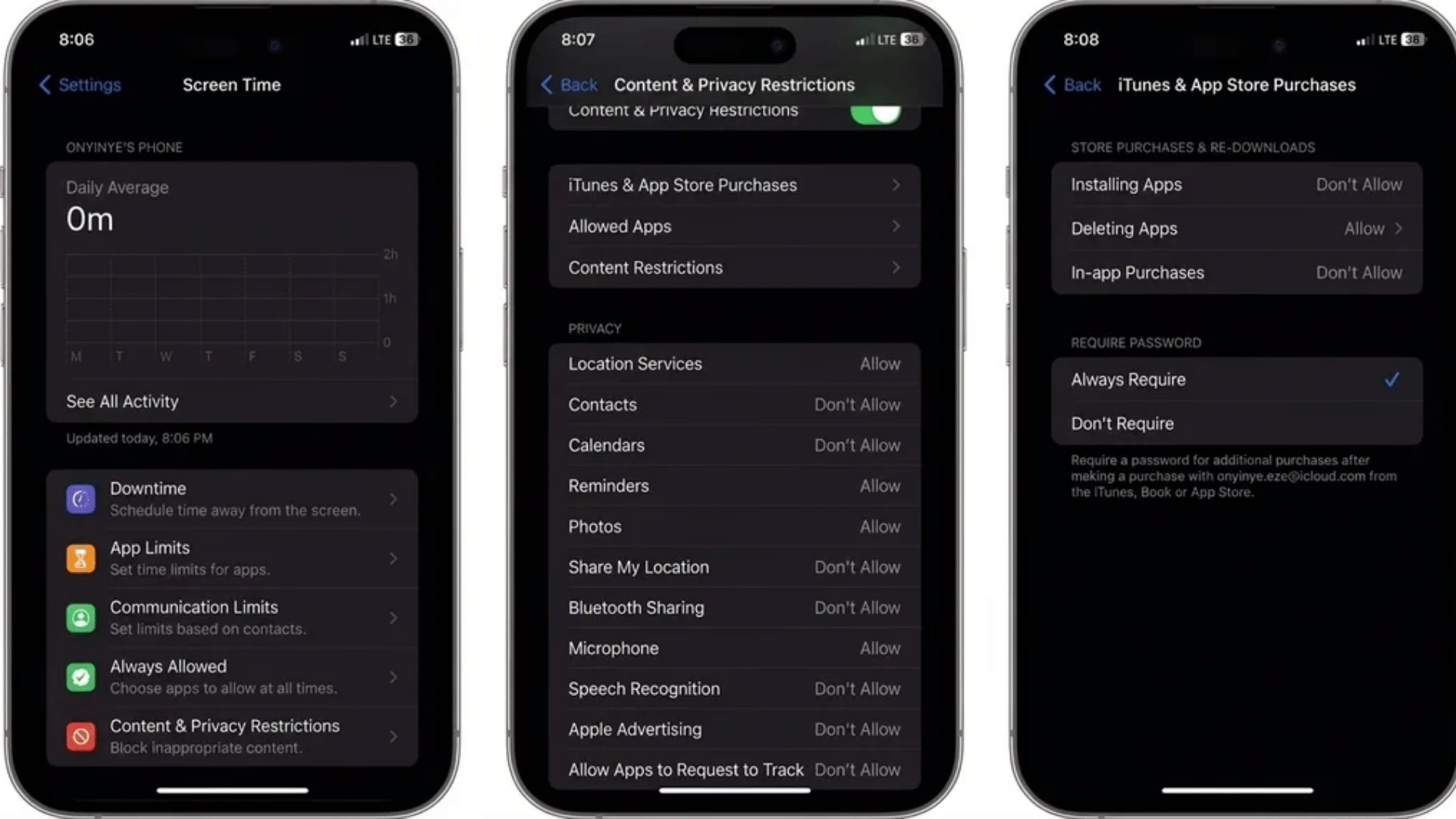
These controls prevent unwanted app installs and restrict spending on apps or in-app purchases.
Steps to Set It Up:
- Open Settings
- Go to Screen Time
- Tap Content & Privacy Restrictions
- Select iTunes & App Store Purchases
- Set Installing Apps to Don’t Allow or Ask
- Set In-App Purchases to Don’t Allow
- Require password for purchases
8. Location Sharing and Tracking Options
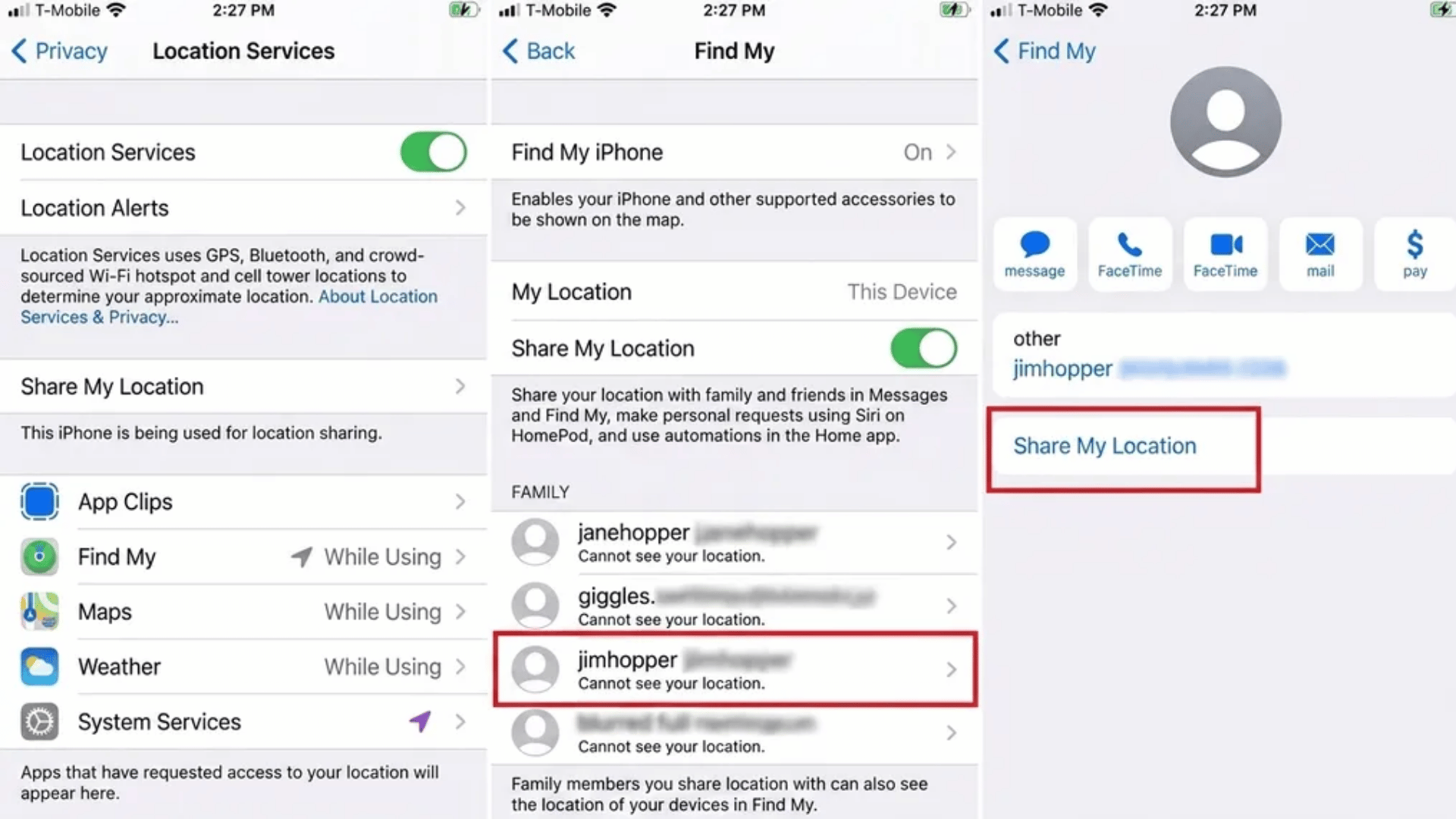
Location tools help track the device and keep visibility of where it is being used.
Steps to Set It Up:
- Open Settings
- Tap Apple ID (top of screen)
- Select Find My
- Turn on Find My iPhone
- Enable Share My Location
- Add family members via Family Sharing
- Check location in Find My app
9. Family Sharing Controls from Parent Device
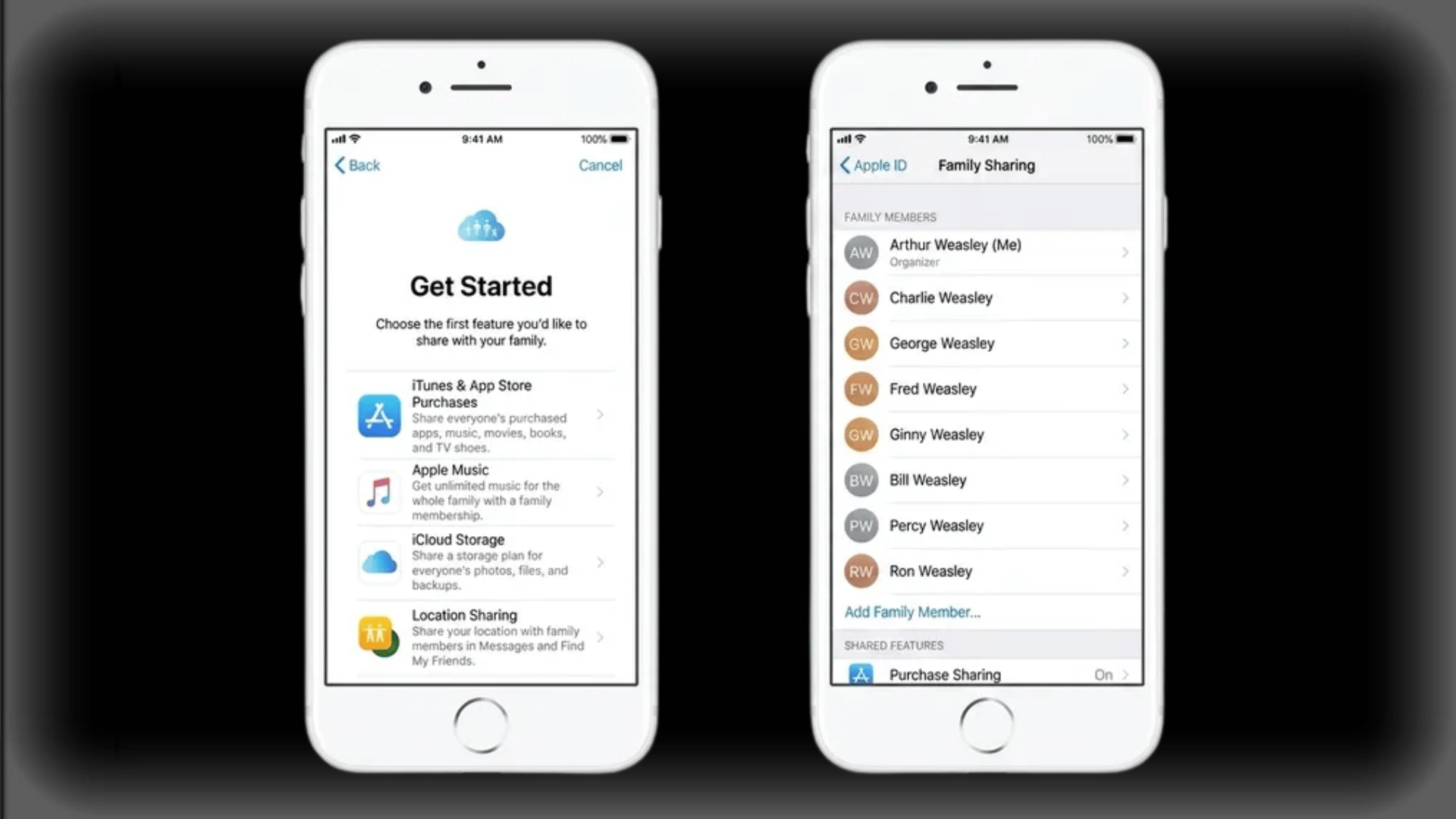
Family Sharing allows parents to manage child devices remotely from their own iPhone.
Steps to Set It Up:
- Open Settings on parent iPhone
- Tap Apple ID
- Select Family Sharing
- Tap Add Member
- Choose Create Child Account or Invite Child
- Link child’s Apple ID
- Manage Screen Time and permissions from family list
10. Safety Check and Emergency Settings
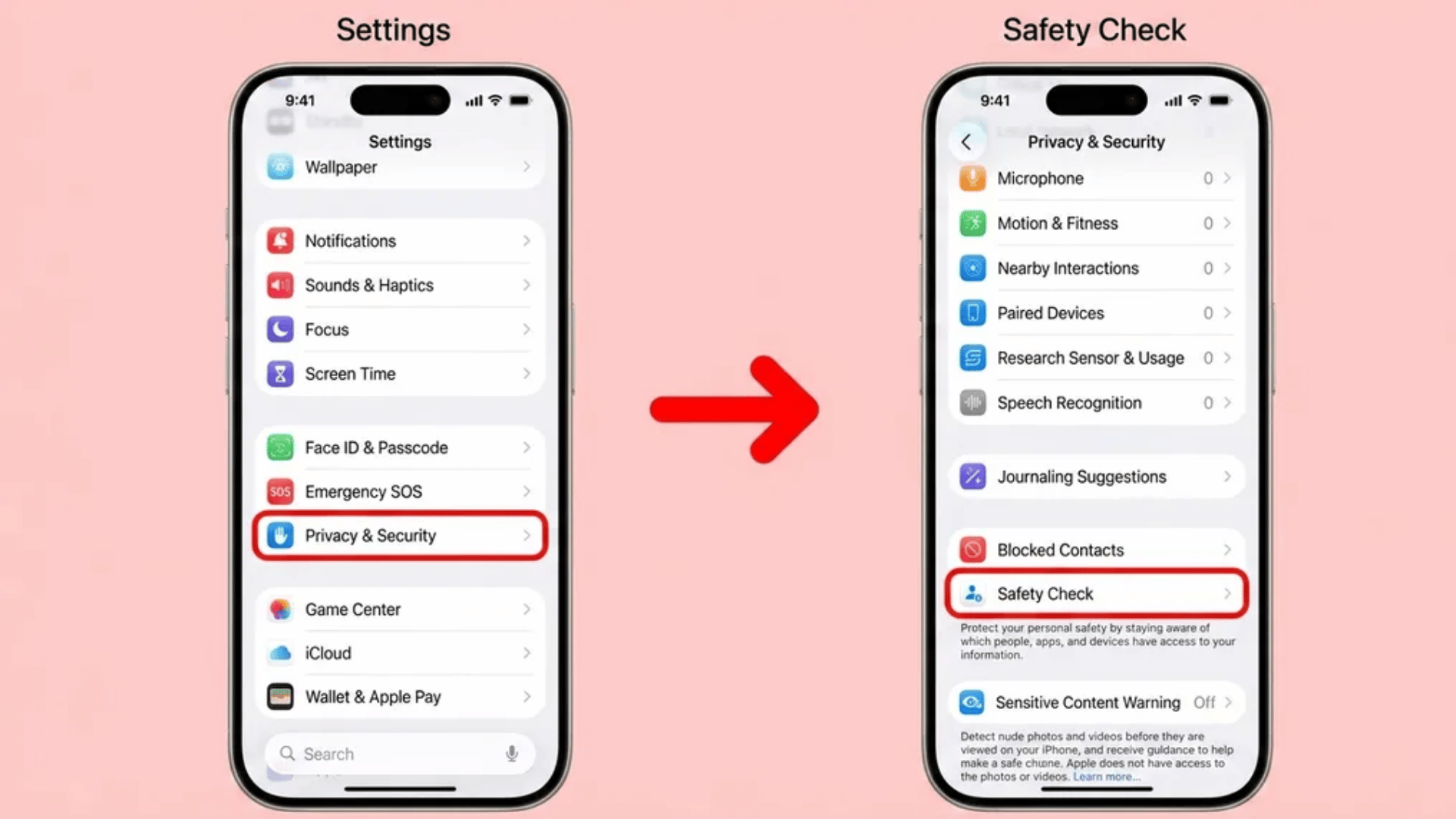
Safety settings ensure quick response access and control over shared permissions during urgent situations.
Steps to Set It Up:
- Open Settings
- Go to Privacy & Security
- Tap Safety Check
- Review sharing and access permissions
- Remove or adjust contacts if needed
- Set emergency contacts in Health app
- Save updated settings
Final Checklist for Full Setup Completion☐ Screen Time enabled |
Conclusion
Parental controls on iPhone work best when set up as an ongoing routine rather than a one-time task. As children grow, usage patterns shift, so regular updates to limits and permissions help keep the setup relevant.
Small adjustments in Screen Time, app access, and communication rules can make a noticeable difference in daily habits and focus.
Every household may use these tools differently, depending on age, study needs, and device dependence.
Sharing what has worked or what challenges appeared during setup can help others refine their own approach. Drop your thoughts or experiences in the comments and let the discussion continue.
Frequently Asked Questions
What Is the App that Lets You See Everything on Your Child’s Phone?
Parental monitoring apps like mSpy, Bark, FamilyTime, and Qustodio provide deep access to your child’s phone activity.
How Can I Mirror My Child’s Phone to Mine?
To mirror your child’s phone, you can use dedicated parental control apps that support real-time screen casting, or utilize built-in family safety features that offer remote reporting, app blocking, and location tracking.
How Is My Child Bypassing Screen Time?
Managing screen time works best when settings and communication both stay consistent. Keeping devices updated, checking permissions, and securing passcodes helps maintain control over limits. Pairing these steps with open discussion about usage makes digital boundaries more stable and easier to follow.