Missing important calls can be frustrating, especially when you don’t know if voicemail is even set up on your phone. Many iPhone users struggle with setup issues, missing options, or carrier-related confusion.
Learning how to set up voicemail on iPhone helps you fix these problems quickly and avoid missed messages. It ensures your calls are always covered when you can’t answer.
In this guide, you’ll learn the simple setup steps, common issues, and how to manage voicemail easily on your iPhone.
What Is iPhone Voicemail and What Do You Need Before Setting It Up?
Voicemail on iPhone stores audio messages when you can’t answer calls, but it depends on your carrier, iOS detection, and Visual Voicemail support working together.
If any one of these layers is missing, setup may fail or not appear at all. Most issues are not iPhone faults but carrier-related limitations or mismatches. Understanding this helps avoid unnecessary troubleshooting.
What Voicemail Means on iPhone
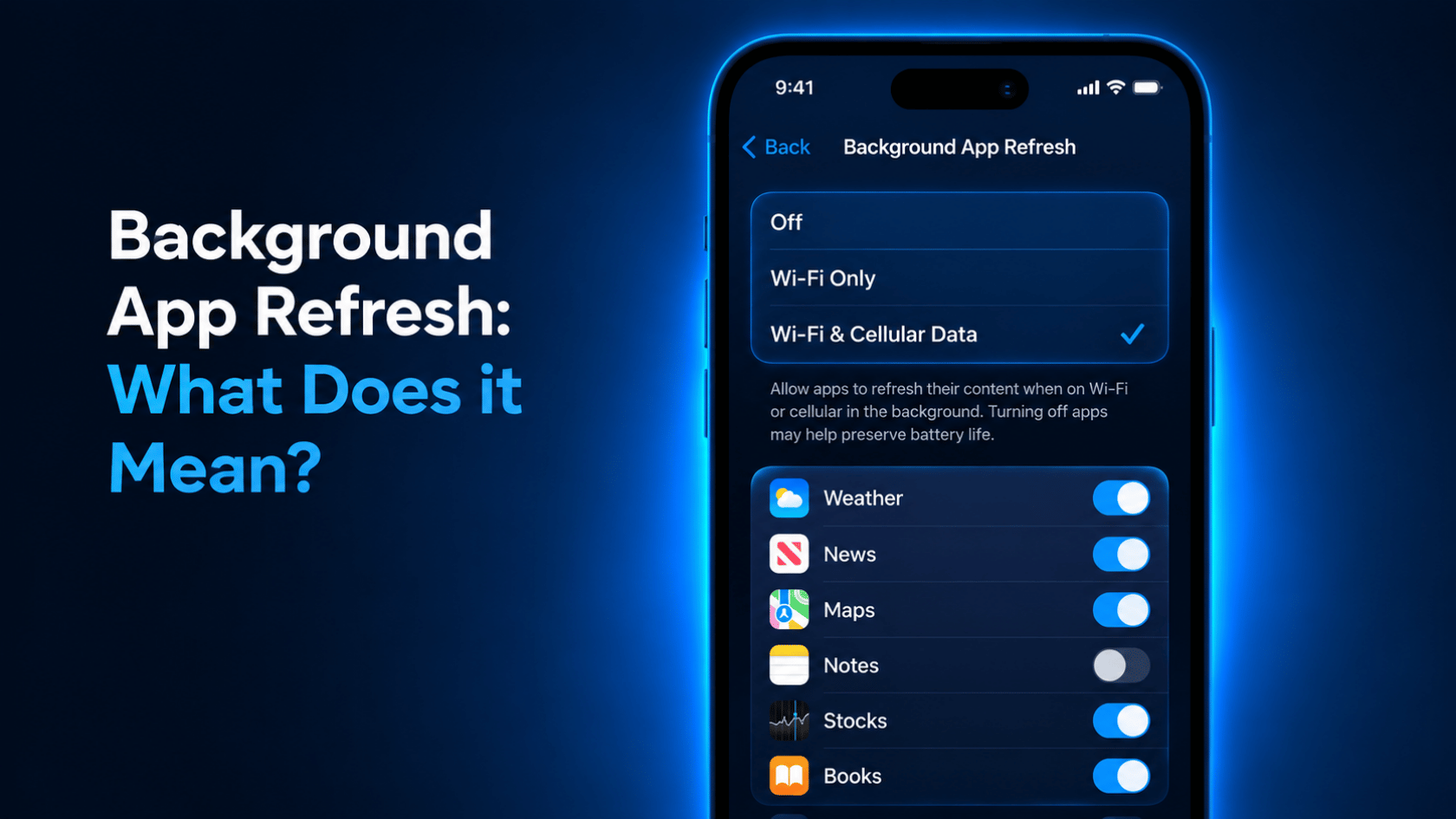
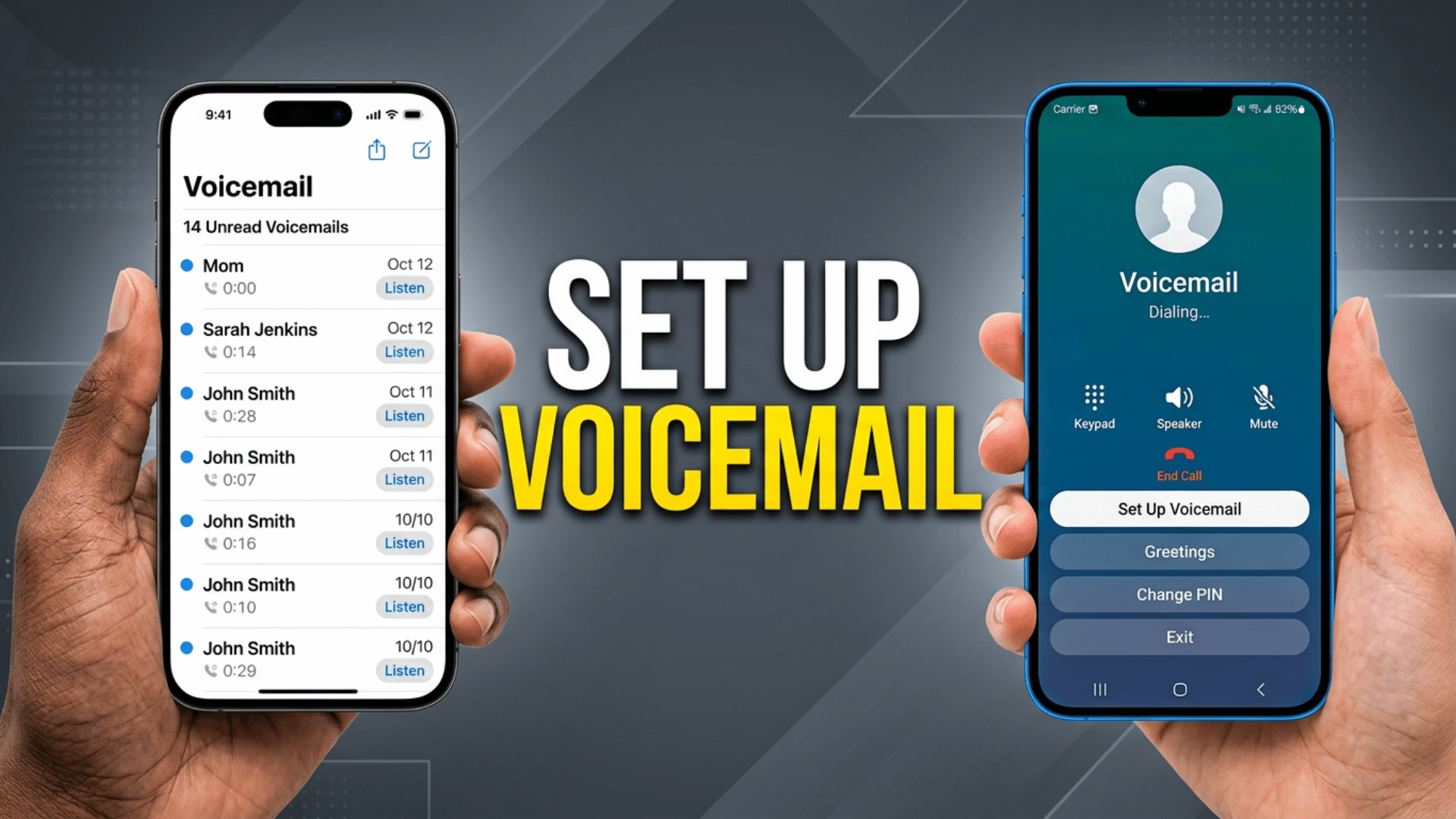
- On iPhone, voicemail comes as standard voicemail or Visual Voicemail. Standard voicemail requires calling a number, while Visual Voicemail lets you manage messages in the Phone app.
- Visual Voicemail also shows transcriptions and allows easy playback and deletion. The available option depends on your carrier and iOS setup.
The Role of Your Carrier in Activation
- Your iPhone cannot activate voicemail on its own; your carrier must first provision a voicemail profile to your SIM or account. Without this, the setup option may not appear or will default to dialing a number instead.
- This usually happens during SIM activation, number porting, or after plan changes. Most voicemail issues are carrier-related, not iOS problems.
Visual Voicemail vs Basic Voicemail Availability
- Visual Voicemail is available on most major carriers, but support varies by region and plan. If it’s not supported, the Voicemail tab will just call your carrier.
- Prepaid, MVNO, and some international plans may not include it. This guide assumes Visual Voicemail is available unless noted.
How Do You Set Up Voicemail on iPhone Step by Step?
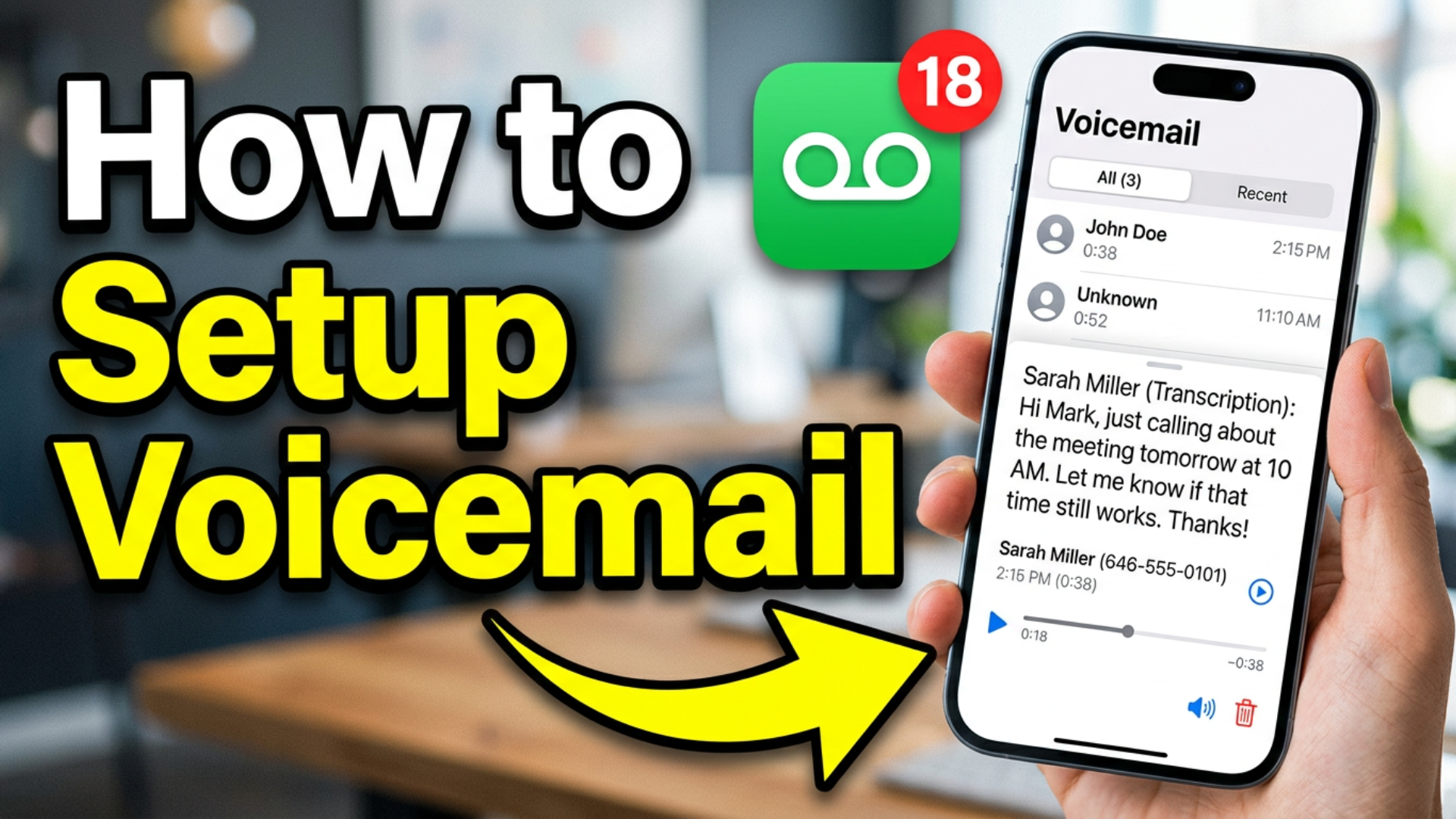
To set up voicemail on iPhone, open the Phone app, go to the Voicemail tab, tap “Set Up Now,” then create a password and record your greeting.
The process is quick, but each step activates important carrier and iOS voicemail settings.
It usually takes under two minutes to complete the setup. Behind the scenes, your carrier and iPhone sync to enable voicemail access.
Step 1: Open the Phone App and Go to Voicemail
Open the Phone app from your home screen. Tap the Voicemail tab at the bottom right to check setup status or messages.
Step 2: Start Setup with “Set Up Now”
Tap “Set Up Now” if prompted. Create a 4–6 digit voicemail password and confirm it.
Step 3: Complete Carrier Sync
iOS syncs your voicemail setup with your carrier automatically. This enables your voicemail mailbox and activates access.
Step 4: Choose and Record Greeting
Select either Default or Custom greeting. If custom, record your message, preview it, and save.
Step 5: Finalize Setup
Your voicemail is now active and ready to use. Callers will hear your greeting when you miss a call.
Tip: If the Voicemail tab only dials a number instead of showing setup, your carrier hasn’t fully enabled Visual Voicemail yet, restart your phone or contact your carrier before troubleshooting further.
Why Can’t I See Voicemail Setup or Why Does It Ask for a Password?
The voicemail setup screen is often missing because the carrier hasn’t provisioned the mailbox, not due to an iOS issue. This is the most common reason the setup option does not appear.
If the Voicemail tab only dials a number or asks for an unknown password, the issue is usually on the carrier’s side. Most fixes require carrier support rather than device troubleshooting.
| Issue | Meaning | Fix |
|---|---|---|
| Missing “Set Up Now” | Voicemail not provisioned or already active | Call your number, restart iPhone, or contact carrier |
| Voicemail dials instead of setup | No Visual Voicemail or sync issue | Toggle Airplane Mode, reinsert SIM, or reset network settings |
| Password errors | Carrier and iOS out of sync | Ask carrier to reset voicemail PIN |
| Security lock risk | Too many wrong attempts | Contact carrier for account verification |
Does Voicemail Setup Work the Same on iPhone 16, 17, and Newer iOS Versions?
UI Consistency Across Recent iPhone Models: Voicemail setup steps remain identical across iPhone 15, 16, and 17 models. The Phone app layout, Voicemail tab, and setup flow have not changed in any meaningful way across recent iOS versions.
Stable Setup Flow: The icons, tab structure, and setup sequence stay consistent, including password creation and greeting selection. There are no hardware-specific voicemail differences on newer iPhones.
Minor iOS Visual Changes: Small UI updates may slightly change button placement or wording, but the setup path remains the same. These changes are cosmetic and do not affect functionality.
Carrier Dependence: Voicemail behavior depends mainly on carrier support, not iPhone model. Some users see full Visual Voicemail, while others only get a dial-in voicemail system.
Final Insight: Device generation does not change voicemail setup outcomes. Carrier provisioning determines whether Visual Voicemail is available or not.
Voicemail setup remains consistent across recent iPhone models, with carrier support being the key factor that determines how it works rather than device version or iOS changes.
How Do You Change Greeting, Password, or Access Voicemail Later?
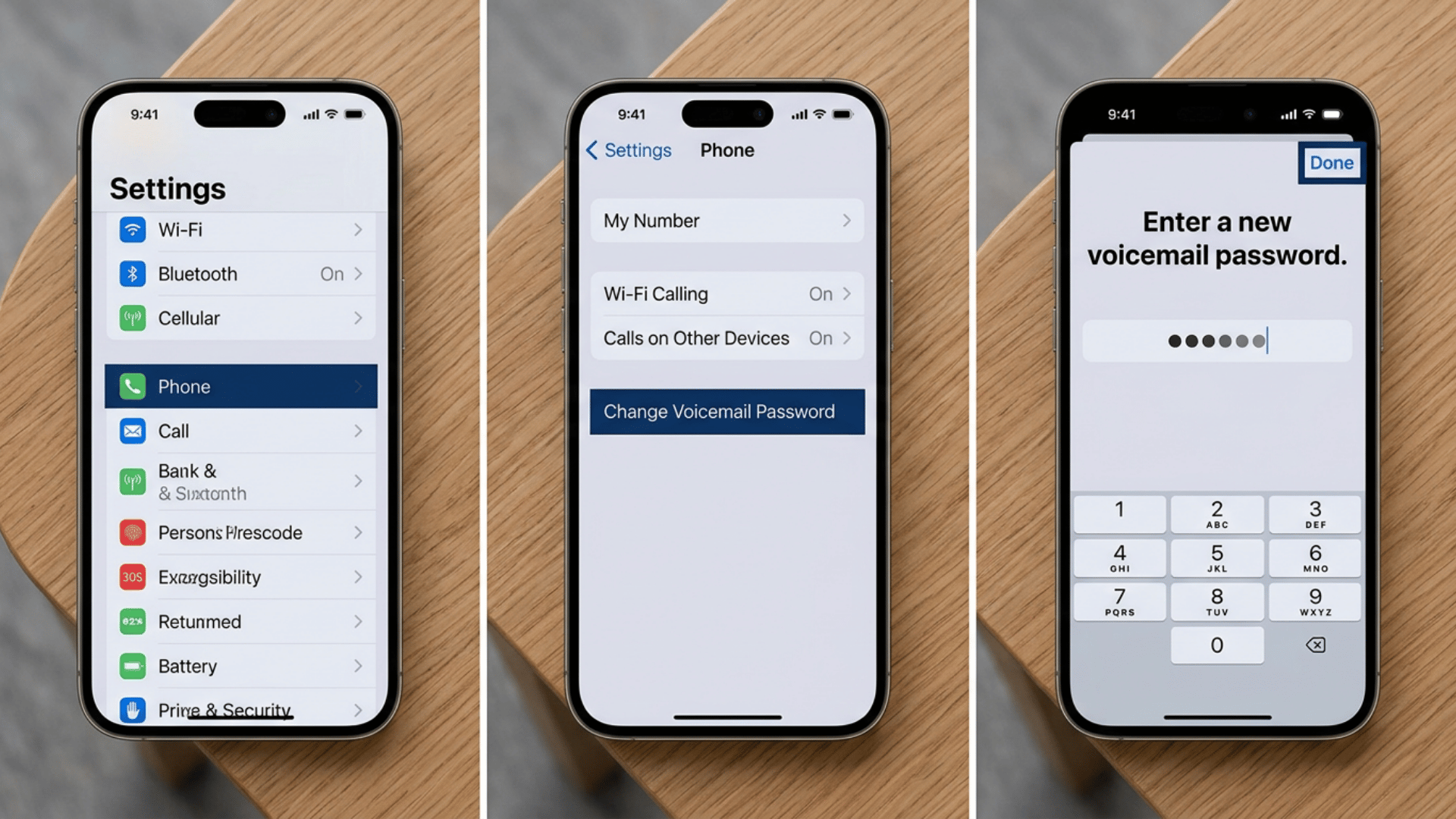
The voicemail setup process is consistent across recent iPhone models like iPhone 16 and 17, with no meaningful changes in steps or layout. Everything works the same through the Phone app, the Voicemail tab, and the Set Up Now flow.
There are no device-specific voicemail differences in newer iPhones or iOS versions. Any variation you see is usually due to carrier support, not the device itself.
| Action | How to Do It |
|---|---|
| Changing Voicemail Greeting | Open Phone app → Voicemail tab → tap Greeting → choose Custom → Record → Stop → Save. Switch anytime between Default and Custom. |
| Updating or Resetting Password | Go to Settings → Phone → Change Voicemail Password → enter current and new password. If forgotten, contact carrier for reset. |
| Listening & Sharing Messages | In Visual Voicemail, tap a message to play, scrub, delete, call back, or share via Messages, Mail, or AirDrop. Without Visual Voicemail, dial voicemail via “1” key. |
Conclusion
Voicemail issues can easily cause missed calls, confusion, and unnecessary stress, especially when setup options are missing or tied to carrier settings.
Understanding the process helps you avoid errors and ensures your messages are always accessible when you need them. With the right setup, voicemail becomes a simple and reliable part of your iPhone experience.
Now that you know how to set up voicemail on iPhone, you can fix setup problems quickly, manage your settings with confidence, and never miss important calls again.
Set up your voicemail now and make sure your iPhone is ready for every important call.
Leave your questions or feedback in the comments section below.
Frequently Asked Questions
How do I Know if Someone Left Me a Voicemail without Opening the App?
You will usually see a badge notification on the Phone app showing new voicemail. In Visual Voicemail, new messages also appear at the top of the list automatically.
Can I Access Voicemail from Another Phone if My I Phone is Not Available?
Yes, you can dial your own number from another phone and wait for the voicemail greeting. Then enter your voicemail PIN to listen to messages remotely.
Does Turning Off Mobile Data Affect Voicemail Delivery?
No, voicemail is handled through your carrier’s network, not mobile data. You will still receive voicemail even if mobile data is turned off.