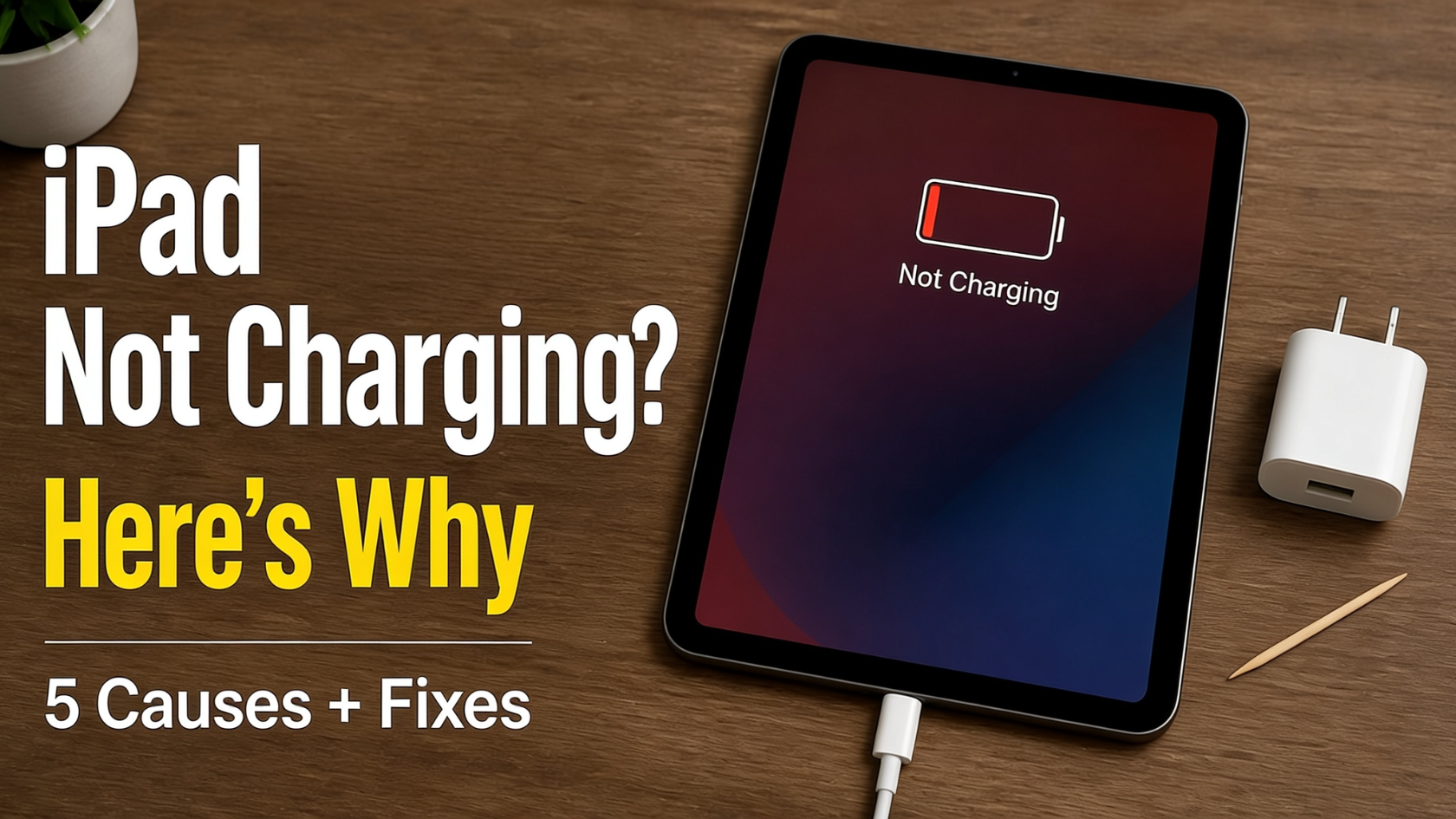
You plug in your iPad. The lightning bolt appears. But the screen still says “Not Charging.”
Frustrating, and almost always fixable.
Most people jump straight to force restart or software updates. That wastes time.
Why does my iPad say not charging is almost never a software problem. The real cause is usually the adapter, the cable, or the port.
Below is a full breakdown of every reason it happens, from low wattage and oxidized connectors to debris blocking the port, including why charging stops mid-session without warning, and the exact steps to fix it in the right order.
What Does “Not Charging” Actually Mean on an iPad?
“Not charging” doesn’t mean your iPad is broken. It means iPadOS evaluated the incoming power and decided it wasn’t enough to start charging the battery.
Your iPad detected the charger (that’s what the lightning bolt confirms), but the software blocked charging as a protective measure.
Here’s how to read what you’re seeing:
| What you see | What it means |
|---|---|
| Lightning bolt + “Not Charging” | Charger detected, but power too low or unstable |
| Lightning bolt, no message, charges slowly | Power detected, just above minimum threshold |
| No bolt, no message | Charger not detected at all |
| No response whatsoever | Possible hardware issue |
Why Is Your iPad Saying “Not Charging”? Most Common Causes
Your iPad says “Not Charging,” so you force-restart it and check for updates, but nothing changes.
That’s the most common mistake. The message looks like a software problem, but in most cases, the cause is physical: the adapter, the cable, or the port. Start there first.
1. Insufficient Charger Wattage or Power Source

The most common cause is a charger that doesn’t deliver enough power.
When your iPad detects a power source, iPadOS immediately evaluates whether incoming power meets the device’s minimum threshold.
If it falls short, iPadOS blocks charging entirely. Laptop and desktop USB ports are frequent offenders here.
Required wattage varies by iPad model. The Apple 20W USB-C power adapter covers most modern iPads, but check Apple’s specifications for yours before assuming.
2. Damaged or Non-Certified Cable

A faulty cable doesn’t just charge slowly, but can trigger “Not Charging” outright. Connector pads on Lightning and USB-C cables are prone to oxidation, showing as dark marks on the gold contacts.
Corroded pads create an unstable power signal, and iPadOS treats unstable power the same way it treats insufficient power: it blocks charging entirely.
Third-party cables without MFi certification carry the same risk. Non-certified cables often trigger “Accessory Not Supported” or simply “Not Charging.”
3. Debris in the Charging Port
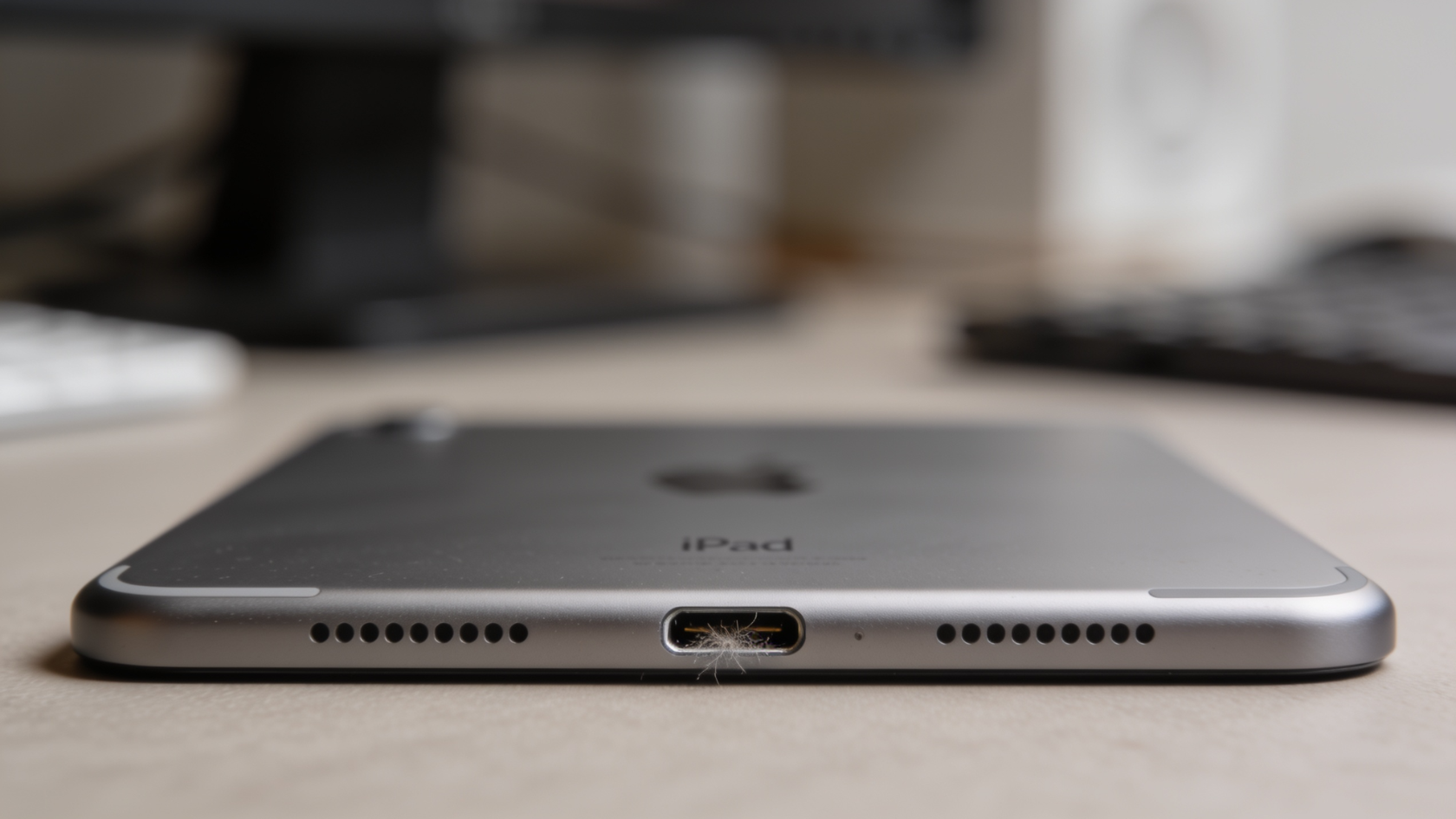
Debris in the port prevents full pin contact, causing the power signal to be intermittent. iPadOS rejects an intermittent signal the same way it rejects low wattage.
It compounds gradually: lint and dust compact with each cable insertion until the charger seats loosely or wobbles before “Not Charging” appears.
Note that the cleaning technique differs. Lightning ports allow back-and-forth scraping, and USB-C requires working around the center connector.
4. Temperature Extremes
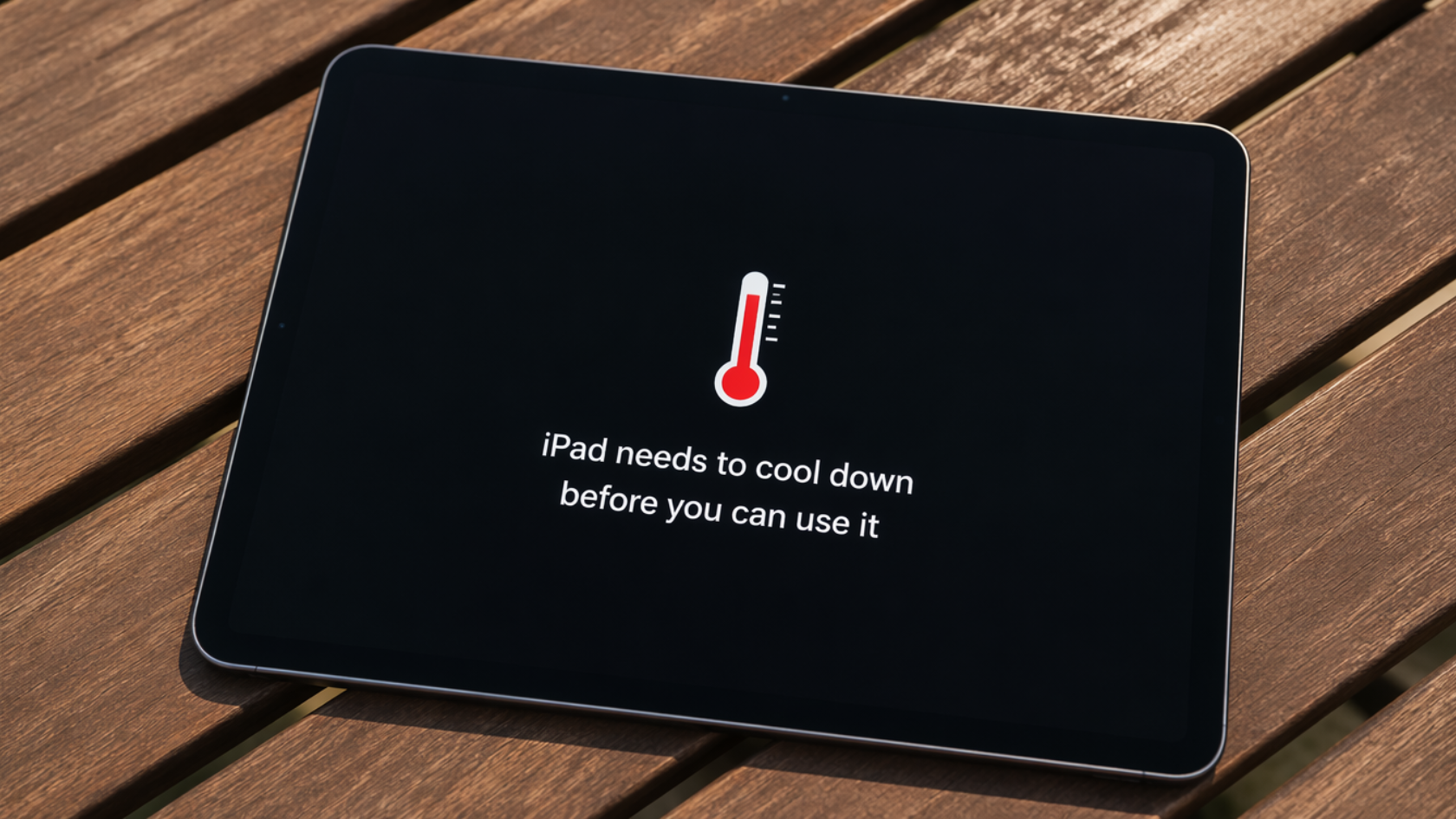
iPadOS blocks charging outside 32°–95°F (0°–35°C) to protect the battery. Charging a lithium cell outside this range accelerates degradation.
The message will persist until the device returns to a safe temperature.
A hot iPad left in a car or in direct sunlight is the most common trigger. Cold environments, like a cold car in winter or a flight with the device against the window, produce the same result.
5. iPadOS Software State
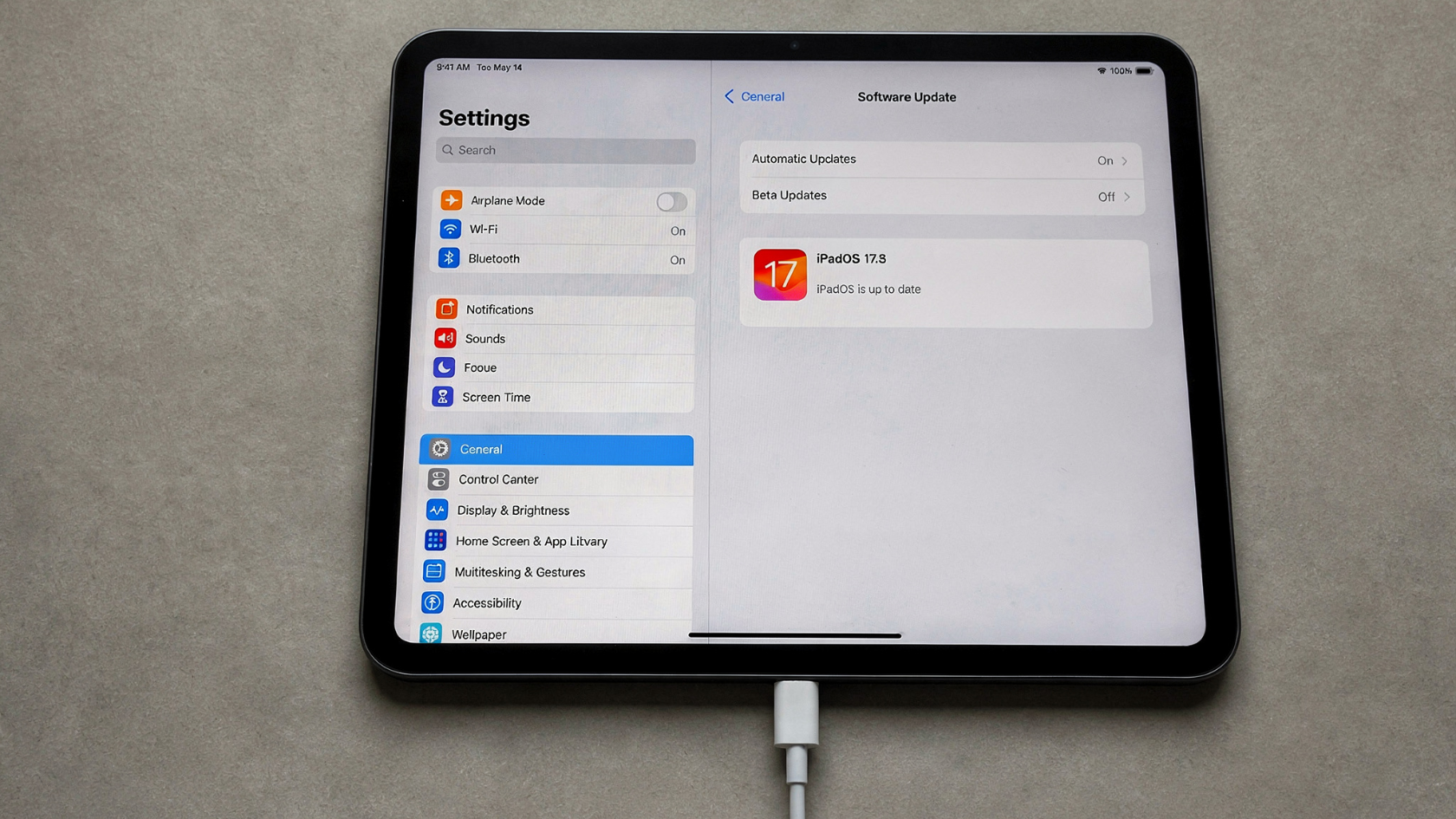
In rare cases, iPadOS can cache an incorrect power assessment from a previous session and continue to show “Not Charging” even when a valid charger is connected.
This is the least likely cause and should be the last thing you check, not the first.
If all physical causes have been ruled out, a software state is what the force restart and update steps in the next section address.
Why Does My iPad Stop Charging Mid-Session or Unexpectedly?
This is a different problem from “never charges from the start”. The iPad was charging fine, then suddenly stopped.
Here are the most likely reasons:
- The Cable Is Failing Internally: Internal wire breaks from bending aren’t visible; replace if angle-dependent.
- Debris Is Causing Intermittent Contact: Port debris creates unstable contact, causing charging to stop and restart.
- iPad Is Overheating During Use: Heavy use overheats the iPad, pausing charging until it cools down.
- Optimized Battery Charging Pausing at 80%: A built-in feature intentionally stops charging above 80% to protect battery health.
- Locked iPad Not Recognizing the Charger: After some updates, a locked iPad may stop recognizing the charger.
iPad Not Charging: Quick Reference
| What You’re Experiencing | Most Likely Cause | Fix |
|---|---|---|
| “Not Charging” from the moment plugged in | Low-wattage adapter or laptop USB port | Use a wall outlet with a 20W+ Apple adapter |
| Lightning bolt shows but still says “Not Charging” | Adapter below minimum power threshold | Switch to correct wattage adapter |
| Third-party cable triggering “Accessory Not Supported” | Non-MFi certified cable | Replace with MFi-certified or Apple cable |
| Cable only works at a specific angle | Internal wire break | Replace cable |
| Charges 20–30 mins then stops repeatedly | Partial debris in port | Power off, deep clean port with wooden toothpick |
| Stops during gaming or heavy use | Device overheating | Move to cooler surface, remove case, let it cool |
| Stops at 80% and won’t go higher | Optimized Battery Charging | Settings > Battery > Battery Health → toggle off |
| Charges with screen on, stops when locked | Charger not trusted after iPadOS update | Settings > Face ID & Passcode → enable Accessories |
| USB-C to USB-C fails, USB-A to USB-C works | Adapter doesn’t support USB PD | Replace with USB PD-compatible adapter |
| “Not Charging” only after an iPadOS update | Cached power evaluation or software bug | Force restart, then Settings > General > Software Update |
| Charges very slowly, no “Not Charging” message | Wattage just above minimum threshold | Upgrade adapter; enable Low Power Mode as interim fix |
| No response at all | Hardware or logic board failure | Contact Apple Support or visit Apple Store |
When Fixes Fail: Signs of Hardware Failure & Next Steps
If multiple known-good cables and adapters still show “Not Charging,” stop troubleshooting. Hardware checks are needed.
Check for these signs before contacting Apple:
- Port damage: Bent, burnt, or corroded pins inside the charging port
- Battery issue: Old device, moisture exposure, or heavy battery wear is causing refusal to charge
- No response: No charging icon or message with any accessory, pointing to logic board issues
If any of these apply, contact Apple Support or visit a service center.
Note:AppleCare+ can lower repair costs. Third-party repair may affect warranty coverage.
Conclusion
Most cases of why does my iPad say not charging trace back to something physical and fixable.
The adapter, the cable, and the port resolve the problem the majority of the time without any software steps needed.
Work through the causes in order, starting with the power source and ending with software. That sequence alone saves most people an unnecessary trip to the service center.
If the issue stays after testing known-good accessories, the hardware signs in the last section will tell you when it is time to contact Apple.
Have you fixed your iPad charging issue? Share what worked for you below.
Frequently Asked Questions
Can a Wireless Charging Case Help if My I Pad Port Is Damaged?
Most iPads do not support wireless charging natively. A Lightning or USB-C to Qi adapter can work as a temporary solution while you arrange a port repair.
Does Leaving My I Pad Plugged in Overnight Damage the Battery?
Modern iPads manage overnight charging through Optimized Battery Charging. It slows charging near 100% automatically, so leaving it plugged in does not cause significant damage.
Will Resetting All Settings Fix Charging Issue without Deleting My Data?
Resetting all settings clears system configurations but does not delete photos, apps, or files. It can resolve a software conflict affecting charging but will not fix hardware causes.