A sudden black screen, frozen display, or flickering monitor can make your PC feel broken. In many cases, the fix is simple.
Learning how to reset graphics driver can help you solve common screen issues without deleting files or changing your apps. It is a quick first step before trying bigger fixes.
Here you will learn what a graphics driver reset does, when to use it, and the safest ways to reset it on Windows.
What Does Resetting a Graphics Driver Actually Do?
When you refresh graphics driver settings, Windows restarts something called the Windows Display Driver Model (WDDM). This is the communication layer that sits between Windows and your GPU.
A reset simply clears temporary errors in that layer without removing, updating, or deleting any driver files. Your settings and installed programs stay completely untouched throughout the process.
When Should You Reset Your Graphics Driver?
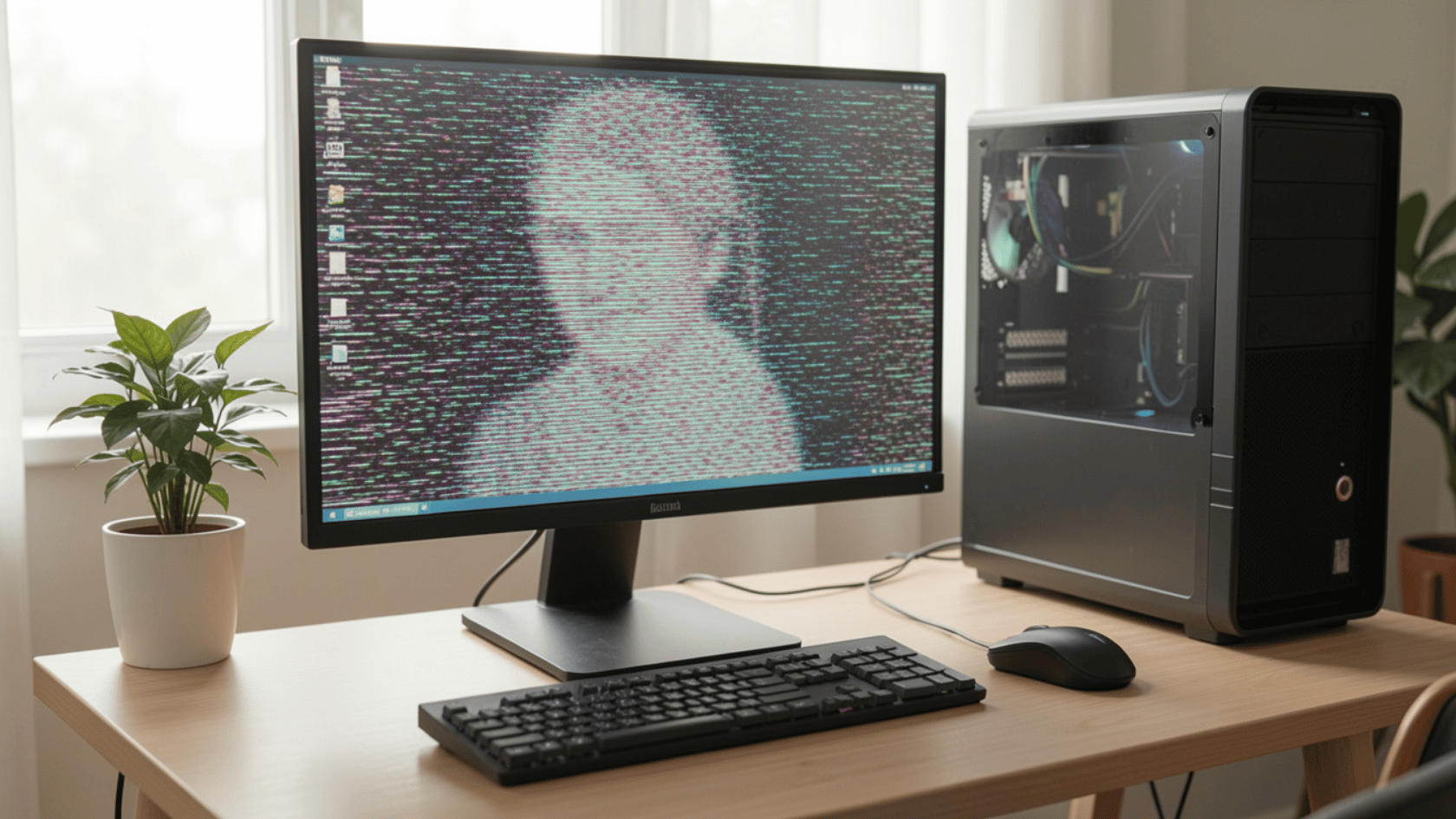
A graphics driver reset is worth trying any time your display starts acting up. The situations below are the most common signs that a reset is the right first move:
- Screen flickering or going black without any warning
- Display freezing while the GPU is still running in the background
- Lag spikes appear right after waking the computer from sleep
- The mouse cursor looks corrupted or shows odd visual artifacts on the screen
- Display issues started right after a driver update that did not go smoothly
Most of these point to a temporary driver error rather than a hardware problem, so a reset is usually all it takes to get things back to normal.
There are a few safe ways to reset a graphics driver, depending on the issue. Start with the quickest method, then try the deeper fixes if needed.
Method 1: GPU Reset Shortcut
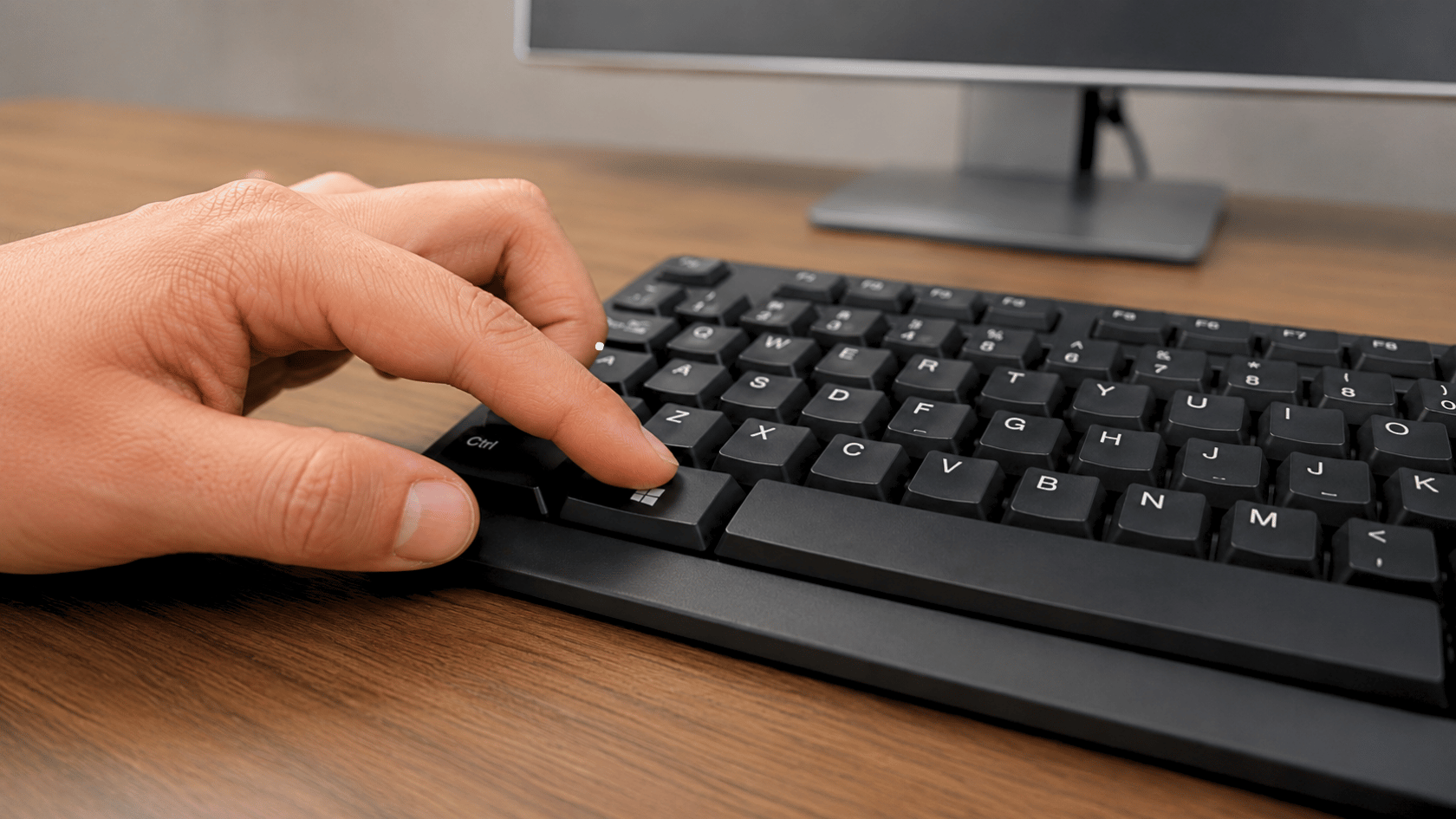
This is the fastest way to reset your graphics driver. It works on both Windows 10 and Windows 11, and none of your open programs or unsaved work gets affected.
Steps:
- Make sure you are on a Windows desktop before starting.
- Press Win + Ctrl + Shift + B at the same time.
- Your screen will flicker briefly, and you will hear a single short beep.
- The display driver restarts automatically, and everything goes back to normal.
The shortcut triggers a reset of the Windows Display Driver Model (WDDM) and the Desktop Window Manager. No programs close, and no unsaved work is lost.
Limitation: This shortcut will not fix deep driver corruption or outdated driver files.
Method 2: Reset Graphics Driver via Device Manager
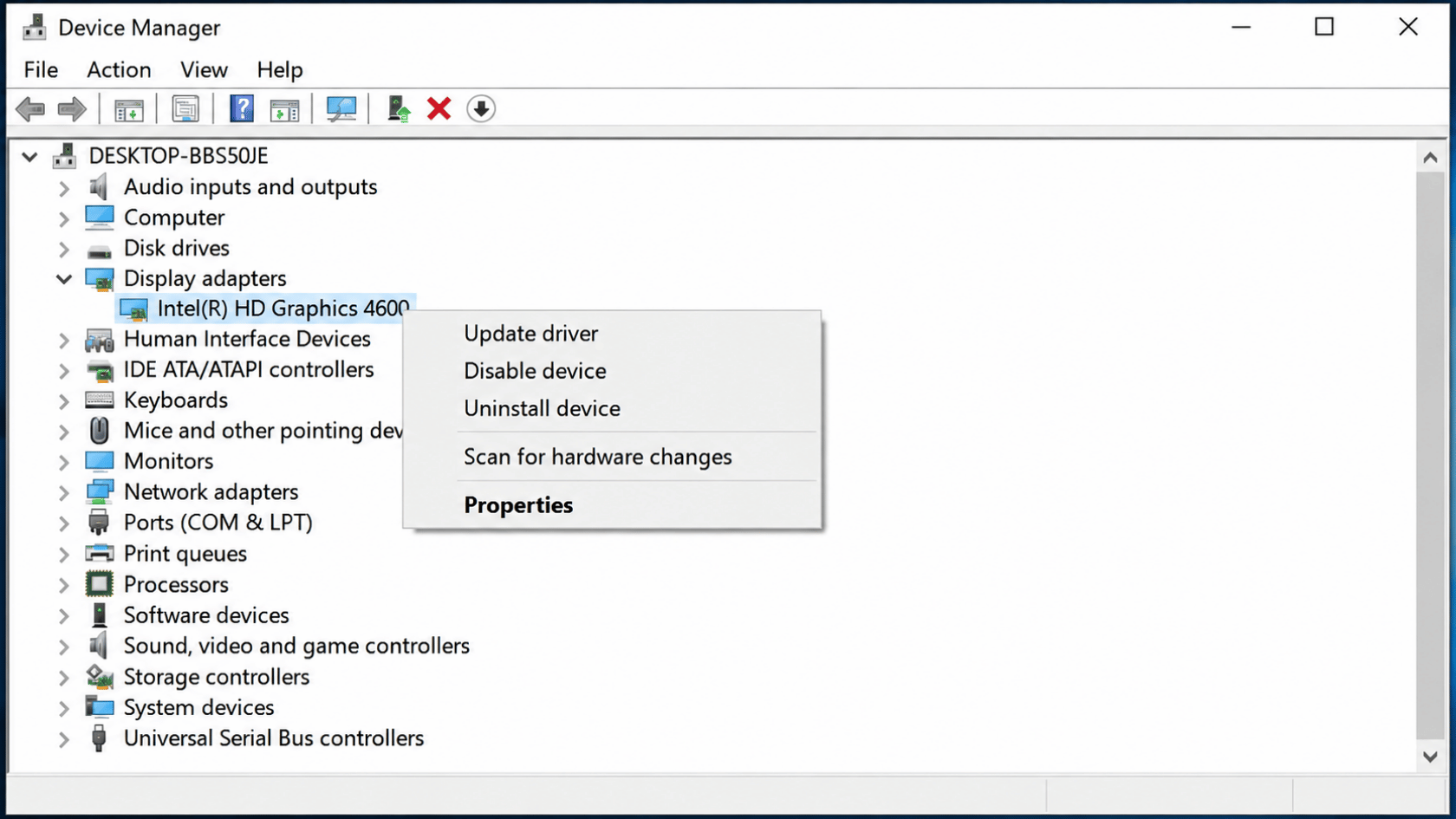
When the keyboard shortcut does not fix the issue or is not available on your device. This method works by turning the GPU off and back on through Windows.
It forces the driver to restart from a clean state without removing any files or settings.
Step-by-Step: Disable and Re-Enable the GPU
- Press Win + X and select Device Manager from the menu.
- Click the arrow next to Display Adapters to expand the section.
- Right-click your graphics card (NVIDIA, AMD, or Intel).
- Select Disable device and click Yes if a confirmation prompt appears.
- Wait 5 to 10 seconds before doing anything else.
- Right-click the same GPU again and select Enable device.
What to Expect?
Before you disable the GPU, it helps to know what will happen next, so nothing catches you off guard.
- Your screen may go completely black for a moment after you disable the GPU. This is normal and not a sign that anything has gone wrong.
- The resolution might also drop briefly before it corrects itself. Give it a few seconds, and the display will return to its usual settings on its own.
- If the screen does not recover within 30 seconds, do not panic. Simply restart your PC, and the GPU will come back online as normal during the reboot.
Method 3: Factory Reset Graphics Driver Settings (NVIDIA and AMD)
This method is worth trying when custom GPU settings are causing instability. It restores everything back to factory defaults without reinstalling or removing the driver itself.
Tweaked performance profiles or overclocking values can cause crashes over time. Clearing those saved settings is often enough to fix the problem without going through a full reinstall.
1. Reset NVIDIA Graphics Driver Settings
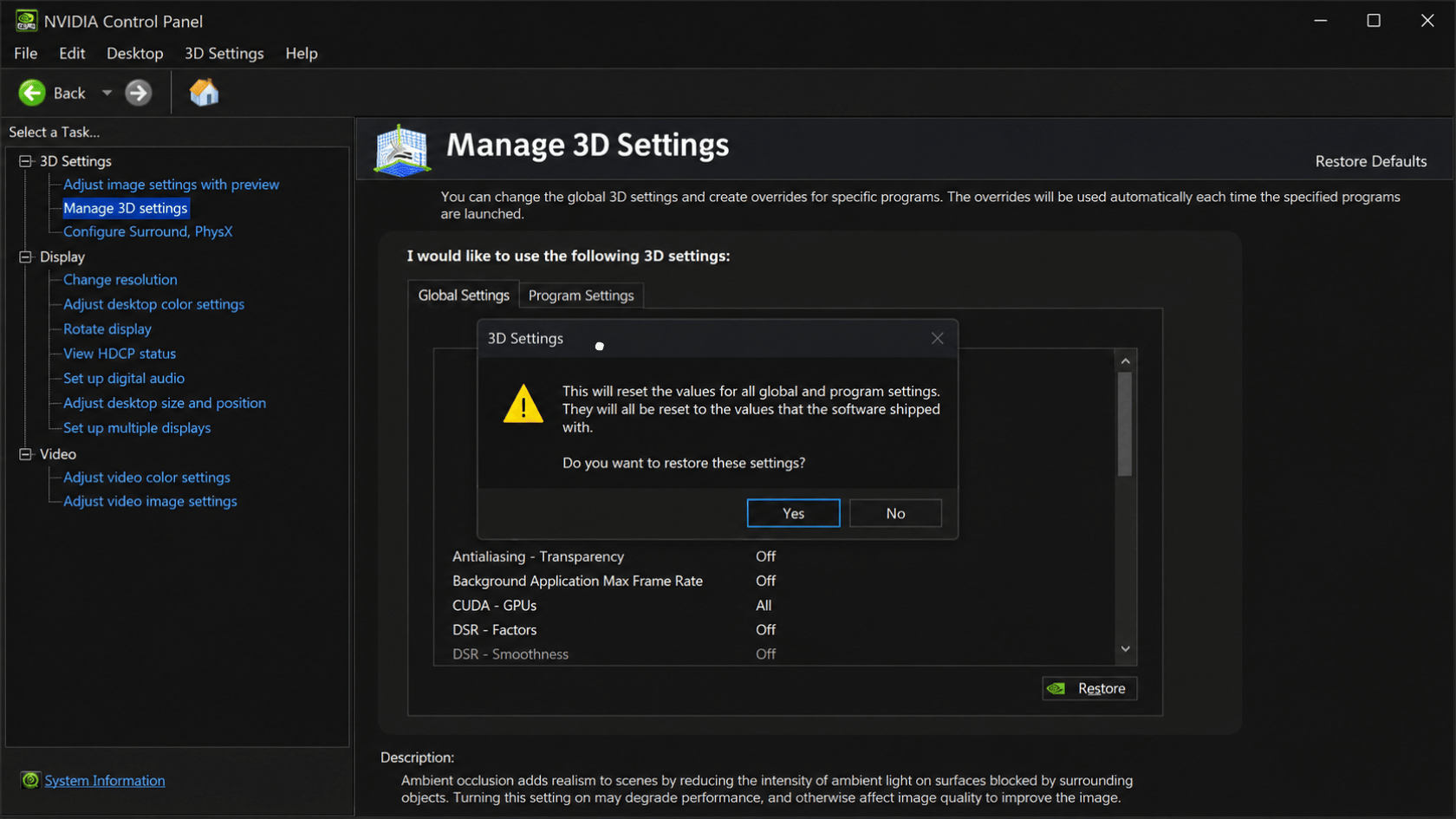
Open the NVIDIA Control Panel from your desktop and follow these steps:
Step 1: Right-click your desktop and open NVIDIA Control Panel.
Step 2: Go to Manage 3D Settings from the left-side menu.
Step 3: Click Restore Defaults in the top-right corner of the screen.
Step 4: Click Apply and close the panel.
Once done, all 3D settings return to their original defaults, and any custom profiles are cleared.
2. Reset AMD Graphics Driver Settings
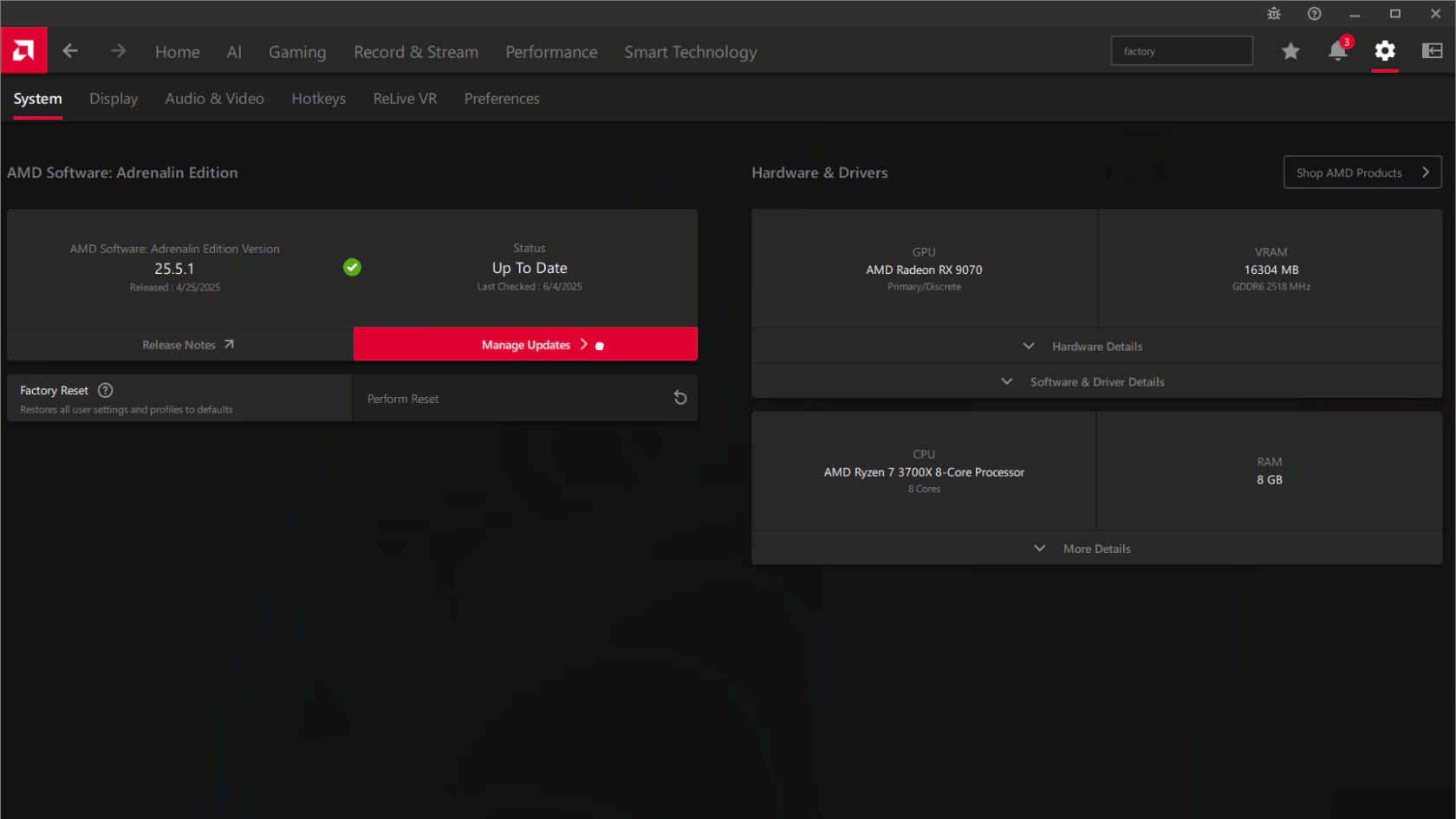
Source: AMD
If you are on an AMD GPU, the reset option lives inside the Adrenalin software:
Step 1: Open AMD Software: Adrenalin Edition.
Step 2: Click the Settings icon (gear icon) in the top-right corner.
Step 3: Select the System tab from the menu.
Step 4: Under Factory Reset, click Perform Reset.
After the reset completes, AMD software restarts automatically and loads a clean default configuration.
Reinstalling a Graphics Driver (When Reset Is Not Enough)
If all three reset methods fail, a full reinstall is the next step. This removes the driver completely and sets it back up clean.
Quick Steps:
- Download the latest driver from the official NVIDIA, AMD, or Intel website.
- Open Device Manager and expand Display Adapters.
- Right-click your GPU and select Uninstall device.
- Check “Delete the driver software for this device” if the option appears.
- Restart your PC.
- Run the downloaded installer to complete the fresh install.
Use DDU for a Cleaner Uninstall: A standard uninstall often leaves driver files behind, which can cause the same issues to return. DDU (Display Driver Uninstaller) removes every leftover file a normal uninstall misses.
Which Reset Method Should You Use?
Match your symptom to the right method below and start from there.
| Symptom | Recommended Method |
|---|---|
| One-time screen flicker or freeze | Keyboard Shortcut |
| Recurring display issues | Device Manager |
| Custom settings causing instability | Factory Reset |
| Nothing works after all three methods | Full Driver Reinstall |
If the first method does not fix the problem, move down to the next row and work through from there.
Conclusion
Resetting your graphics driver is a quick way to fix common display issues without affecting your files, apps, or settings.
Now that you know how to reset graphics driver, start with the shortcut and move to Device Manager or factory settings if needed. It can help with flickering, freezing, black screens, and visual glitches before a full reinstall.
Have you tried any of these reset methods before? Share your experience or questions in the comments.
Frequently Asked Questions
Will Resetting My Graphics Driver Improve Gaming Performance?
A reset may fix temporary lag, stutter, or display glitches during gaming. It will not increase FPS if the driver or hardware is outdated.
Do I Need Internet Access to Reset My Graphics Driver?
No, internet access is not needed for a basic reset. You only need the internet if you plan to download or reinstall the driver.
How Often Should I Reset My Graphics Driver?
You should only reset it when display problems appear. If the same issue happens often, update or reinstall the driver instead.